Beta Not the live site. Pages in review Live site →
Loft

Learn/Plan and run a production

Make Loft fit your kind of work

Every project in Loft starts from a project type: the libraries it opens with, the kinds of assets it holds, the departments its bids are priced in and the modules it shows. Loft comes with types for VFX, animation, games, commercials and more. This tutorial makes a studio's own: first by adapting a Loft type, then for work no Loft type covers, by building one project the way the work needs and saving it as a type for every project like it.

Watch on YouTube →

Follow along

Step by step

STEP 01

Every project starts from a type

In Resource, Setup › Project Types lists what a new project can start as. Read the Animation card: the libraries a new project opens with, the departments a new bid is priced in, the kinds of assets it holds, and the modules it shows.
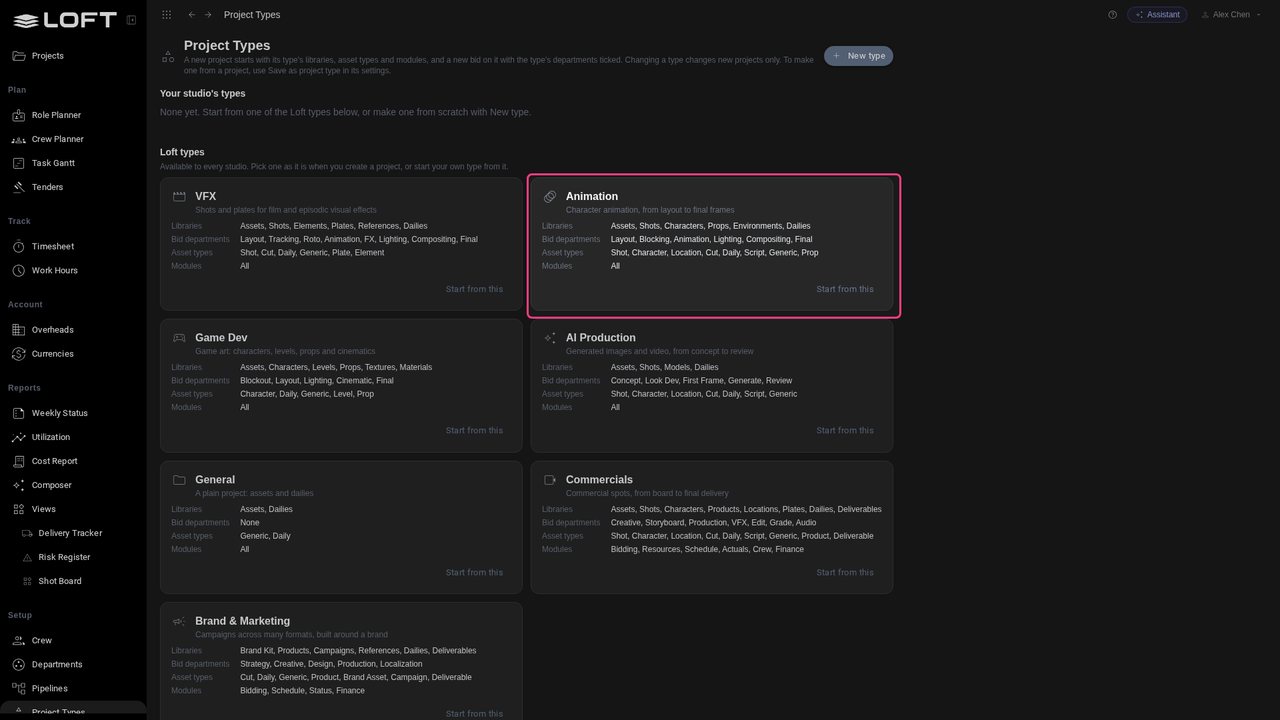
Every project starts from a type
STEP 02

Start from a Loft type

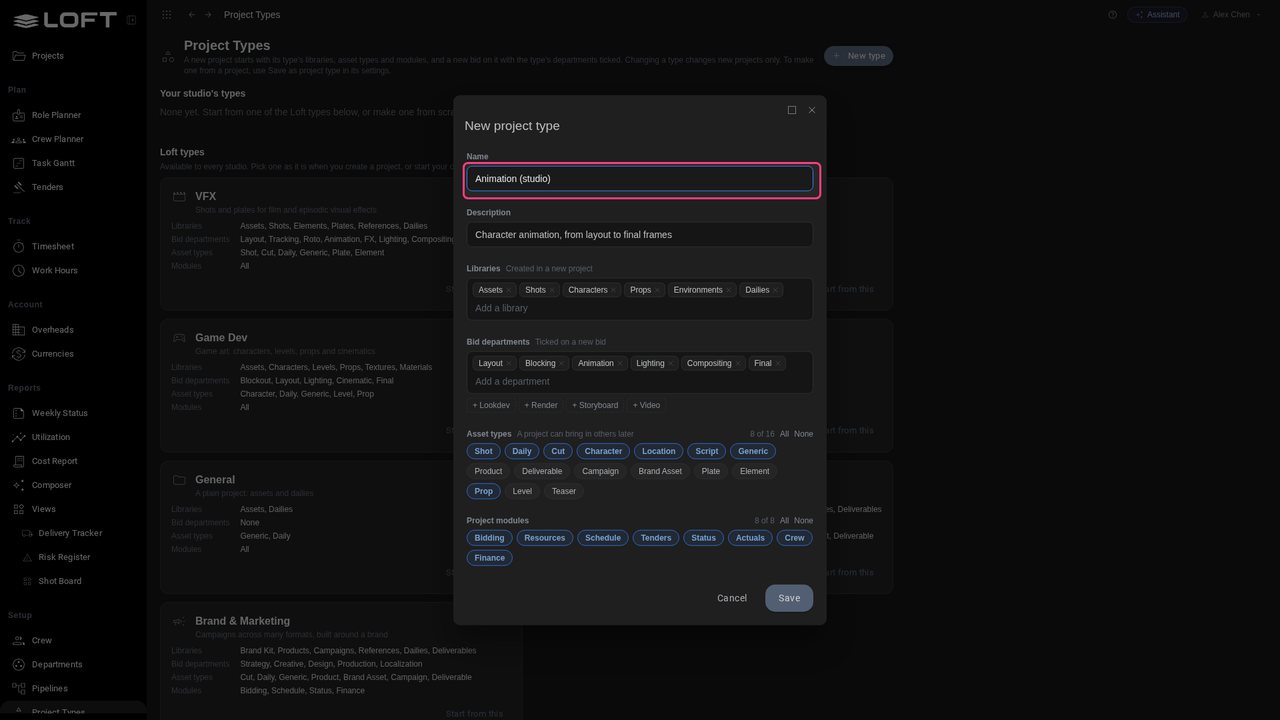
Loft's own types are for every studio and can't be changed. To make one that fits Northlight's series work, click Start from this on Animation: it opens a copy you can change.

Start from a Loft type
STEP 03

Make it yours

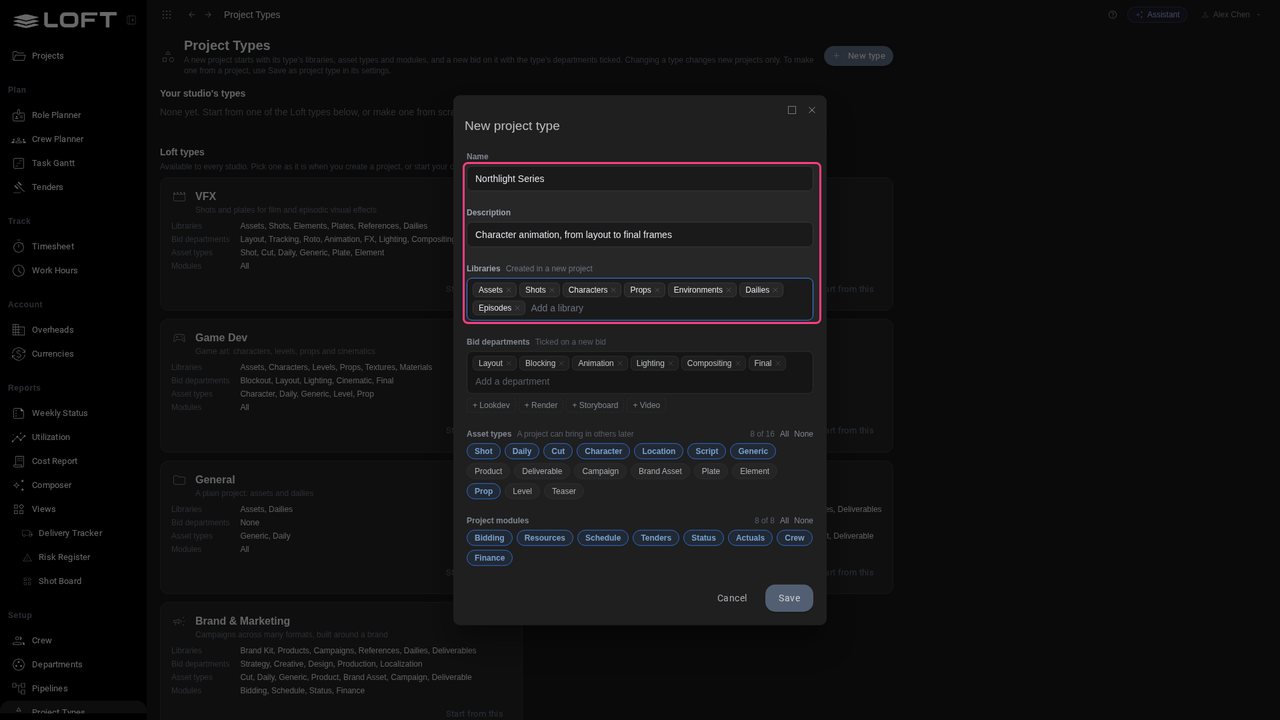
Name it Northlight Series, and add an Episodes library: a series keeps its scripts and edits per episode.

Make it yours
STEP 04

Only the modules you use

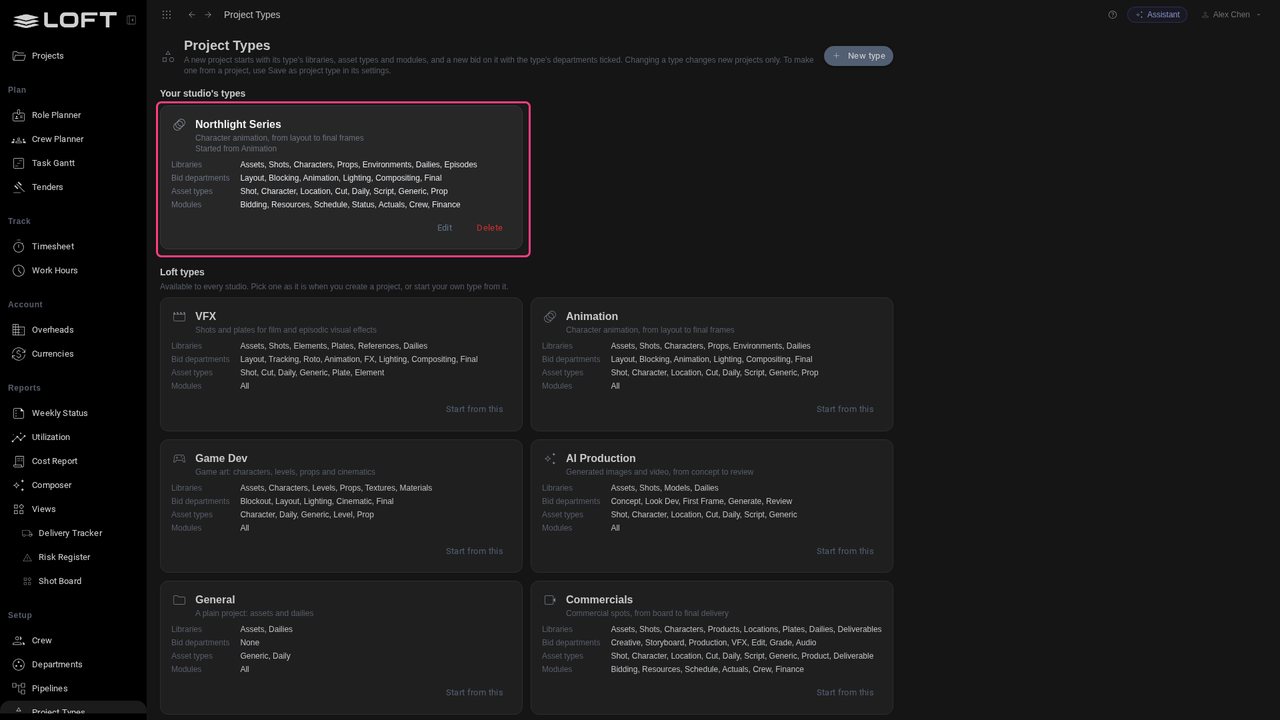
Northlight never puts a series out to tender, so click Tenders under Project modules to leave it out, and click Save. The type is under Your studio's types now, and any new project can start from it.

Only the modules you use
STEP 05

Work no Loft type covers

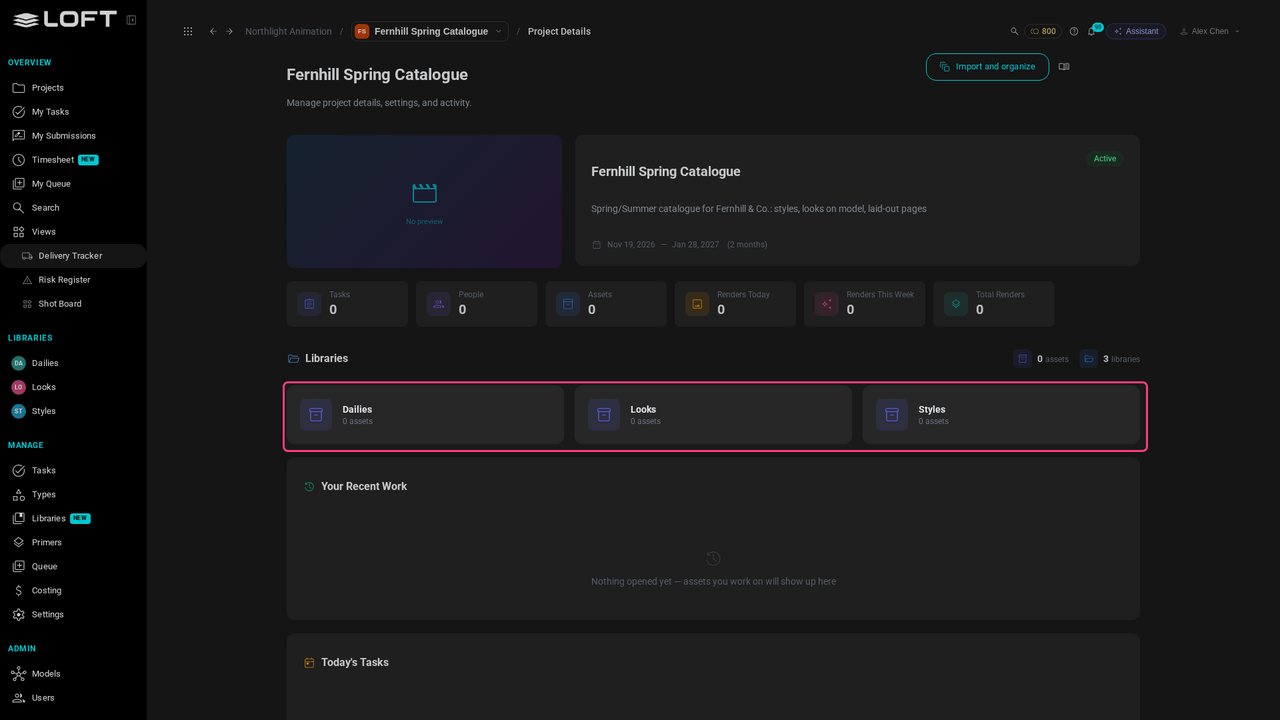
Northlight has a new client, Fernhill & Co., and a seasonal catalogue to make: styles, looks on model, laid-out pages. No Loft type is close. So the first catalogue becomes the template. Click the app switcher, choose Loft, and open Fernhill Spring Catalogue.

Work no Loft type covers
STEP 06

Your own libraries

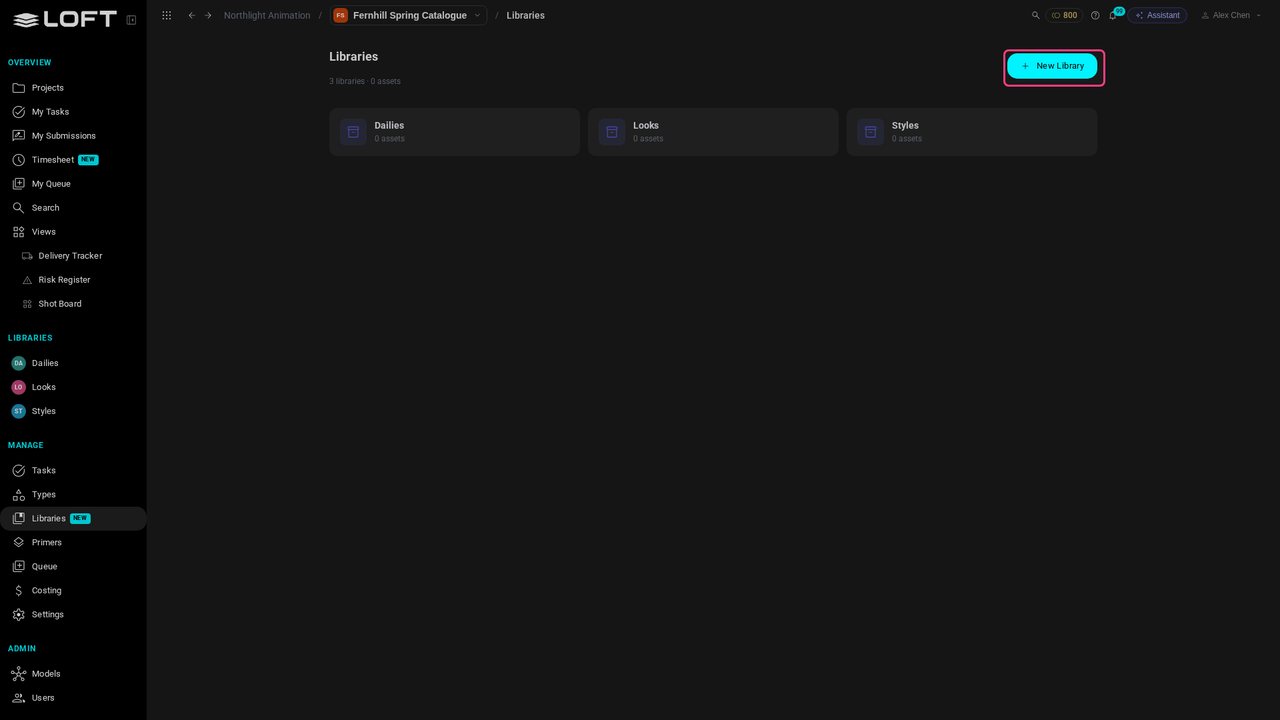
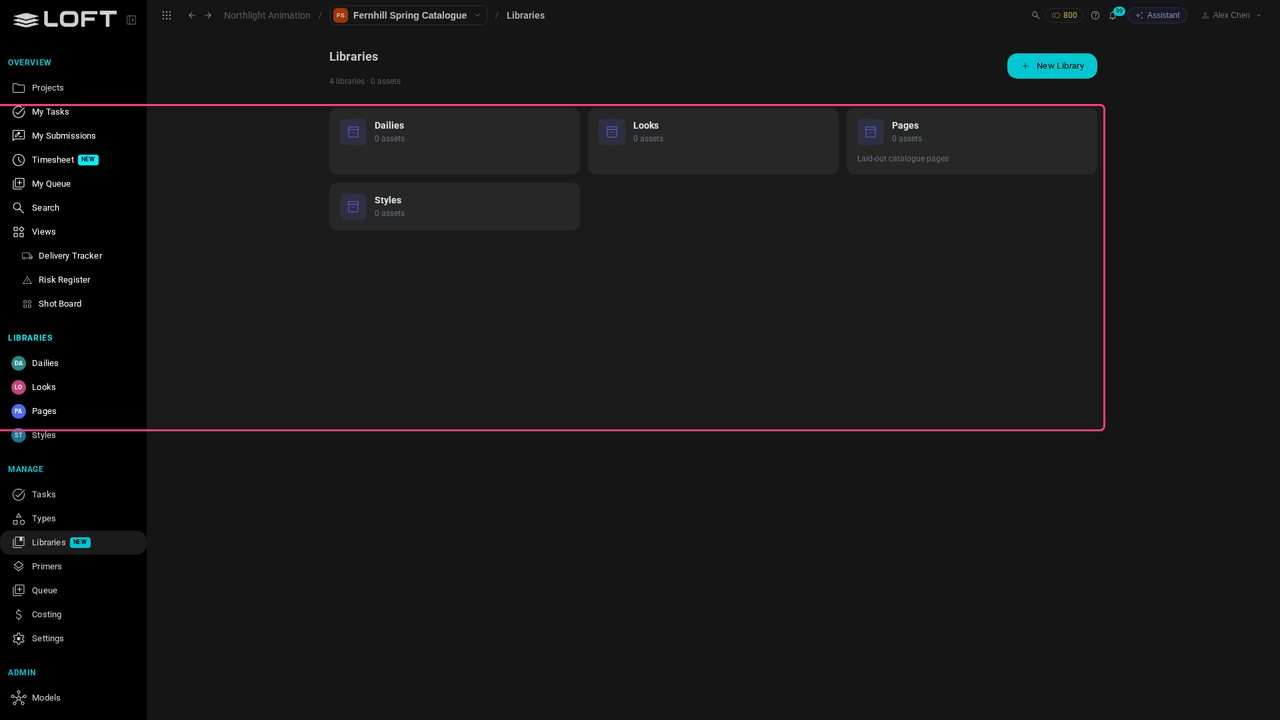
It was made as a General project, with Styles, Looks and Dailies libraries typed in when it was created. A catalogue also needs its pages. Under Manage, click Libraries.

Your own libraries
STEP 07

Add a library

Click New Library, call it Pages, and click Create. It joins the cards and the sidebar. A library can be called anything your work needs.

Add a library
STEP 08

Your own asset types

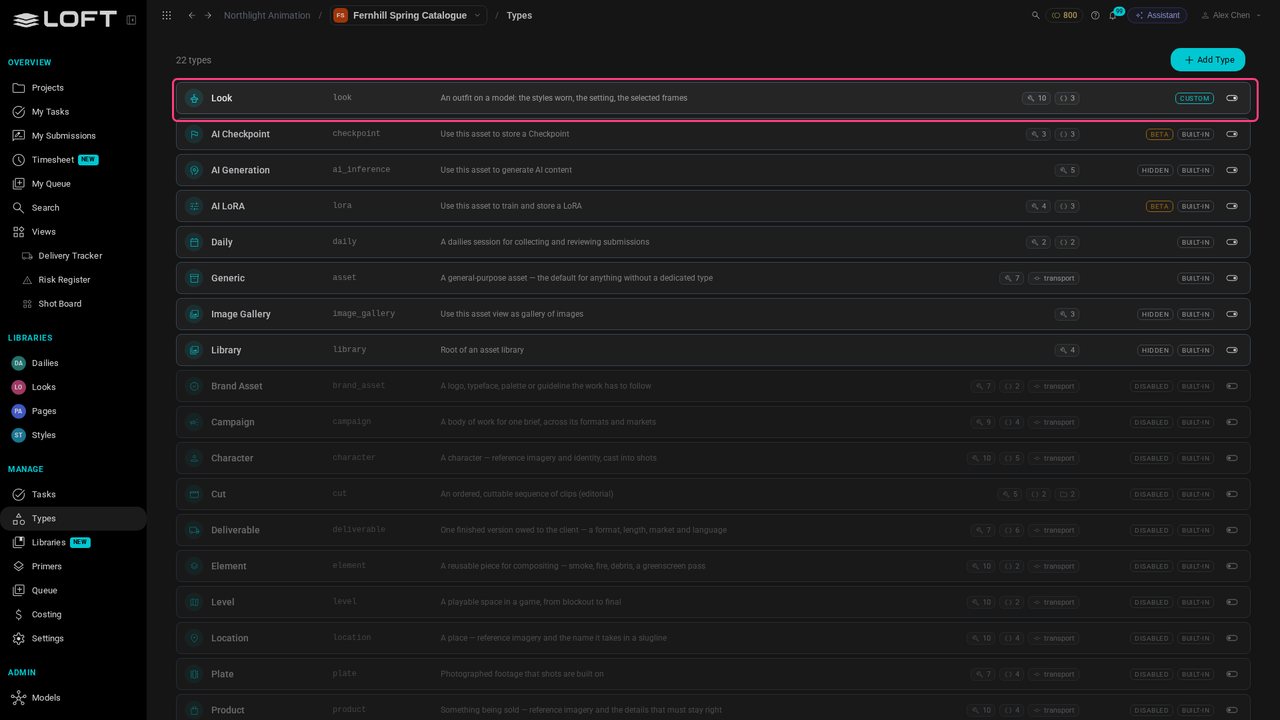
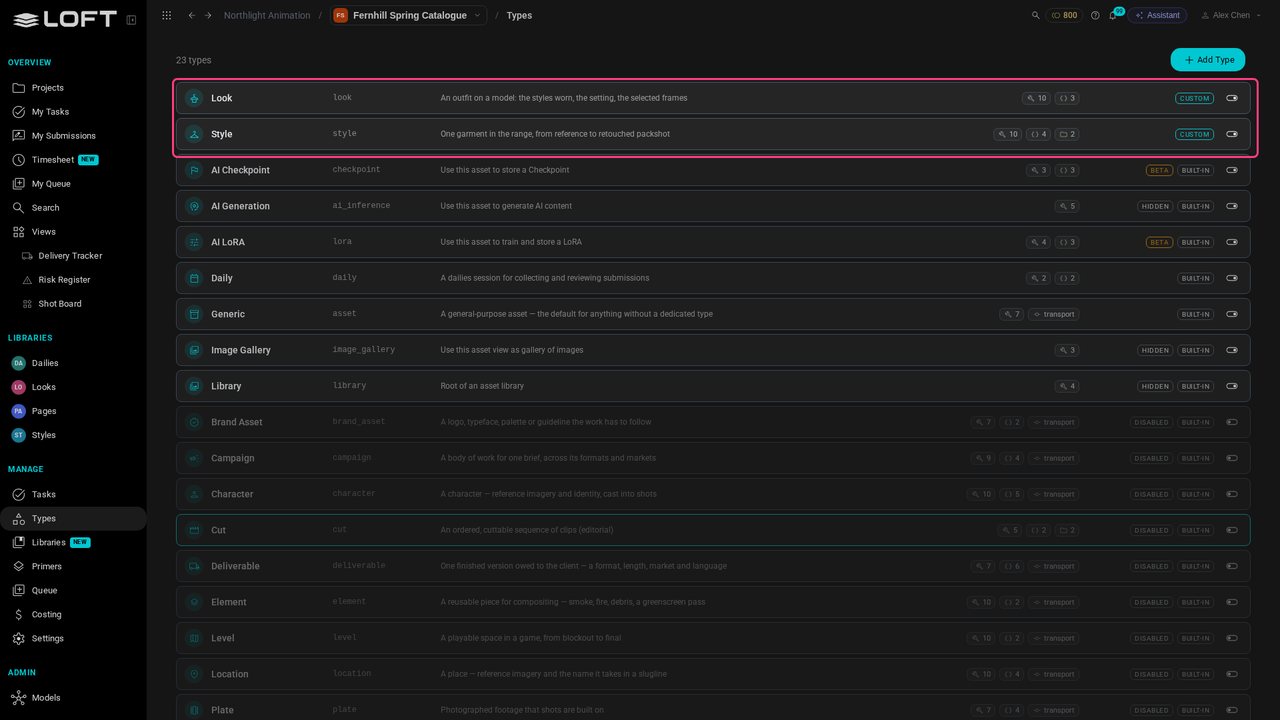
What goes in a library are assets, and each asset has a type that decides what it records. Under Manage, click Types. The built-in types are for film and games; at the top is Look, a custom type made for this catalogue.

Your own asset types
STEP 09

A Style type

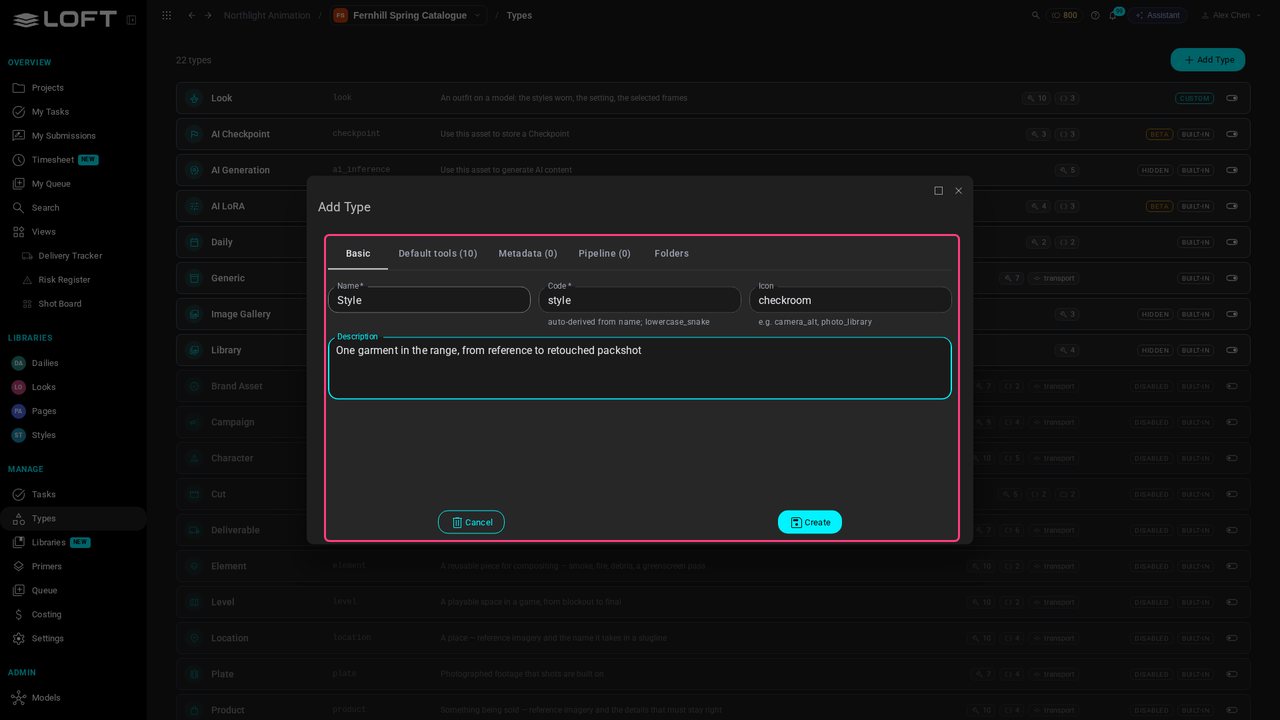
Now a type for the garments. Click Add Type, name it Style, give it an icon and a description.

A Style type
STEP 10

What it records

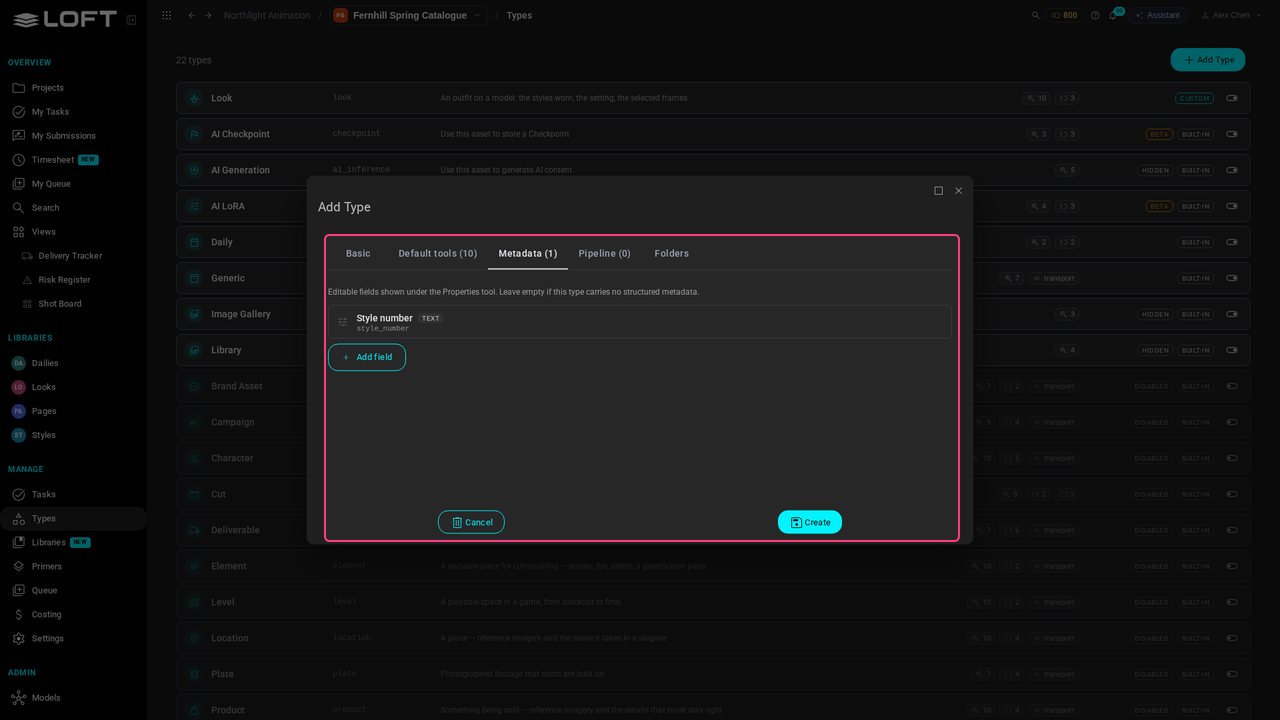
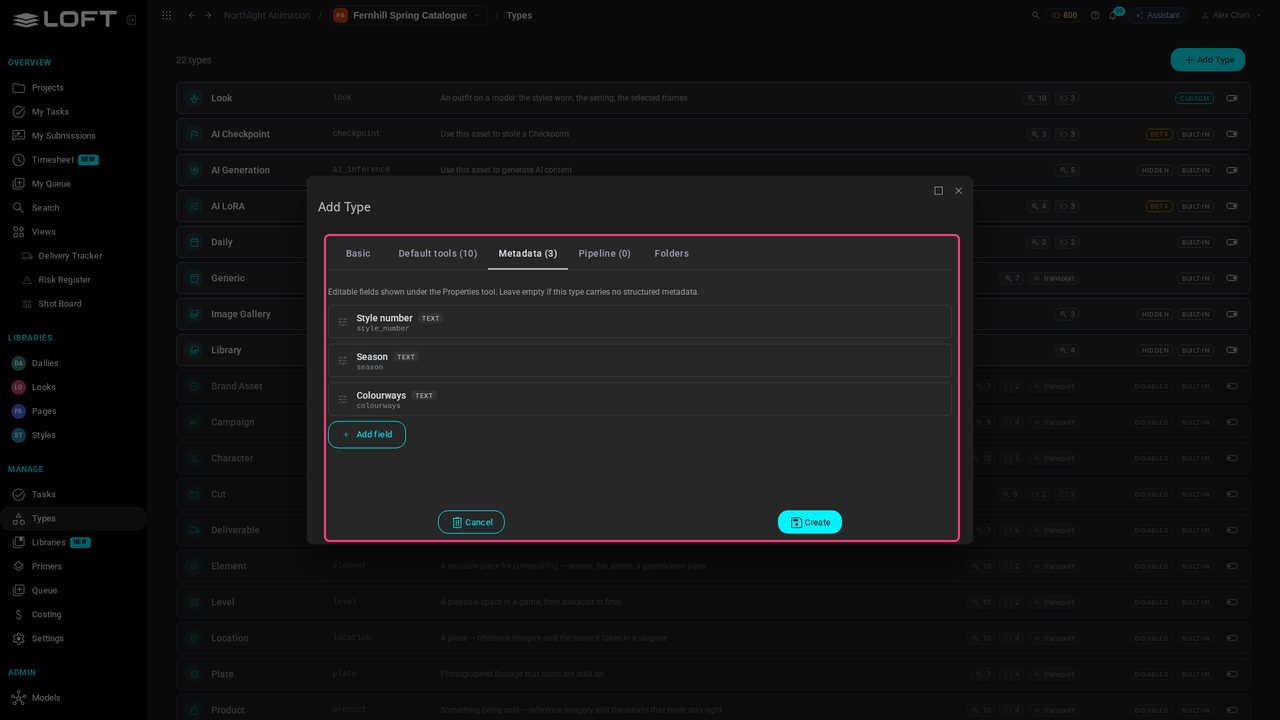
On Metadata, each field is something a style must record. Click Add field and give it a label: Style number.

What it records
STEP 11

More fields

Add Season and Colourways the same way: each one is a label, and Loft makes its key from it.

More fields
STEP 12

Text, numbers and dates

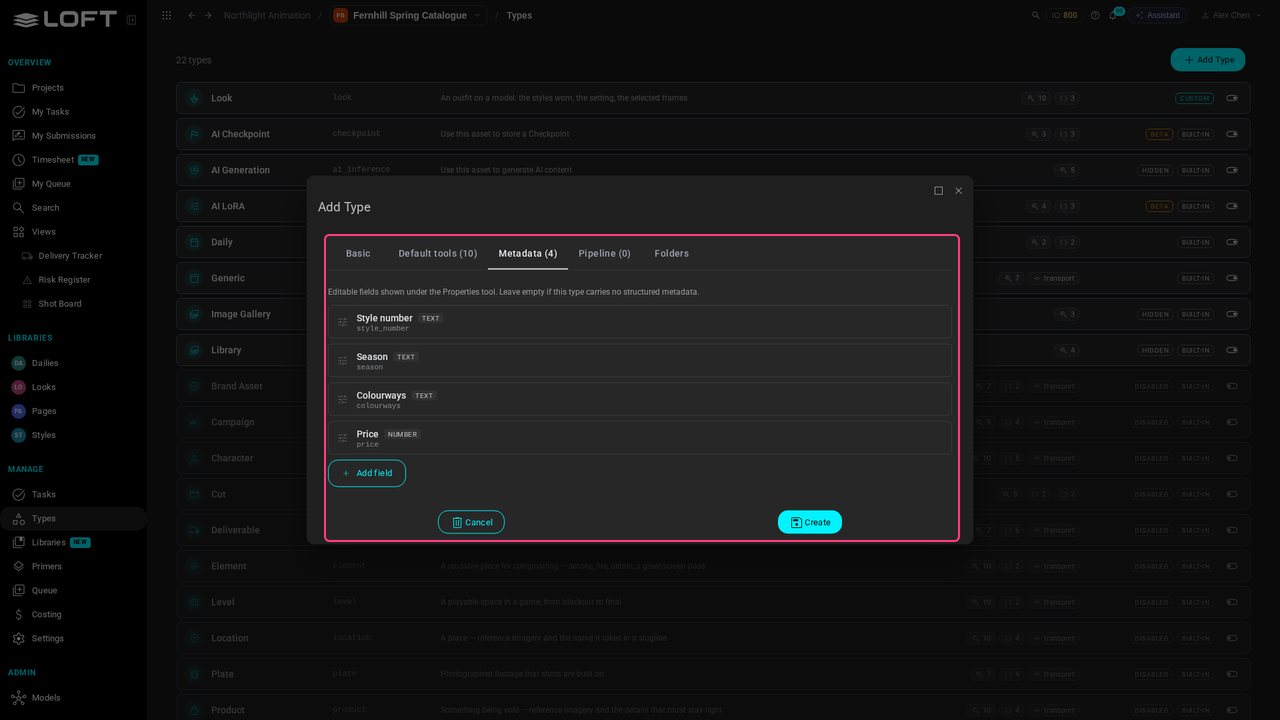
Add Price, and set its type to number. A field can hold text, a number or a date.

Text, numbers and dates
STEP 13

The steps of the work

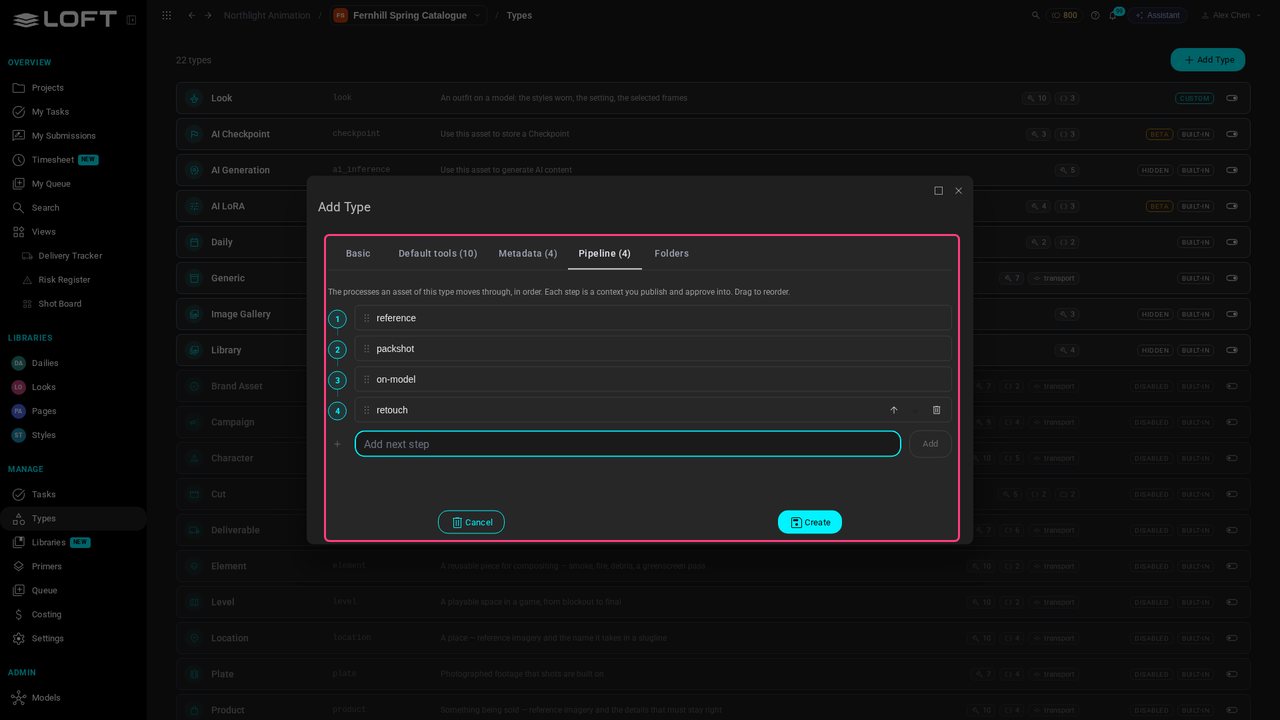
On Pipeline, list the steps a style goes through: reference, packshot, on-model, retouch. Each is a stage you publish and approve.

The steps of the work
STEP 14

Folders to start with

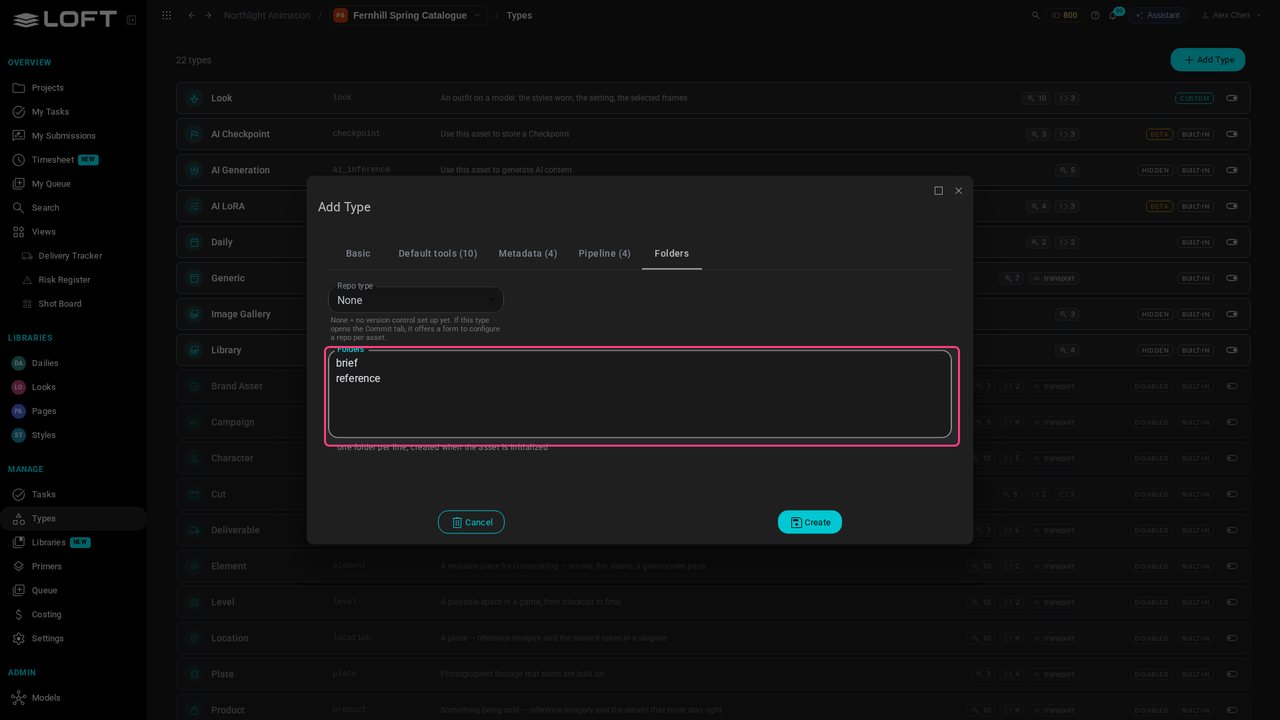
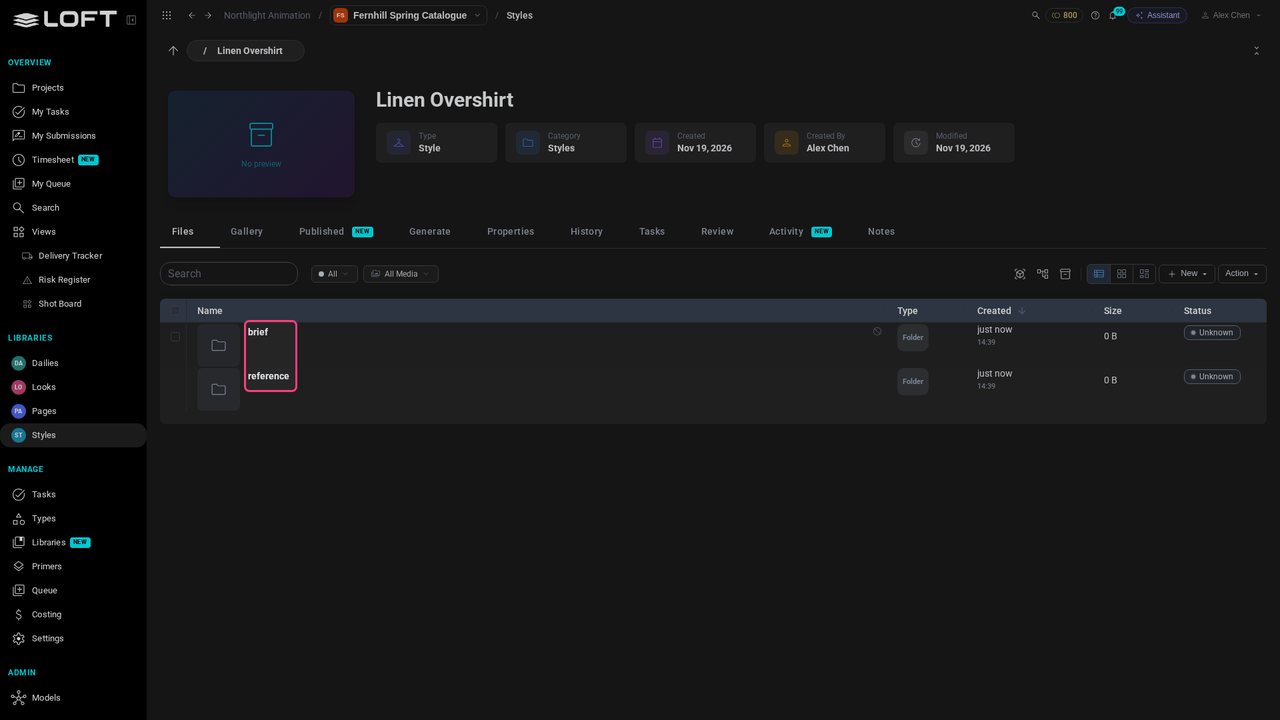
On Folders, one folder per line: every new style starts with a brief and a reference folder.

Folders to start with
STEP 15

The tools on its page

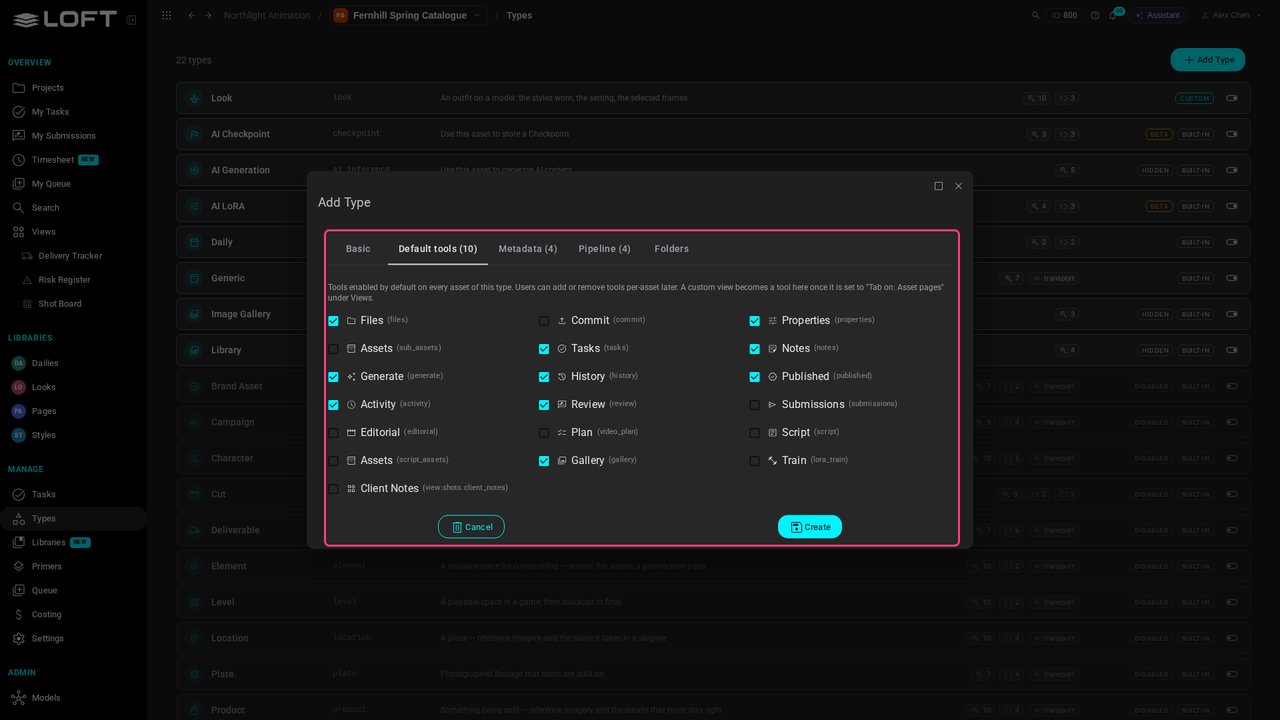
Default tools are the tabs a style's page opens with: files, generate, properties, review and the rest. A new type starts with the usual ones ticked.

The tools on its page
STEP 16

Create the type

Click Create. Style joins Look at the top of the list, marked Custom: it belongs to this project.

Create the type
STEP 17

Try it

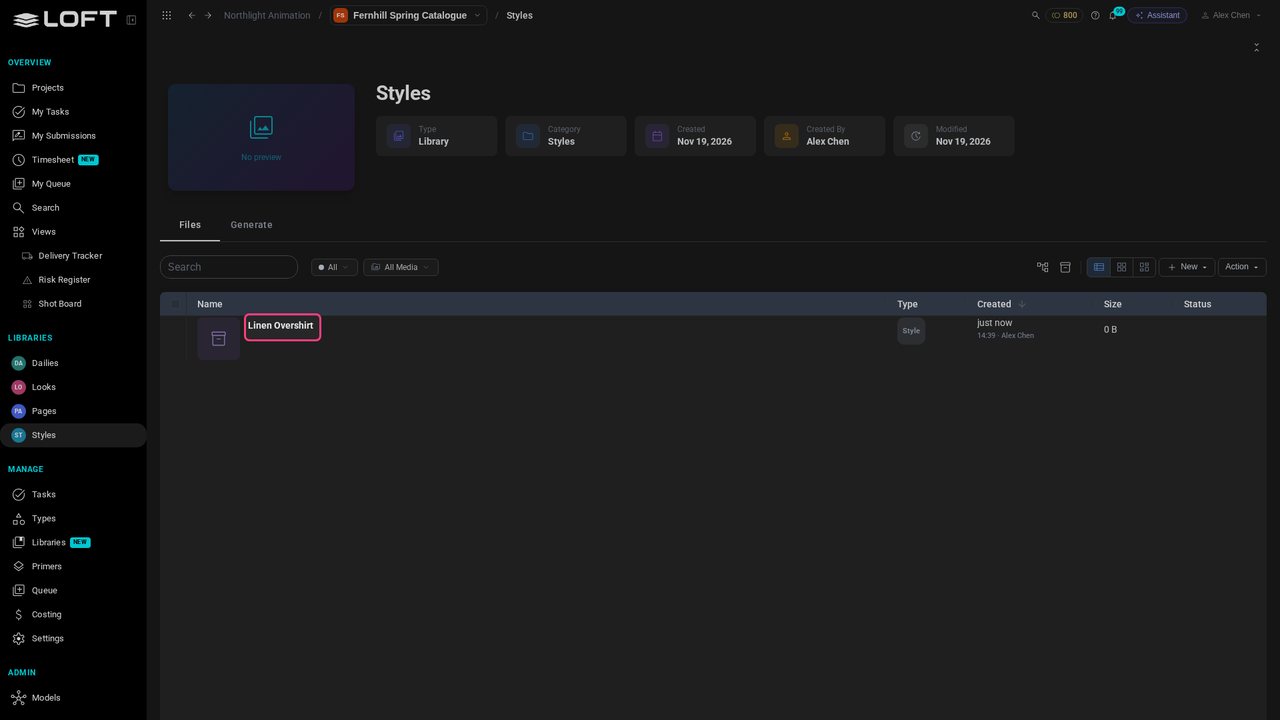
Open Styles in the sidebar. Under Create there is now a Style: click it and name the first one, Linen Overshirt.

Try it
STEP 18

It starts the way you set

Open it: its brief and reference folders are already there, and the tabs are the tools you ticked.

It starts the way you set
STEP 19

Its own properties

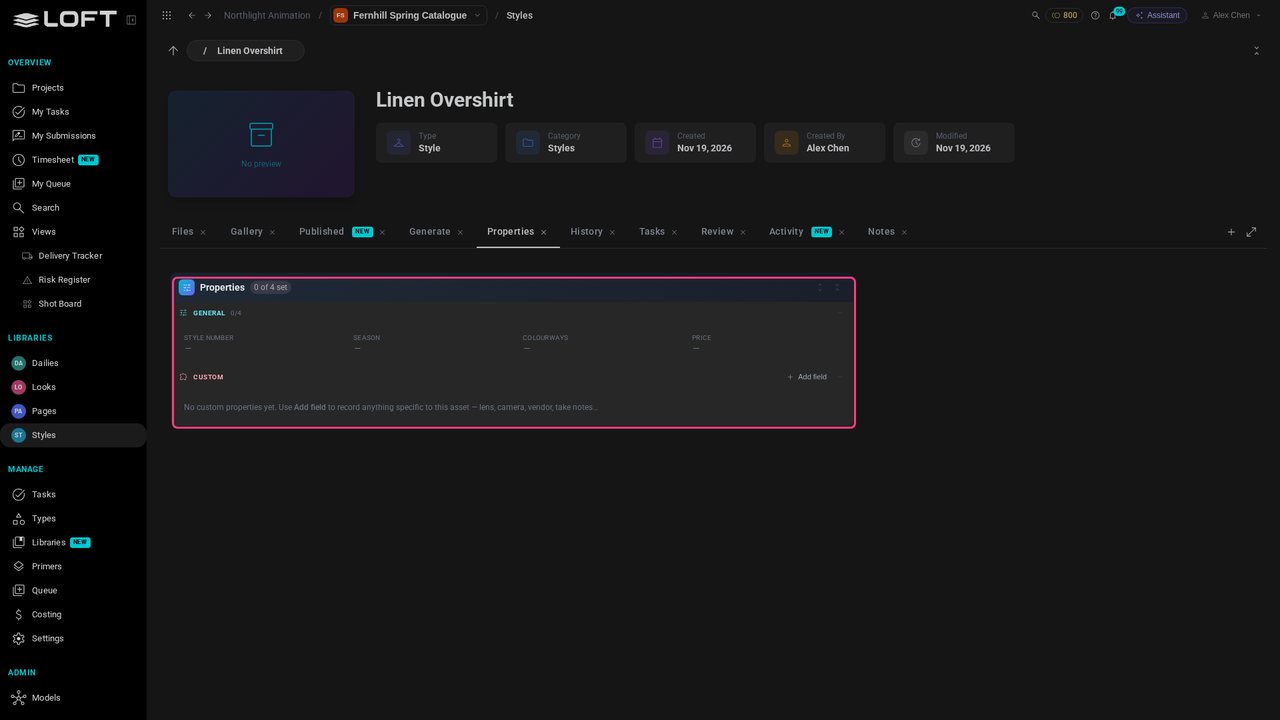
Click Properties: Style number, Season, Colourways and Price, ready to fill in for every style.

Its own properties
STEP 20

Save the project as a type

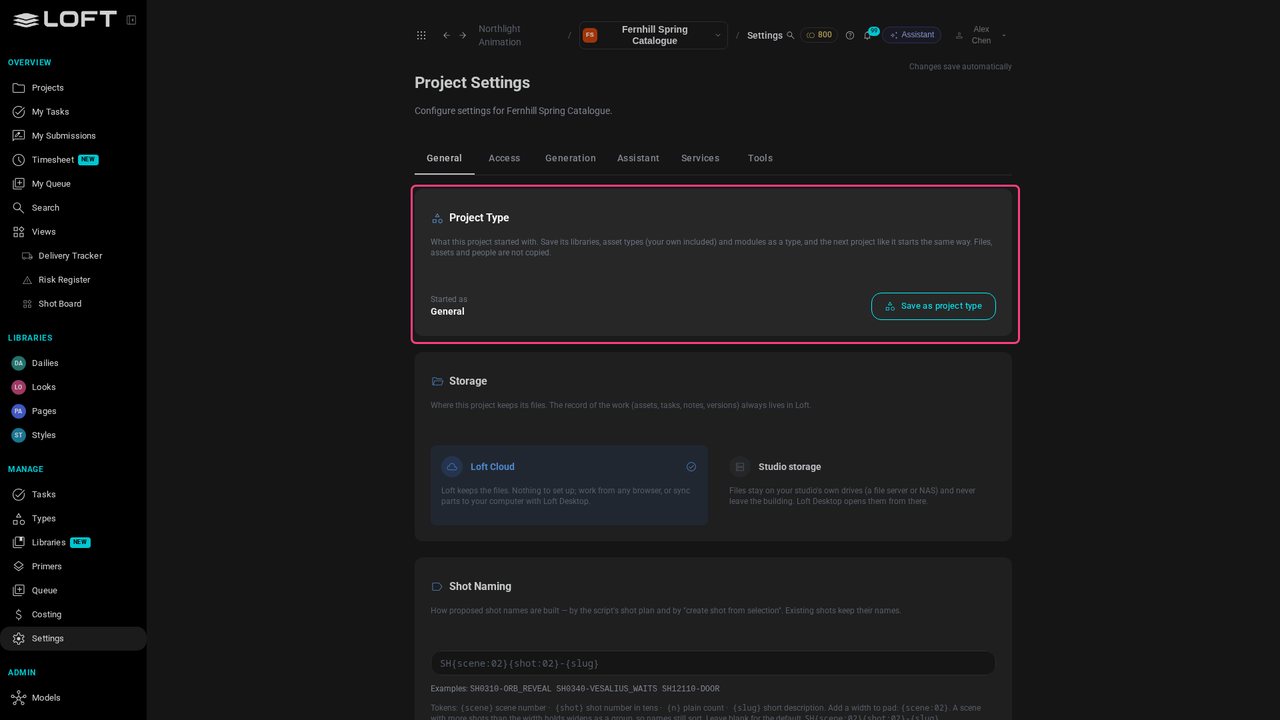
The project is set up the way a catalogue works. Under Manage, click Settings. The Project Type card shows what it started as, and can save it as a type of its own.

Save the project as a type
STEP 21

What the type will copy

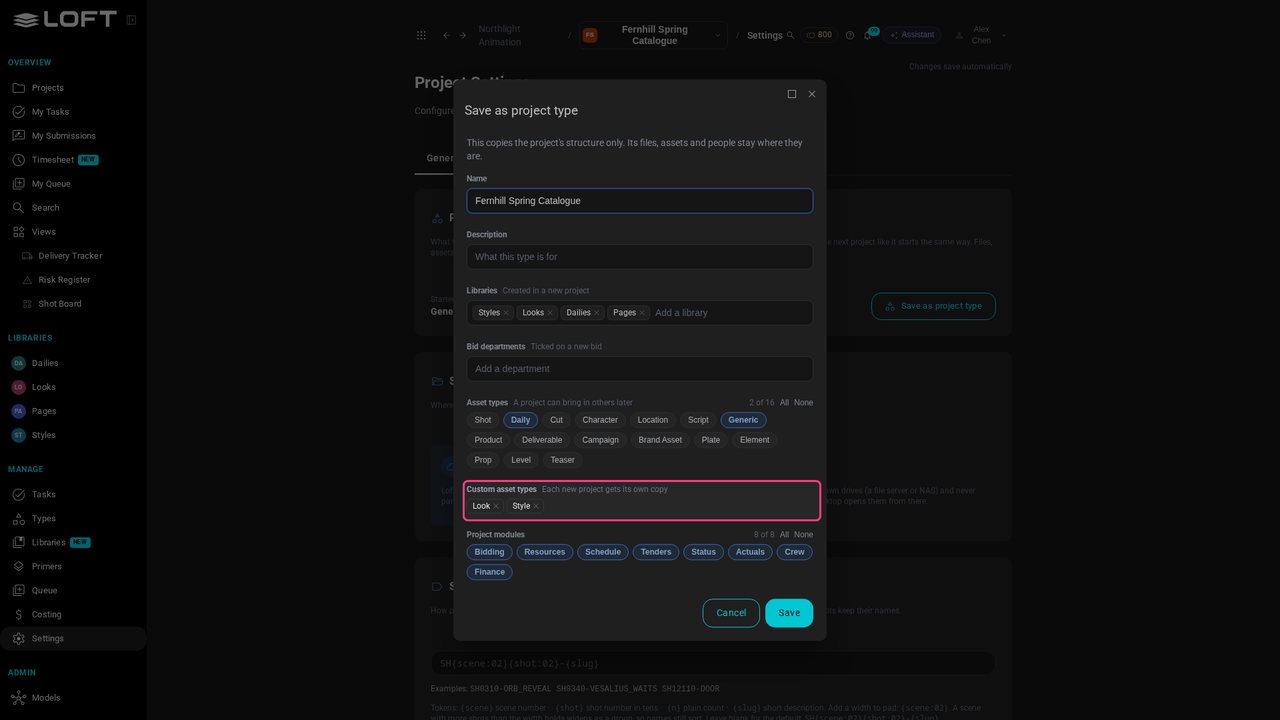
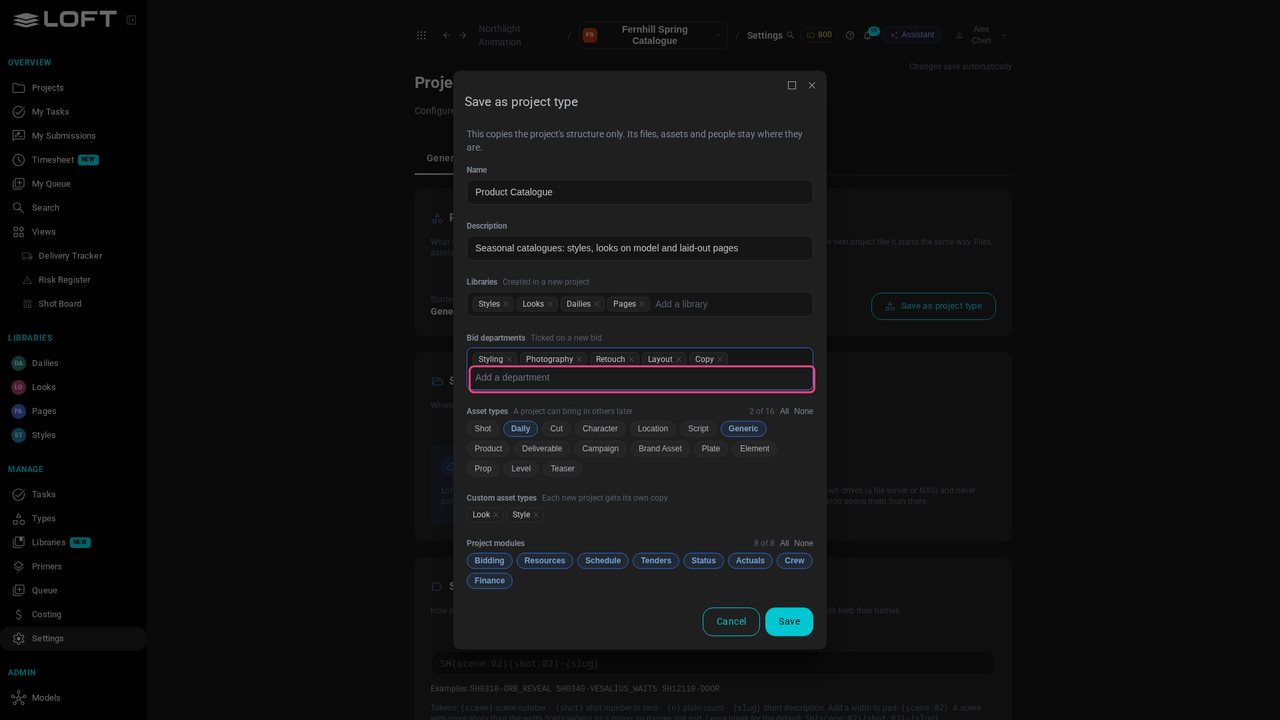
Click Save as project type. It lists the project's structure: its libraries, its asset types, including Look and Style, and its modules. Files, assets and people are not copied.

What the type will copy
STEP 22

Name it

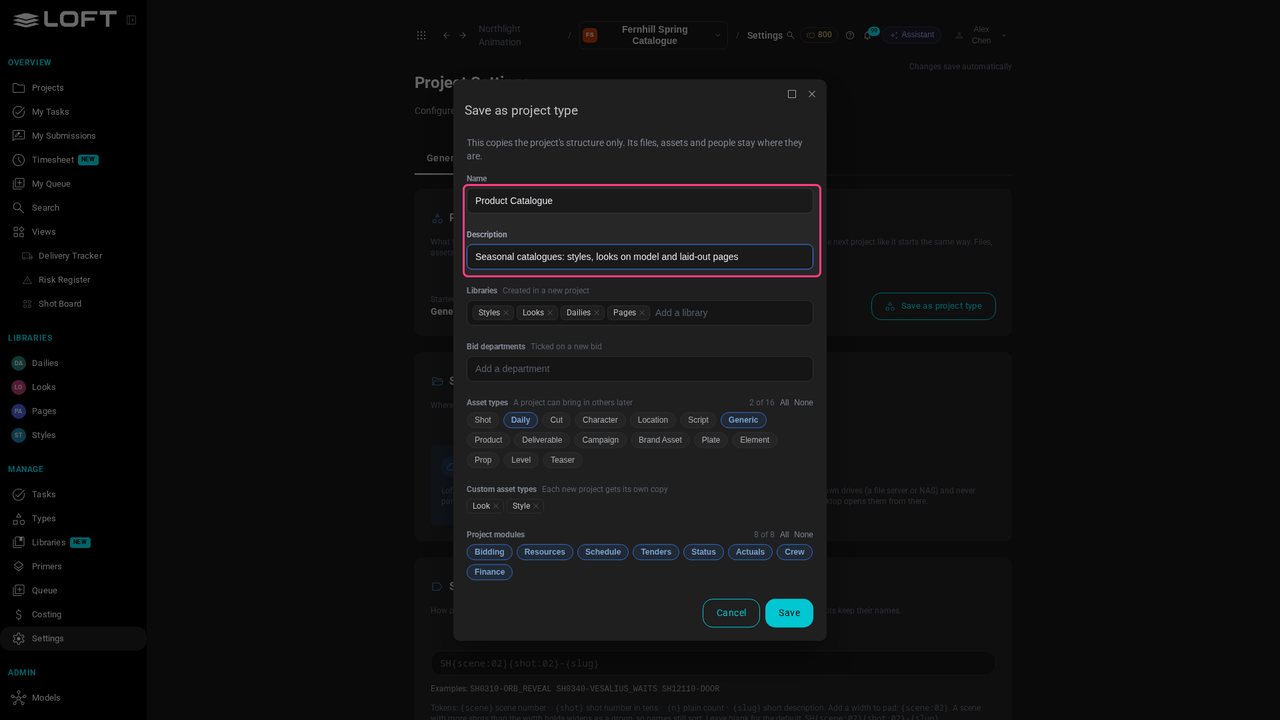
Call it Product Catalogue, with a line saying what it's for.

Name it
STEP 23

The departments it bids in

Add the departments a catalogue is priced in: Styling, Photography, Retouch, Layout, Copy. A new bid on a catalogue will have them ticked.

The departments it bids in
STEP 24

The modules it shows

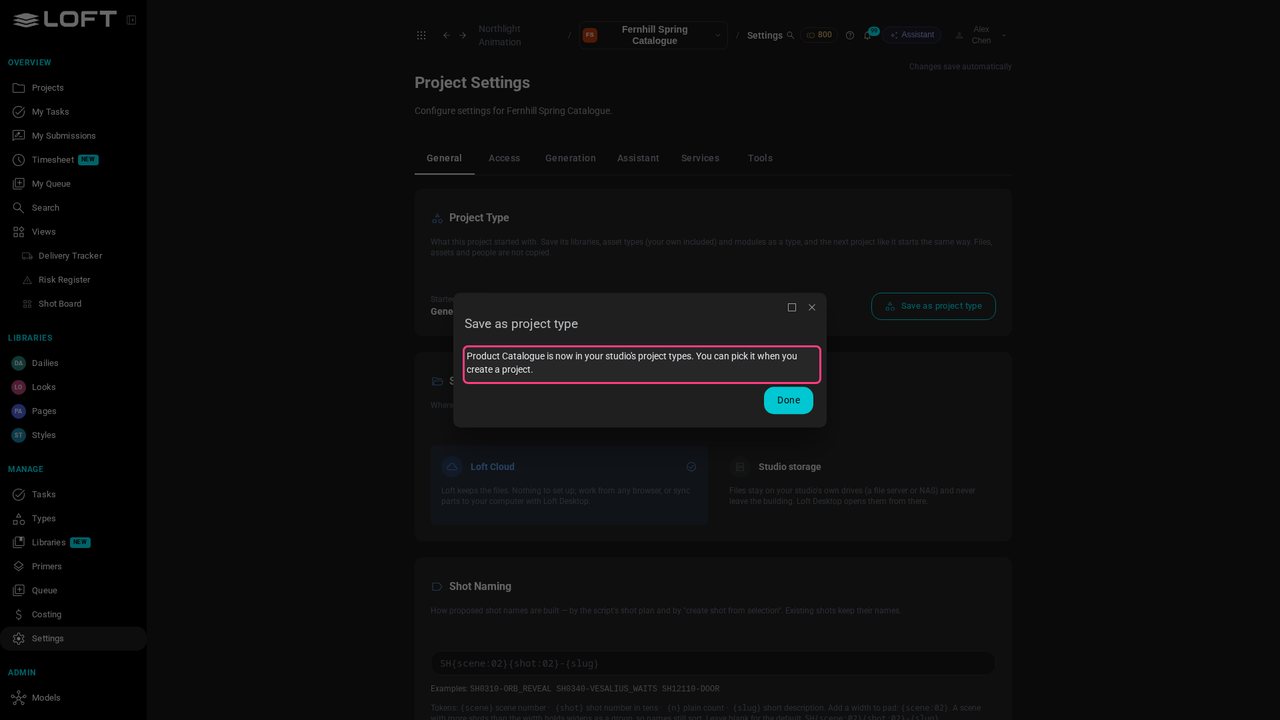
A catalogue doesn't go to tender or track crew hours here, so click Tenders, Actuals and Crew to leave them out. Click Save.

The modules it shows
STEP 25

Next season starts from it

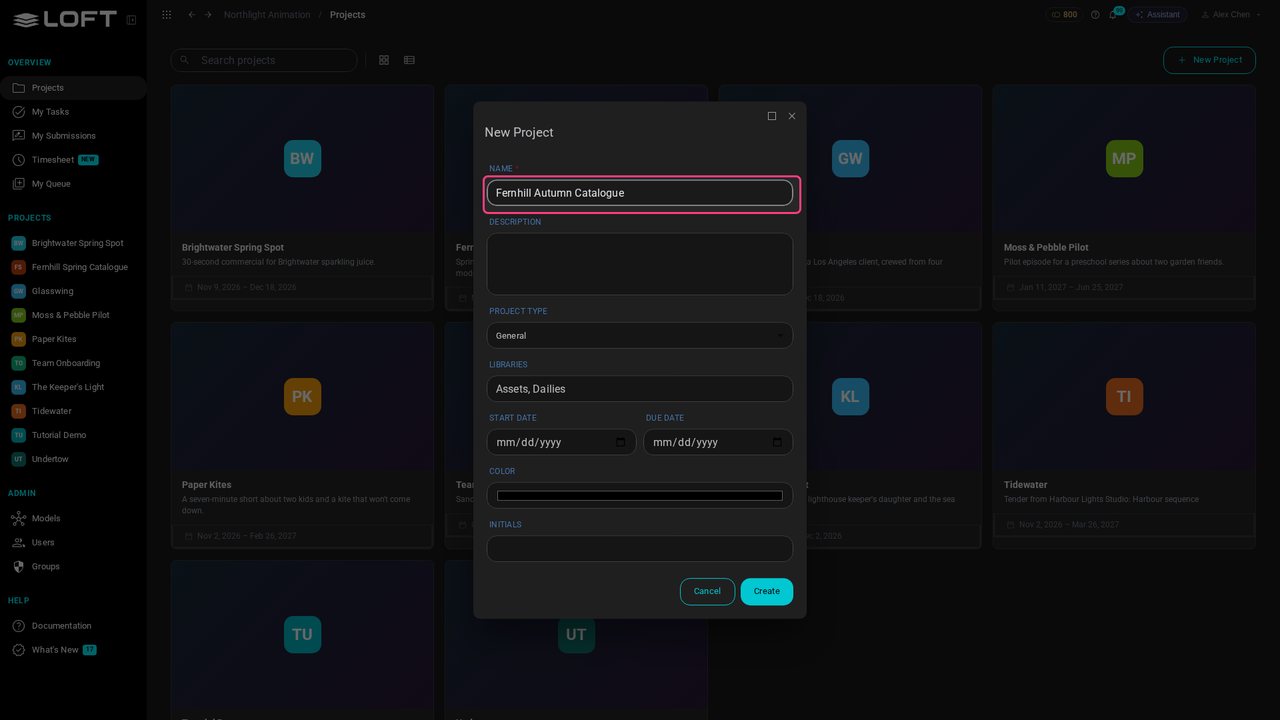
Next season comes round. Click Projects, then New Project, and call it Fernhill Autumn Catalogue.

Next season starts from it
STEP 26

Pick the type

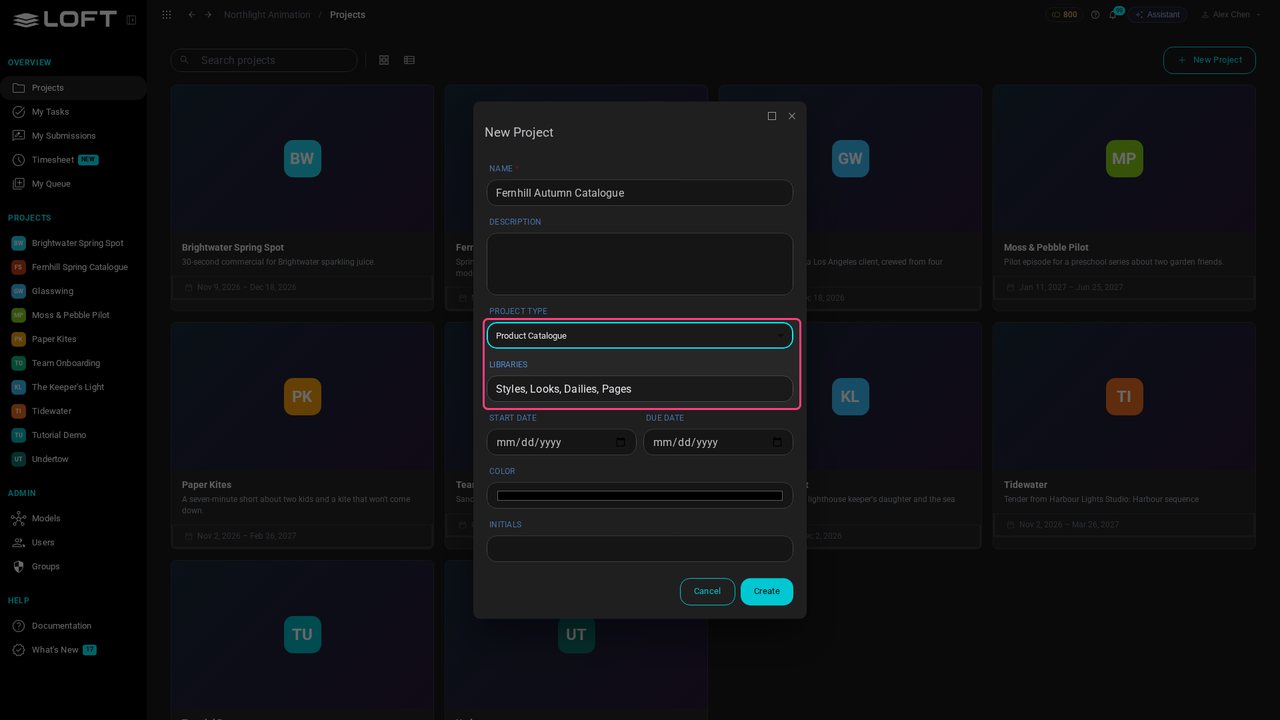
Open Project type: Loft's types, then the studio's own. Pick Product Catalogue, and its libraries fill in.

Pick the type
STEP 27

A catalogue from day one

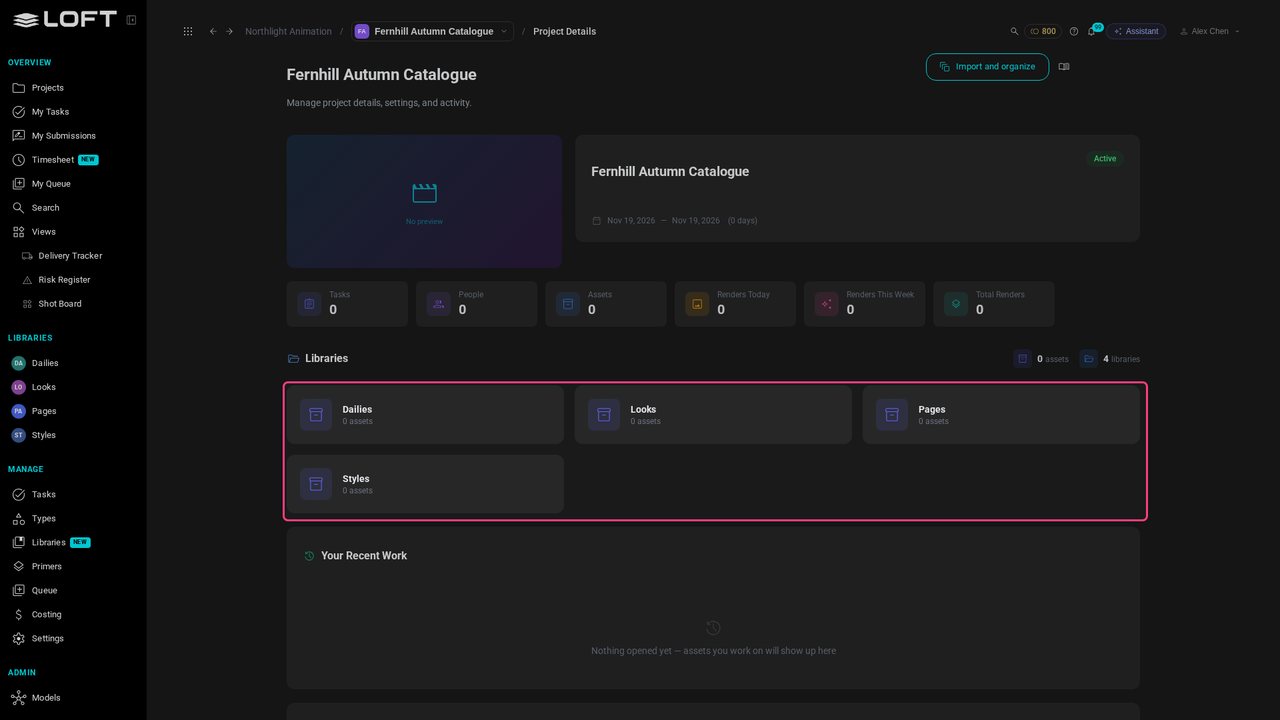
Click Create. The new project opens with Styles, Looks, Pages and Dailies, and its own copy of the Look and Style types, ready for the first style.

A catalogue from day one
STEP 28

Only its modules

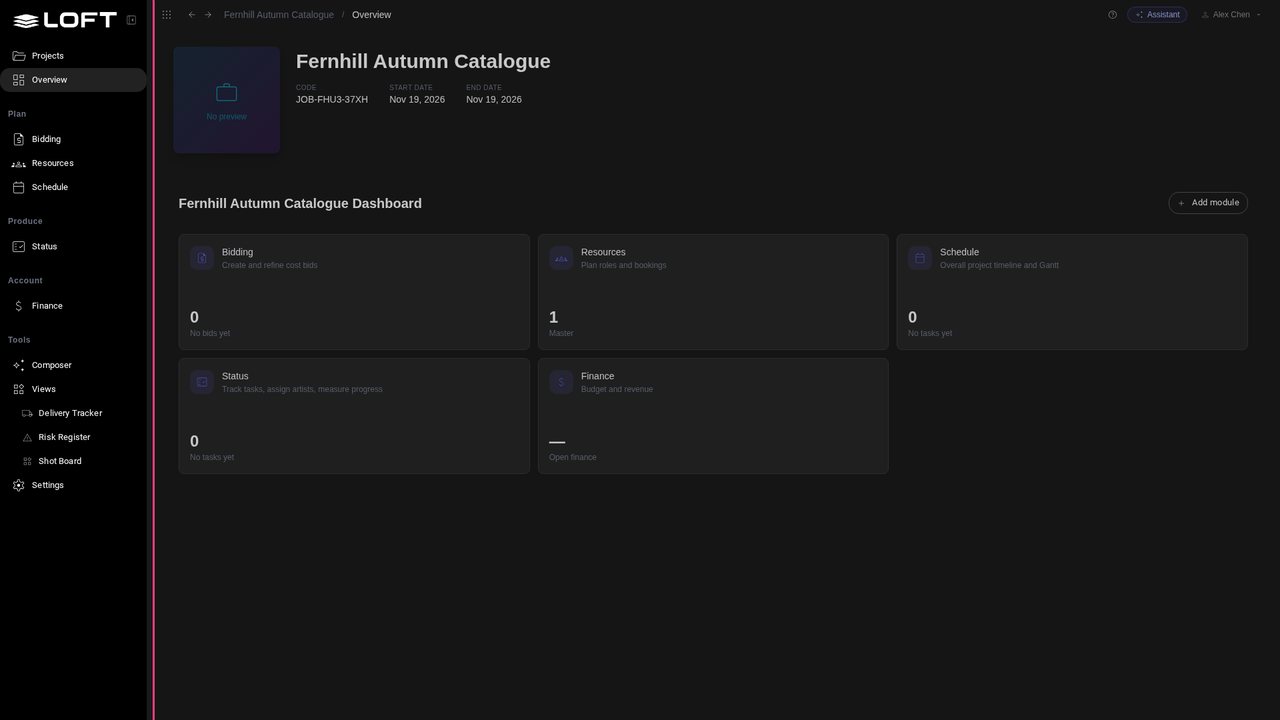
Switch to Resource. The project's sidebar shows only the modules the type kept: Bidding, Resources, Schedule, Status and Finance.

Only its modules
STEP 29

Priced in its own departments

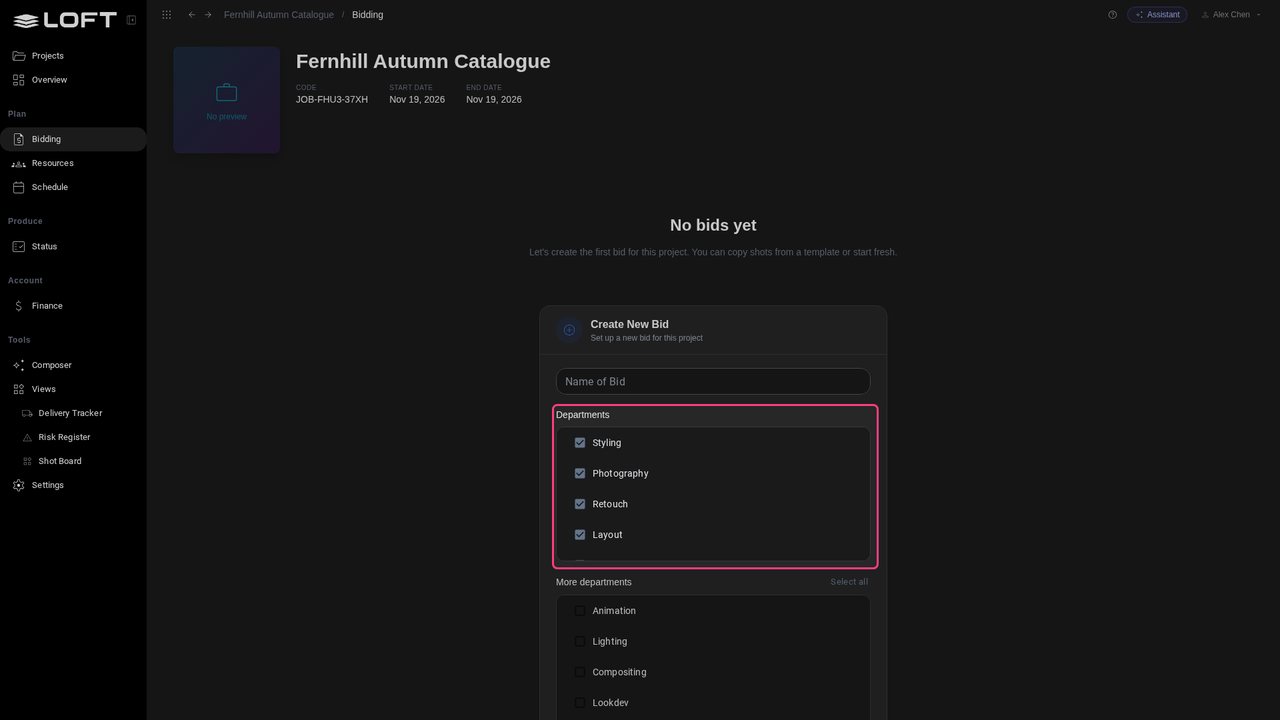
Click Bidding. The first bid offers the catalogue's departments, already ticked: Styling, Photography, Retouch, Layout and Copy.

Priced in its own departments
STEP 30

The studio's own types

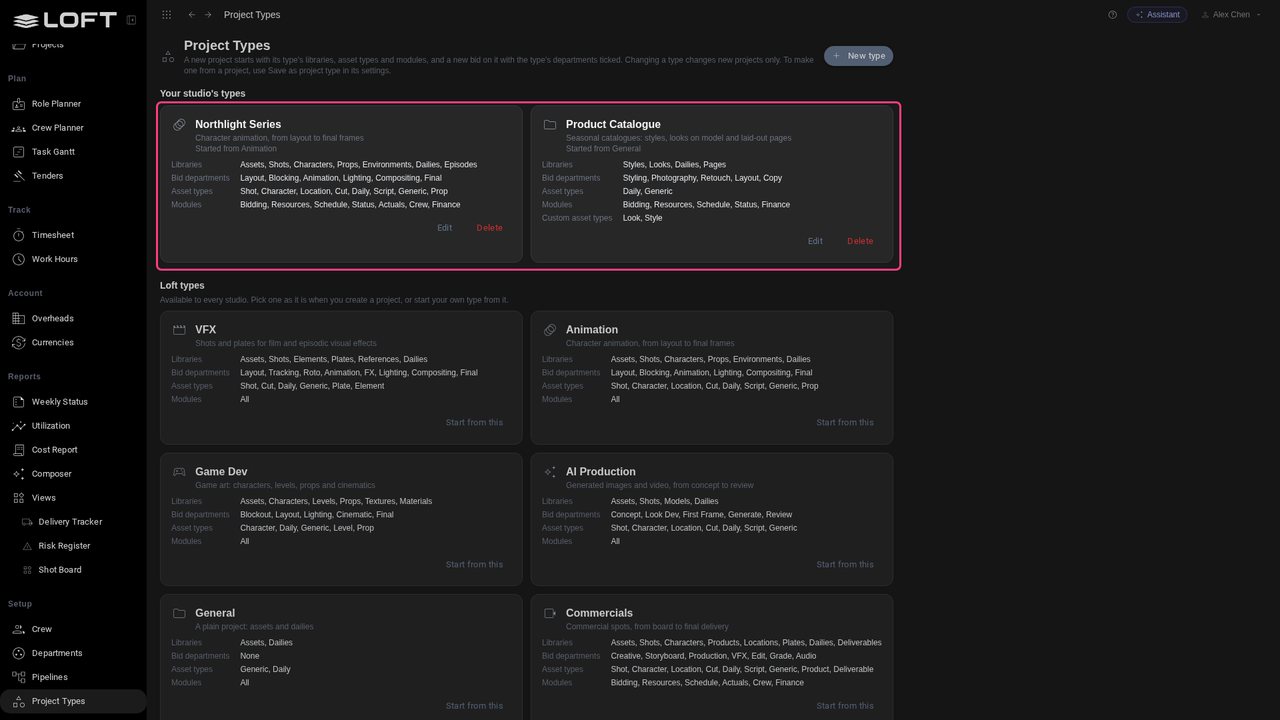
Click Projects, then Setup › Project Types: both types are under Your studio's types. Edit changes what new projects start with; projects already made keep theirs.

The studio's own types