
Learn
Learn Loft in an afternoon
Every video does real work, from the first click to the result, with each step written out below it. Start with the hands-on tutorial, then pick the playlist for your role.
New to Loft? Check what you'll need before you start.
Hands-on tutorial · 10 videos · 27 min
Get started
New to Loft? Follow along on your own screen: sign up, bring in your images, ask for new ones or make them by hand, make a shot and publish it.
The first of the Get started videos: make your account, and see where Loft puts you. Follow along on your own screen. If someone at your studio has invited you, use the link in their email instead, and skip to the next video.
Make your first project, and learn the three things you'll use in every video after this one: the libraries, the Assistant, and your balance. Pick up where the last video ended, on Loft's welcome screen.
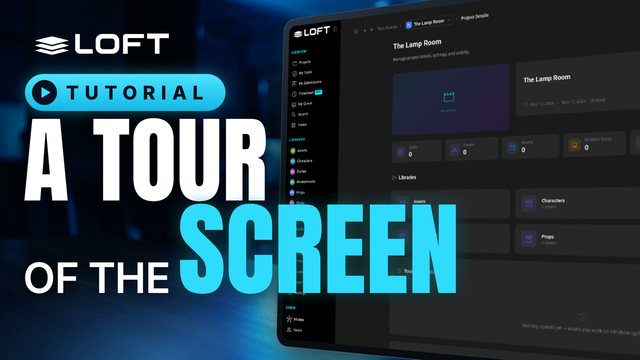
Everything on Loft's screen, one line each, and which video covers it. You don't need any of it to carry on; watch it now for the map, or come back when you wonder what something is.
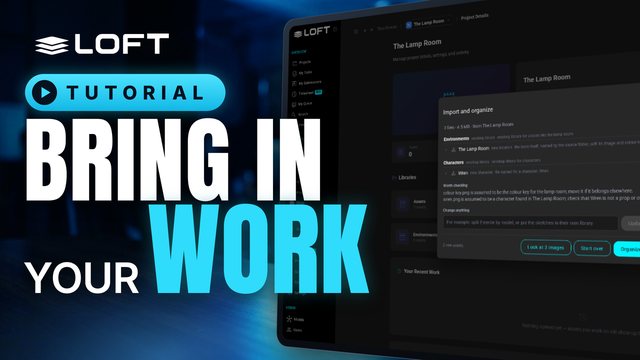
Bring the images you already have into your project, let Loft sort them, and tell it which ones are designs and which are only reference. Follow along with the starter pack linked under this video, or with your own images.
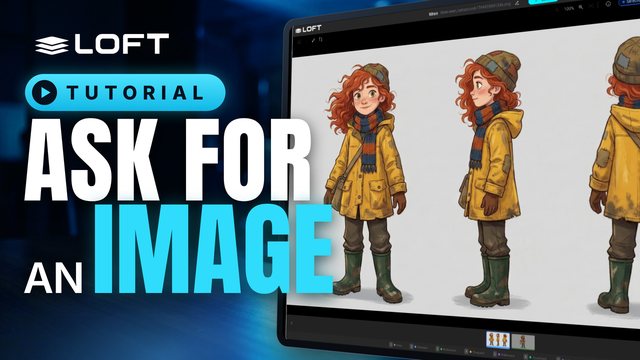
Your first generation: ask the Assistant for a new image of your character, in plain words. Follow along in the project from the last video.
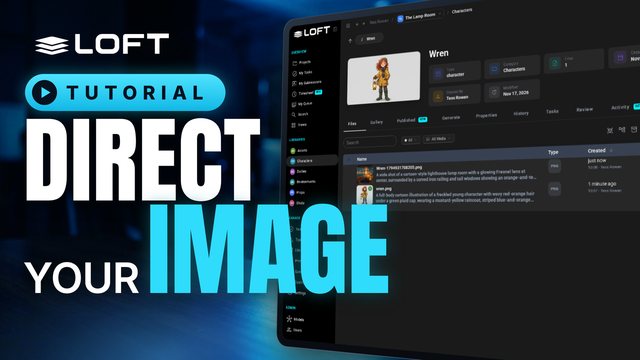
Put your character in a place, in the colours you want, by naming them. Then correct the result in a sentence, and write down the rules of your project once so you don't repeat them.
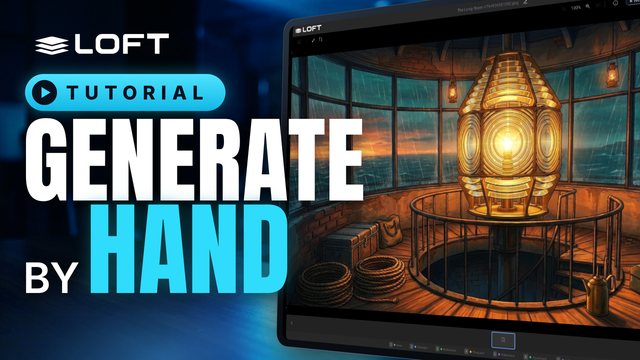
The Assistant chooses the model, the images and the settings for you. The Generate tab is the same thing with every choice yours: here's how to use it.
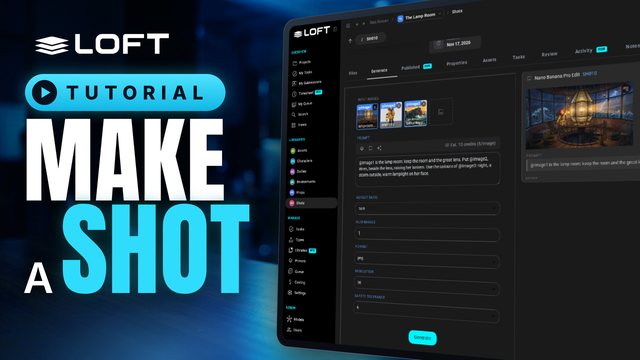
Make a shot, tell it who and where it is, make its keyframe by hand, and ask the Assistant to animate it. Follow along in your own project.
You've made takes; now decide. Publish the one you want everyone to use, and see what publishing changes. Follow along in your own shot.
The end of Get started: what you've made, where to find help on any page, and the videos to watch next.
Overview · 6 videos · 30 min
What Loft is for
Watch, no need to follow along: Loft in 90 seconds, why one system, setting up your studio and people, how a project is laid out, and one shot followed from brief to the cut.
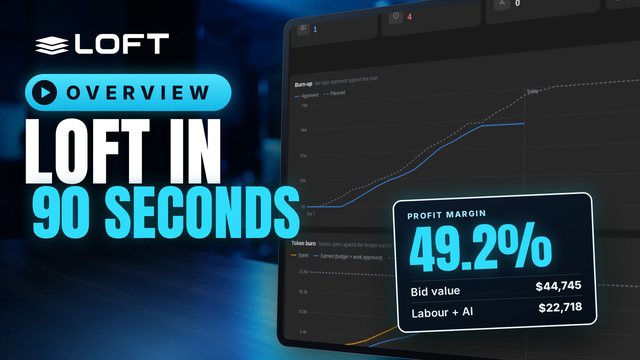
One system for an AI production, from the bid to the P and L. Here is one short, start to finish.
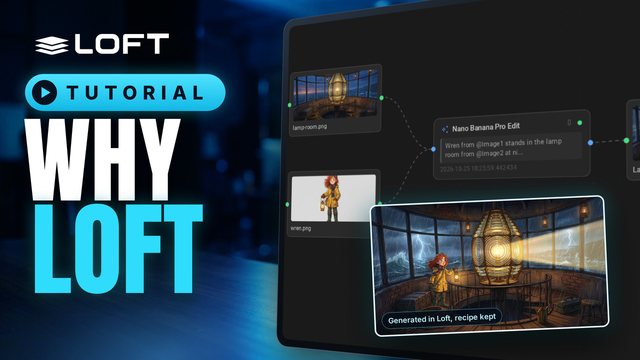
A production usually runs on a spreadsheet for the bid, a tracker for the shots, a review tool for dailies, and AI tools in browser tabs, and the numbers never meet. This is a tour of one studio's slate in Loft, from a bid to the cost of a shot, showing what changes when all of it is one system.
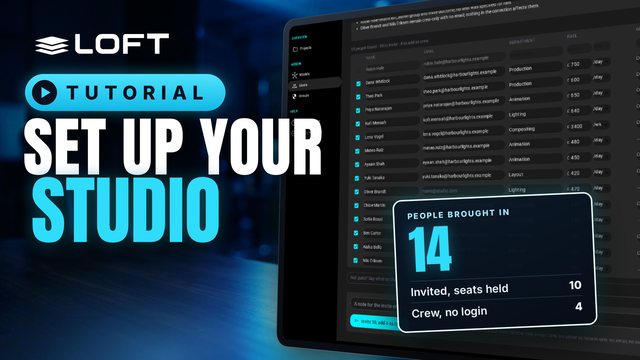
A studio's first hour in Loft: bring your people in from the crew list you already keep, see who logs in and who is only scheduled, check what each department costs, start a first project, and ask the Assistant about it. Harbour Lights Studio has just signed up; nothing else is set up yet.
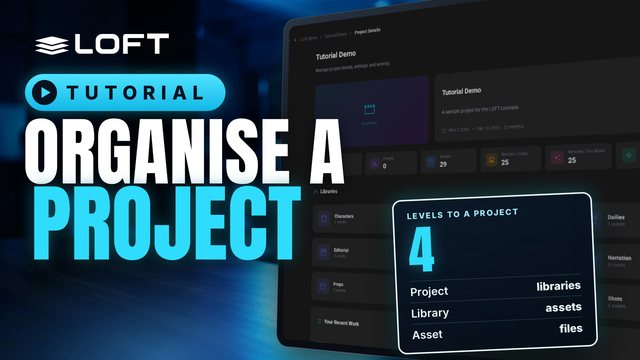
Before you make anything, it helps to know where things go. This tutorial tours a project's sidebar and explains what libraries, asset types, folders and assets are each for, and when to reach for which. Then it makes two folders and a first asset to show it in practice.
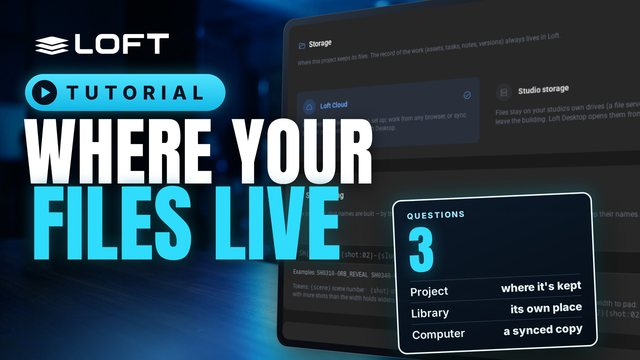
Every Loft project keeps two things: the record of the work, and the files. This video is about the files: where a project keeps them, when a library keeps its own somewhere else, and how you get at them from your computer.
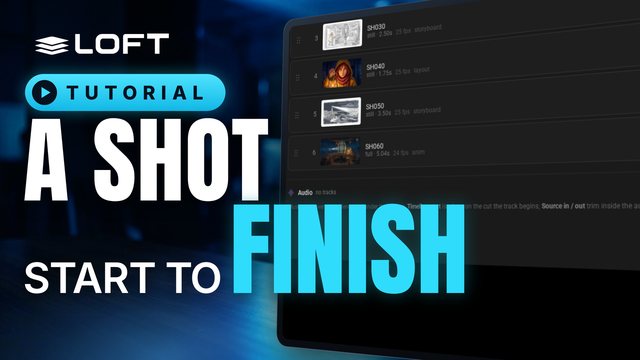
This tutorial follows one shot all the way through. An artist makes the shot in its sequence, links the character and location it needs, generates a keyframe from them and animates it with Kling 3.0. The director reviews it in dailies and asks for a change; the artist revises it, the director approves, and the published shot plays in the cut, between its neighbours.
Producers · 16 videos · 78 min
Plan and run a production
For producers: set up the studio and crew, bid a project, turn it into a schedule and crew, track it, keep AI spend on budget, get the reports you need by asking, and share work with the client.
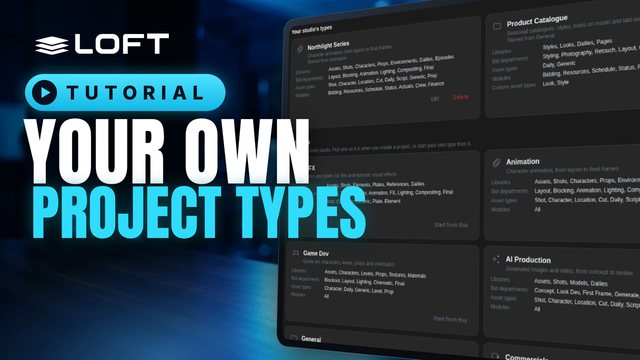
Every project in Loft starts from a project type: the libraries it opens with, the kinds of assets it holds, the departments its bids are priced in and the modules it shows. Loft comes with types for VFX, animation, games, commercials and more. This tutorial makes a studio's own: first by adapting a Loft type, then for work no Loft type covers, by building one project the way the work needs and saving it as a type for every project like it.
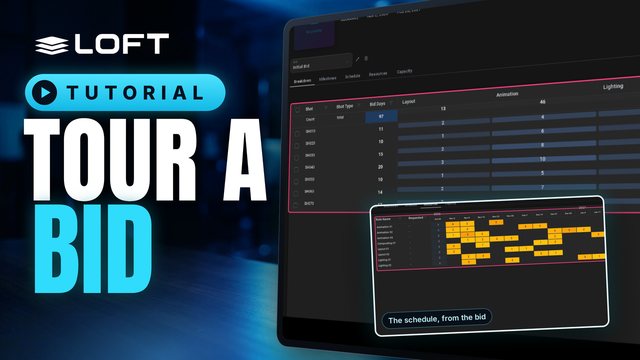
A bid is where you estimate a project: how many days each shot or asset needs in each department, and what that means for people and schedule. This tour opens an existing bid and walks through its tabs, from the breakdown through to capacity.
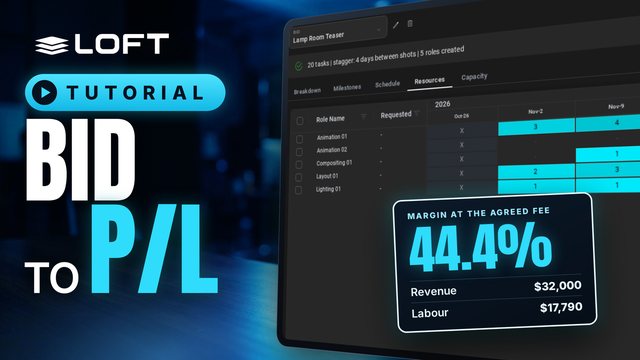
A bid estimates the days each shot needs in each department. This tutorial builds a small bid, turns it into a schedule and the roles to staff it, publishes it as the project's working plan, and reads the preliminary profit and loss: what the bid is worth against what the plan will cost.
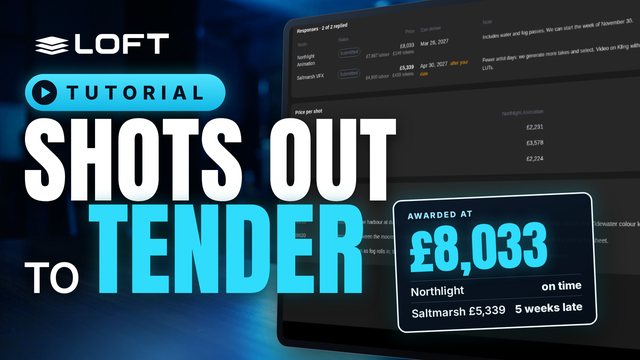
A producer can send shots to other studios on Loft for a price. This tutorial follows one tender from both sides: the producer builds the shots and invites two studios, a studio costs the work in its own bid and sends back a price, and the producer compares the replies and awards the work.
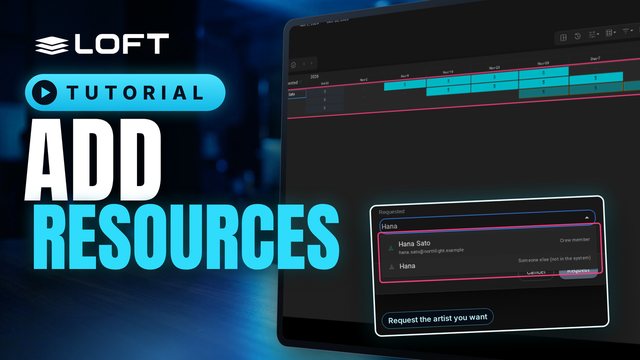
Resources are the people a project needs, planned as roles: an animator for four weeks, a compositor for two. This tutorial adds roles to a project, books their weeks, and requests a crew member for one of them.
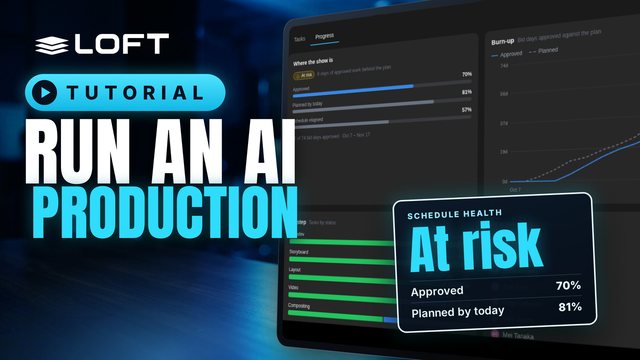
After the bid, the schedule exists but nobody is on it yet. This tutorial is the production manager's side of an AI short: assign the storyboard, layout, video, compositing and lookdev work from the tracking grid, check the schedule by artist, then come back three weeks later and measure the show: what is approved against the plan, what is late, what is waiting for review, and what to do about it.

AI generation is spent in tokens, and like labour it needs a budget. This tutorial budgets an AI short's tokens from its bid, gives an artist an allowance with a hard limit, then comes back three weeks later to see the spend against the work approved, a forecast at completion, an allowance doing its job, and the tokens in the project's P/L.
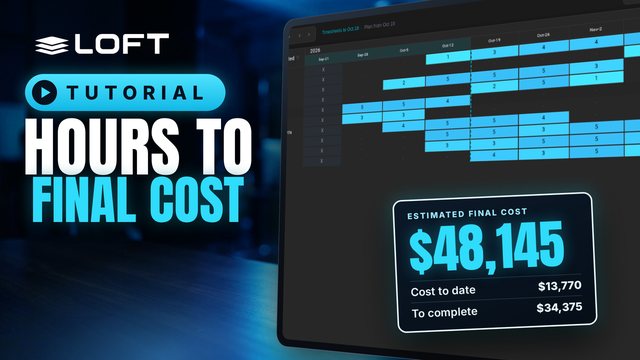
An artist's day becomes hours on a timesheet, the hours land on shots and on the roles that planned them, and the plan fills in the weeks still to come. This tutorial follows a video artist's week on The Keeper's Light from the shot she has open to the project's Estimated Final Cost.
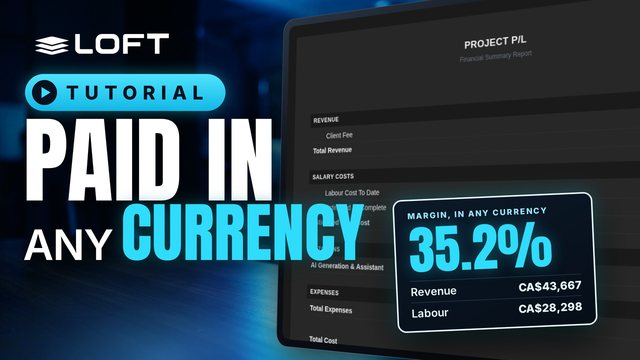
Studios hire wherever the talent is, so a crew is paid in several currencies while the client pays in another. This tutorial gives a freelancer a rupee day rate, then reads the same project's resources and profit and loss in US dollars and in Canadian dollars, locks its exchange rates, and asks the Assistant for the margin.
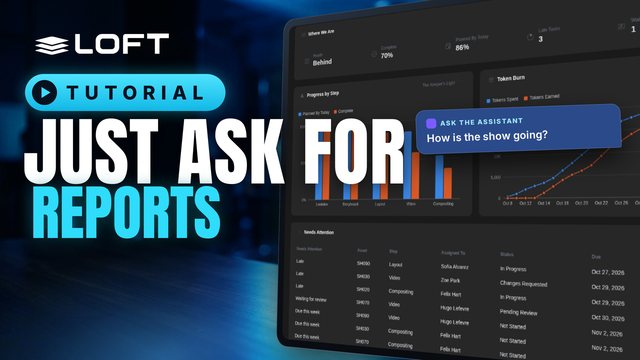
A producer shouldn't have to build reports. In Loft you ask for what you want to see, in your own words, and the Composer lays it out as a page you can print or send. Keep the ones you like: they sit in the sidebar and show current figures every time you open them.
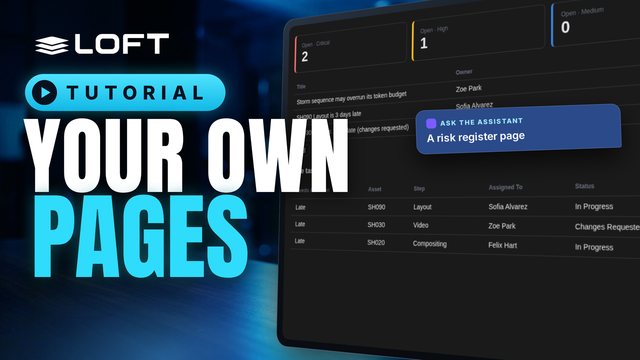
Every studio tracks something its software has no page for. In Loft you describe the page you need and the Assistant builds it: a view of your own, with its own data, next to the live figures of the show. Change it by asking, put it where the work happens, and share it with the studio.
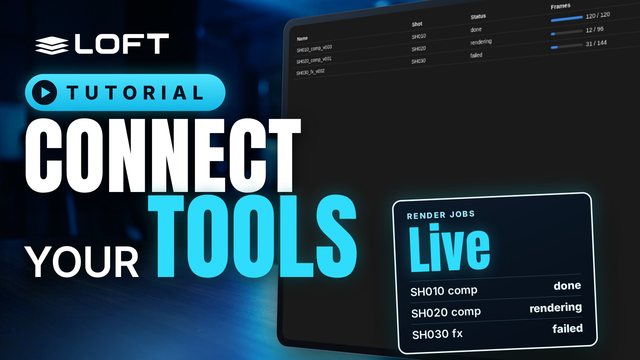
Your render farm, your form tool, your tracker: each knows something Loft should show. A webhook is an address they post to. What arrives becomes a record of your own, on a page of your own, and the page updates as it arrives. Nothing to install on either side.
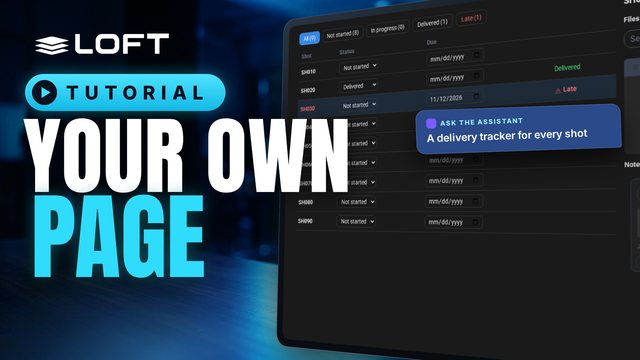
Every production tracks something its software has no page for. In Loft you describe the page and the Assistant builds it, inside your project: a view of your own that keeps its own data and sits next to the real files, notes and tasks of your shots. Change it by asking, and share it with the studio.
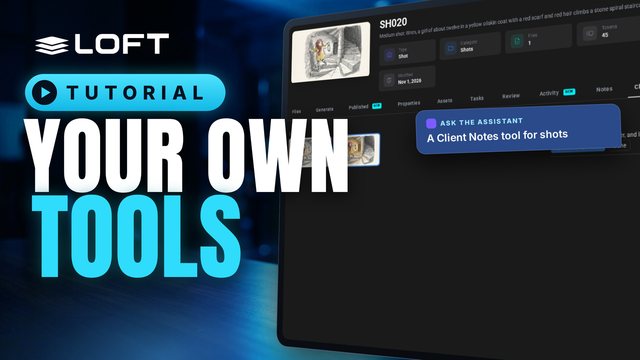
Files, Tasks, Notes: every asset in Loft opens on a row of tools. Now you can add your own. Describe the tool your production is missing and the Assistant builds it as a tab on every asset of a type. This one puts the client's notes next to each shot's images, live from the client's own review tool, with a button that turns a note into a new take.
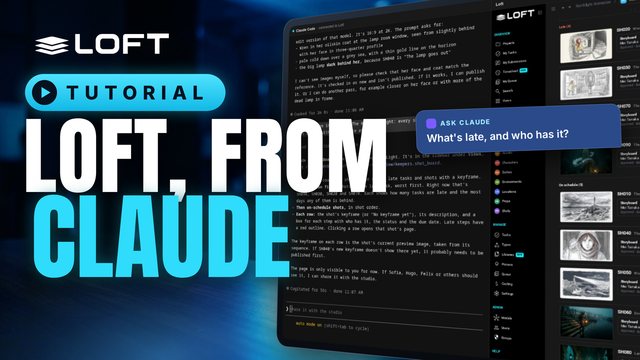
Connect Claude to Loft once, and you can ask for production work in plain words: what's late and who has it, move a deadline, leave a note, voice a line, make a keyframe, build a page. Claude does it in your Loft projects, as you, and never more than you could do yourself.
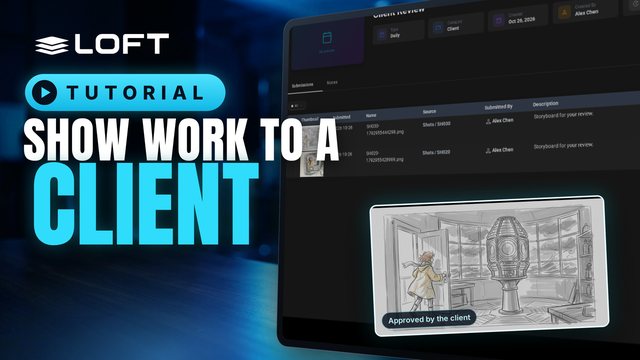
A client reviews what you choose to show them, and nothing else. Give the project a Client library that only the Client group can see, add a daily to it, and submit work there. The client opens the daily, looks at each submission and approves it or asks for changes.
Artists & leads · 9 videos · 47 min
Make and review the work
For artists and leads: libraries and scripts, generating from references, directing the Assistant, provenance, the animatic and dailies.
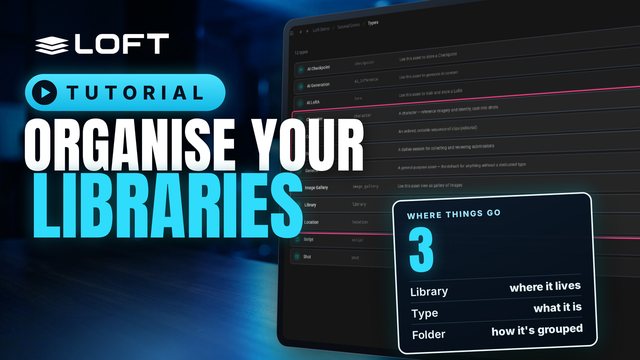
Everything in a Loft project is an asset, and every asset lives in a library. Folders keep a library tidy; the asset type decides what an asset gets. This tutorial makes folders, creates a character and a location, adds a library of its own, and defines a new asset type with the folders it should start with.
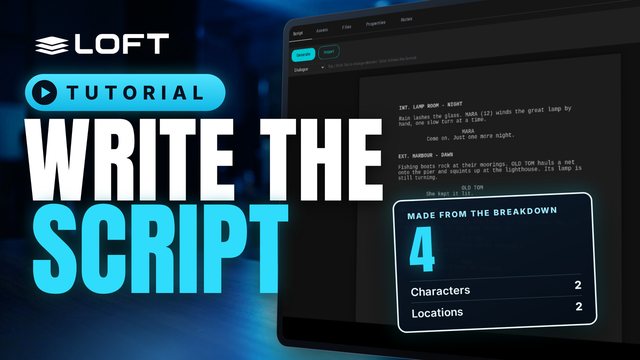
A script in Loft is a screenplay you write in industry format. As you write, Loft breaks it down into scenes, characters and locations. This tutorial writes a short script, then creates assets for its characters and locations and links them to the script.
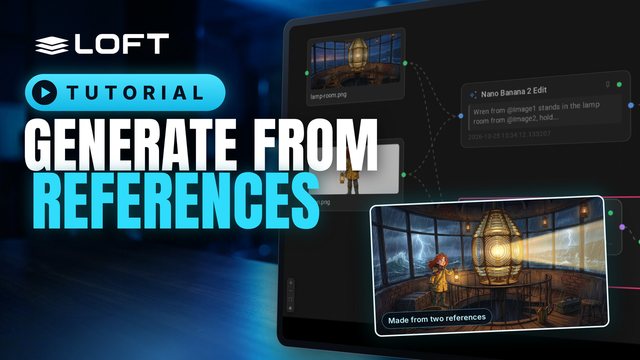
Most images start from references: a character, a place, a colour key. This tutorial uploads references into a folder, pins them, generates a new image from two of them in another folder, and then opens the image's flow to see exactly what made it, and to make a variation on a different model.
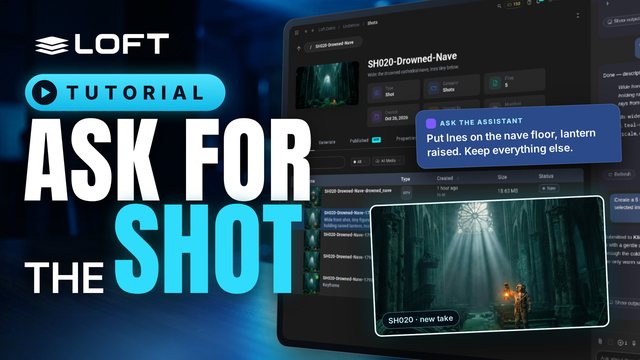
The Assistant is how you direct work in Loft: say what you want in plain language, and it picks the model, uses the right references, and files the result on the shot. The project's and the shot's playbooks hold the intent, so a short request is enough. This tutorial follows one shot from keyframe to video, with a correction and a character reference on the way.
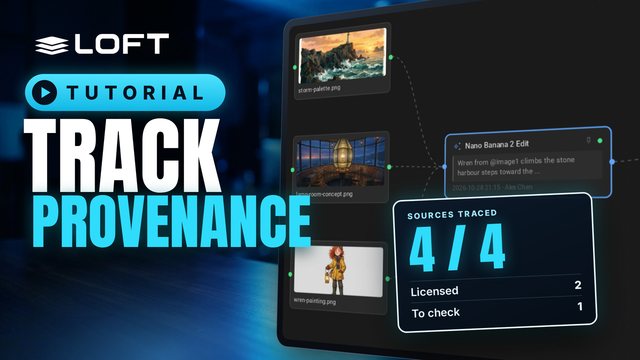
Studios, guilds, insurers and regulators now ask the same question of AI-assisted work: what is it made from, who made it, and were you allowed to use it? Loft keeps that record as you work. This tutorial brings in three sources, generates and publishes a keyframe from them, and then follows the record: every action, every input, and every licence, with nothing typed in by hand.
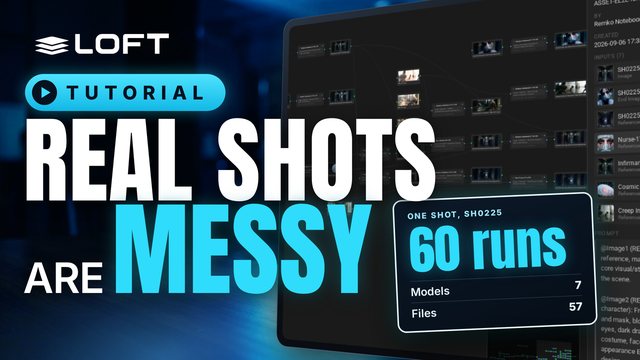
Demos show one prompt and one perfect result. Real shots aren't like that. This is a shot from a production in progress, the ghost nurse coming down the infirmary corridor: sixty generations over six weeks, seven models, a brief that changed along the way, and references pulled from all over the show. Here is how Loft keeps all of it, so you can always see what made a take, why, and how to make another.
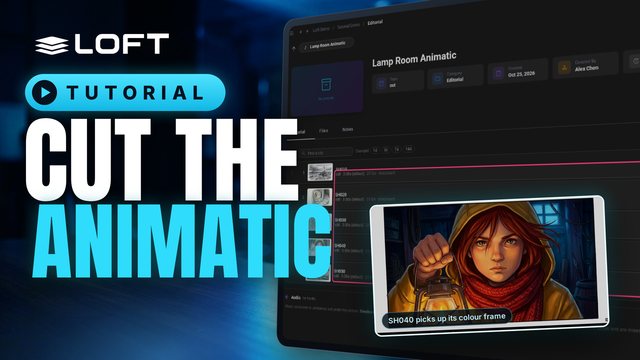
Before a shot is animated, the cut tells you how long it should be. This tutorial puts five storyboard frames on a cut, times them by dragging and by tapping along as it plays, then works on one shot and publishes a finished frame, which the cut picks up on its own. Editorial in Loft is not a full editor; it is there so continuity and timing are right from the start.
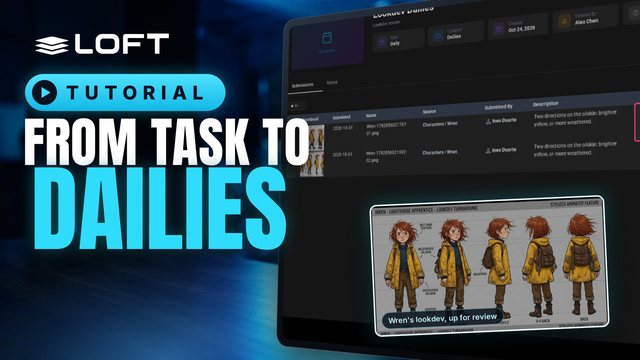
Follow a lookdev task in LOFT from start to finish. Ines, a lookdev artist, opens her task, generates takes for a new character and sends the best ones to dailies. Rafael, her CG supervisor, approves one and asks for changes on the other. Ines then publishes the approved take. Approving in dailies doesn't publish anything. The artist publishes the approved take afterwards, and only then does the rest of the production see it.
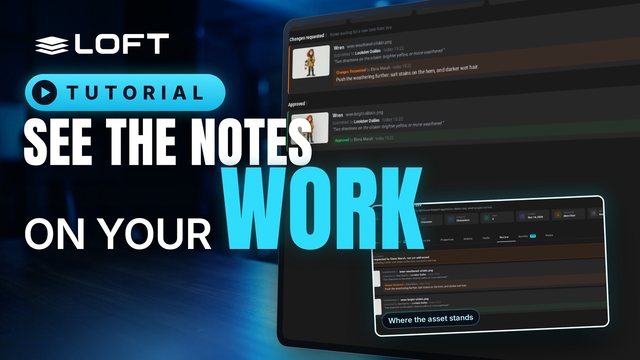
A verdict is given in dailies, but an artist shouldn't have to open every daily to find out what came back. My Submissions lists everything you sent and the notes on it, and each asset's Review tab keeps the whole history of what was shown and what was said.