
STEP 01
Open the project
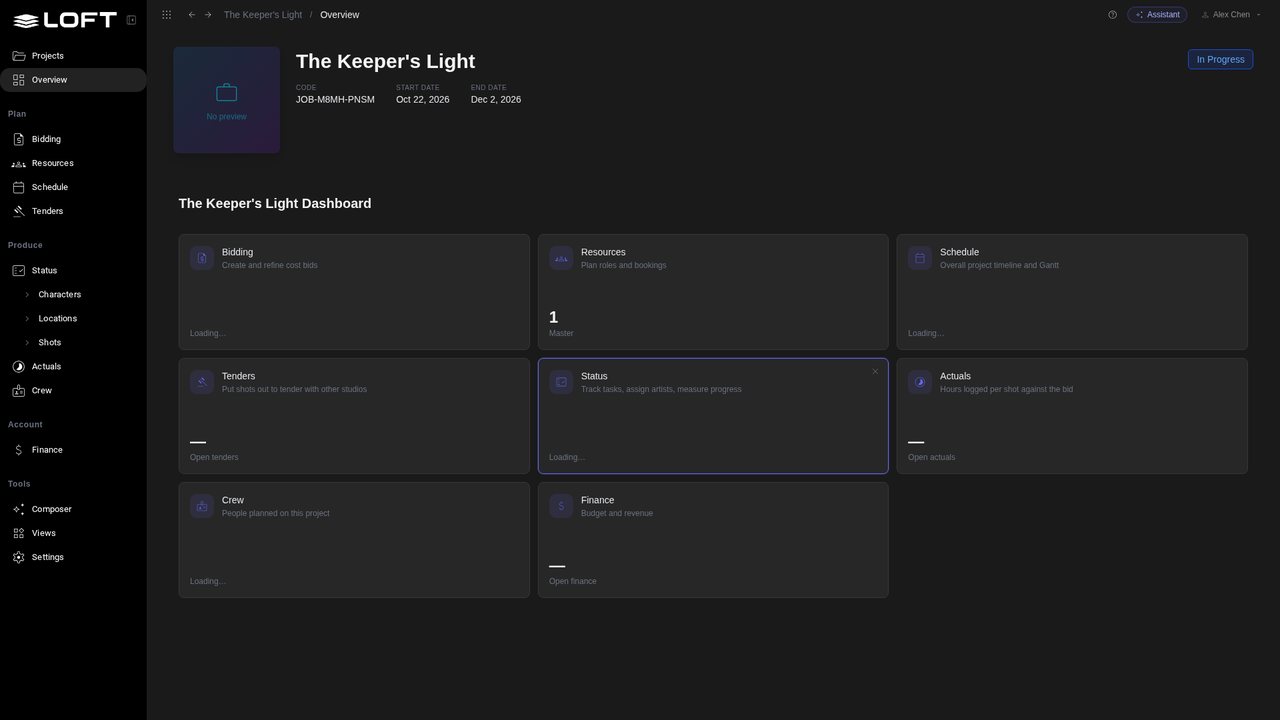
Open The Keeper's Light from the Projects page. Three weeks into production, the producer wants a risk register, and Loft has no page for one.
Learn/Plan and run a production
Every studio tracks something its software has no page for. In Loft you describe the page you need and the Assistant builds it: a view of your own, with its own data, next to the live figures of the show. Change it by asking, put it where the work happens, and share it with the studio.
Follow along
Open The Keeper's Light from the Projects page. Three weeks into production, the producer wants a risk register, and Loft has no page for one.
In the sidebar, under Tools, click Views. A view is a page of your own, and this is where they are made.
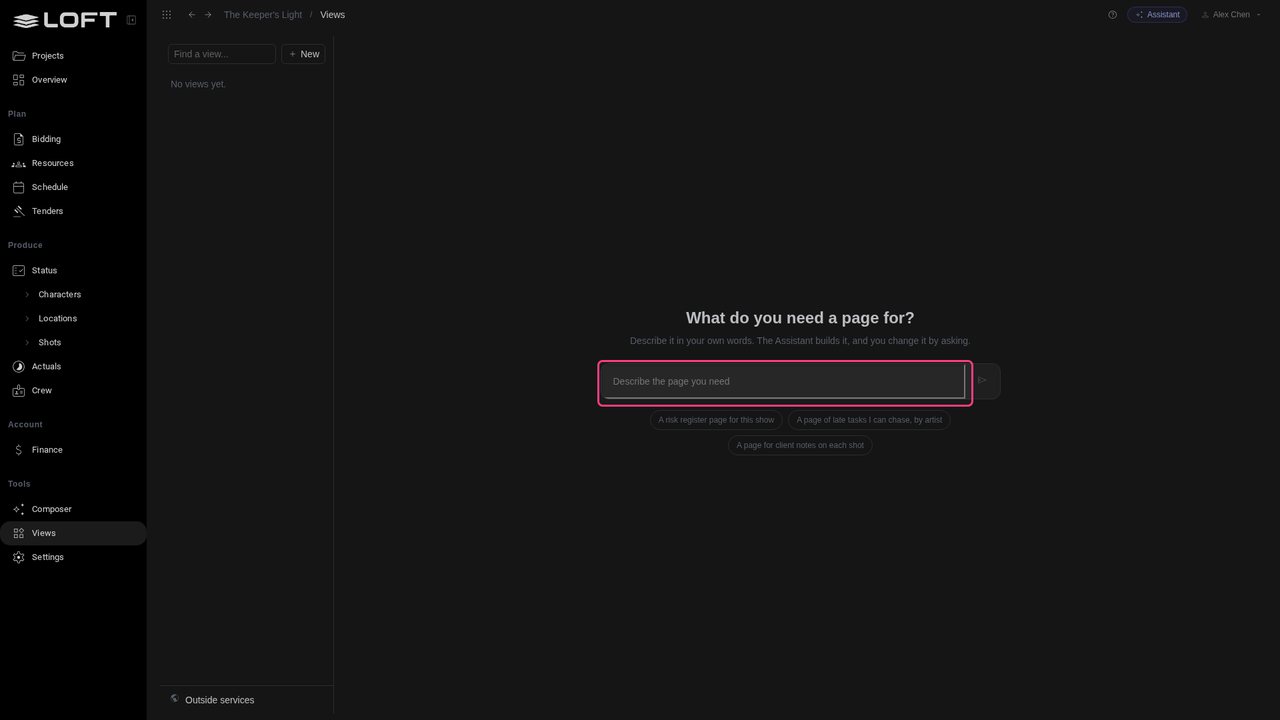
There's nothing to design and no code to write. Describe the page the way you'd describe it to a colleague, or start from one of the examples.
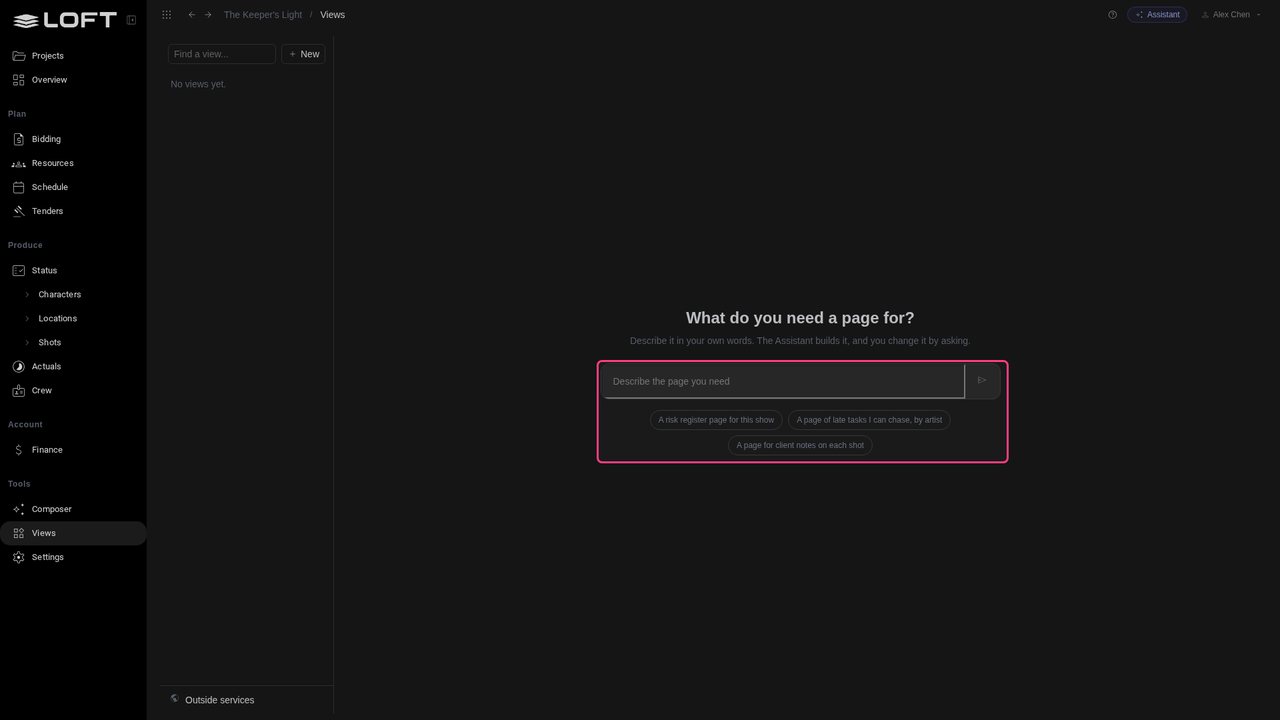
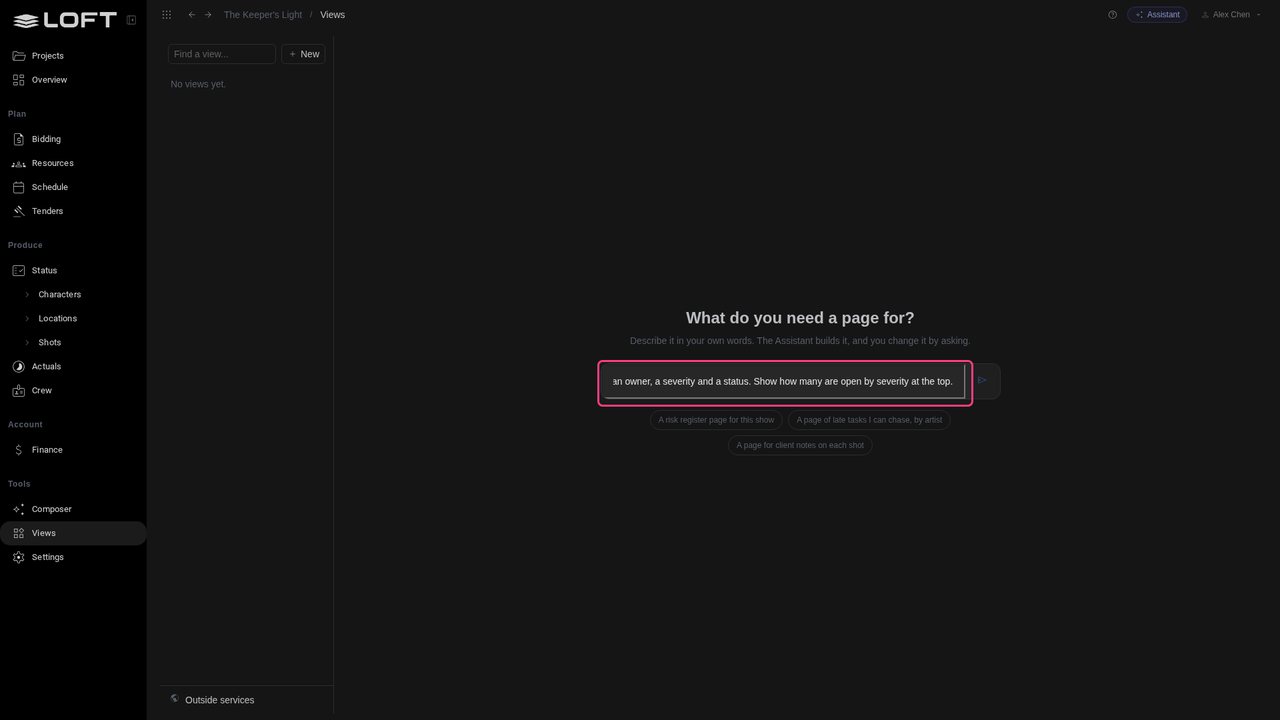
Type: A risk register page for this show. Each risk has a title, an owner, a severity and a status. Show how many are open by severity at the top.
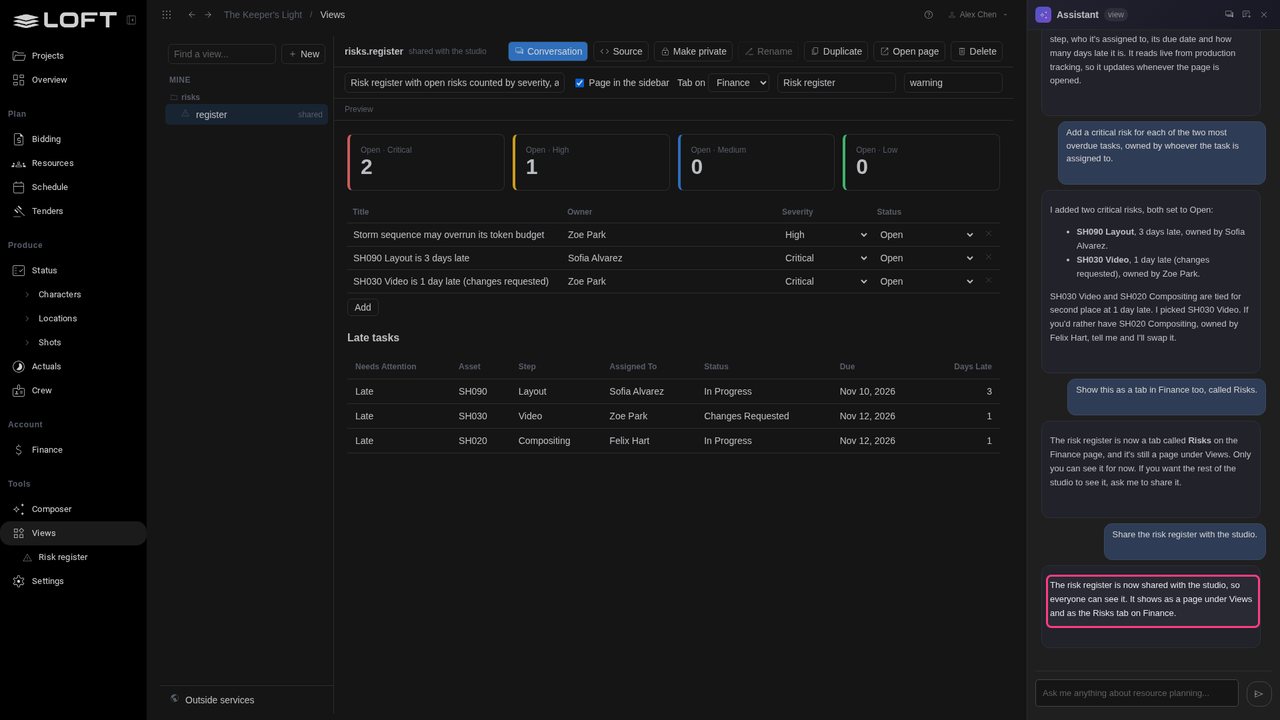
Press Enter. The Assistant writes the page and opens it: a count of open risks for each severity, and a list underneath.
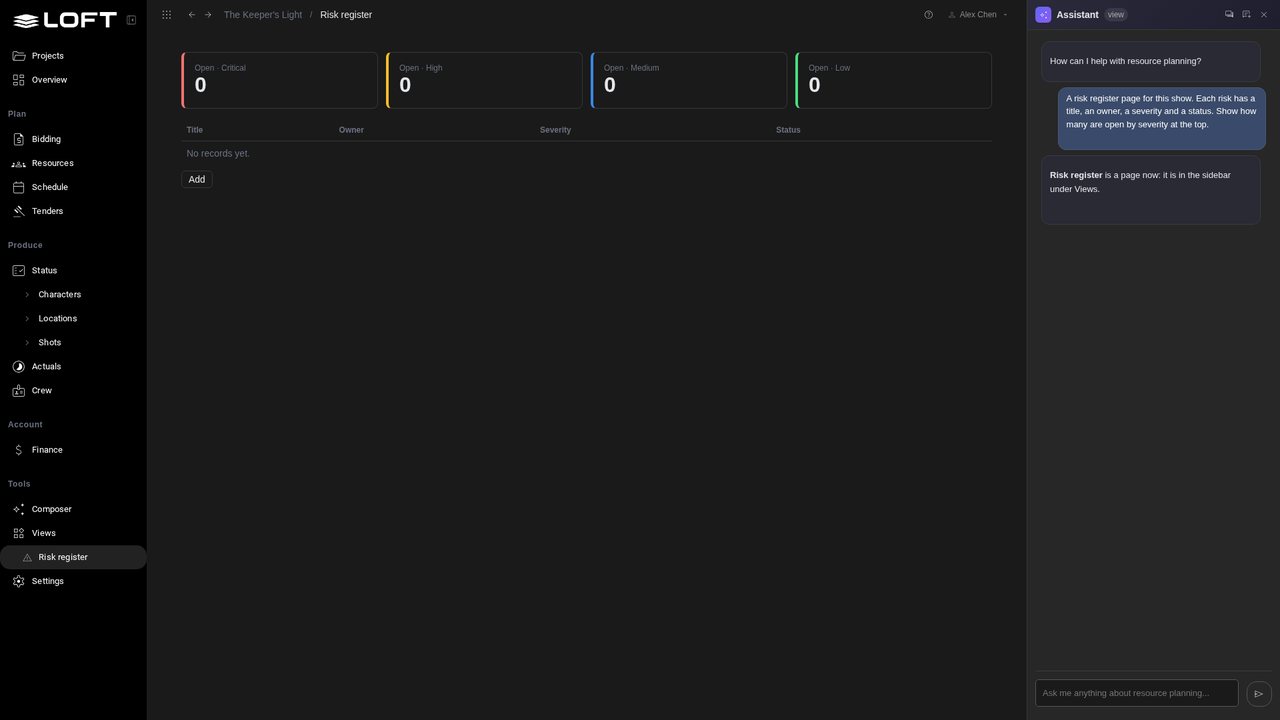
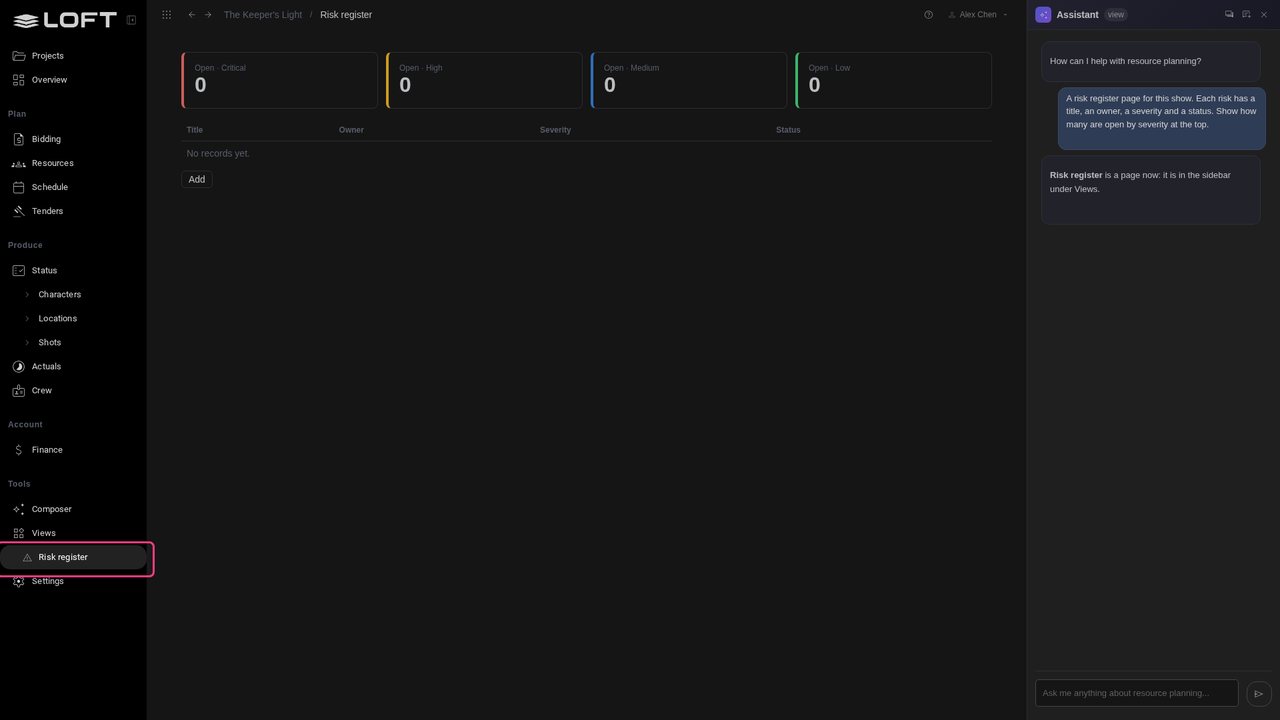
Risk Register is now in the sidebar under Views, with its own address, like any other page of the project.
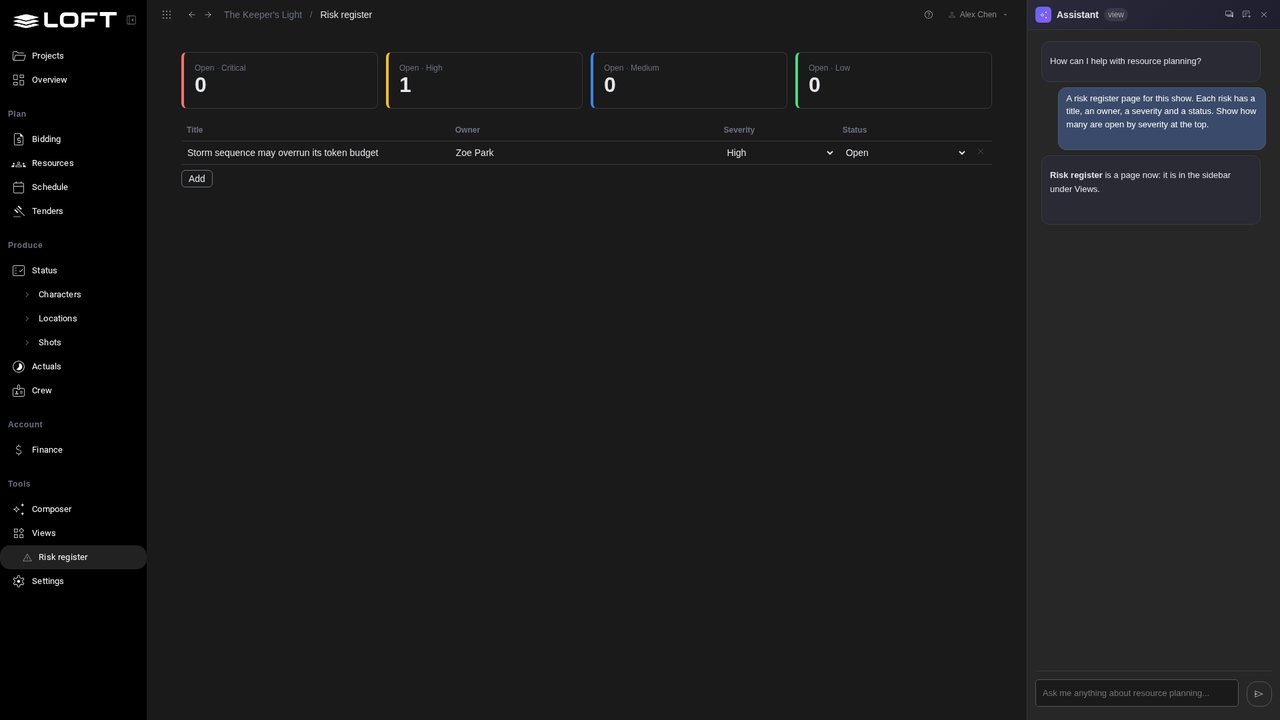
The page keeps its own data. Click Add, type the risk and who owns it, then pick a severity and a status. Each box saves as you leave it, and the counts follow.
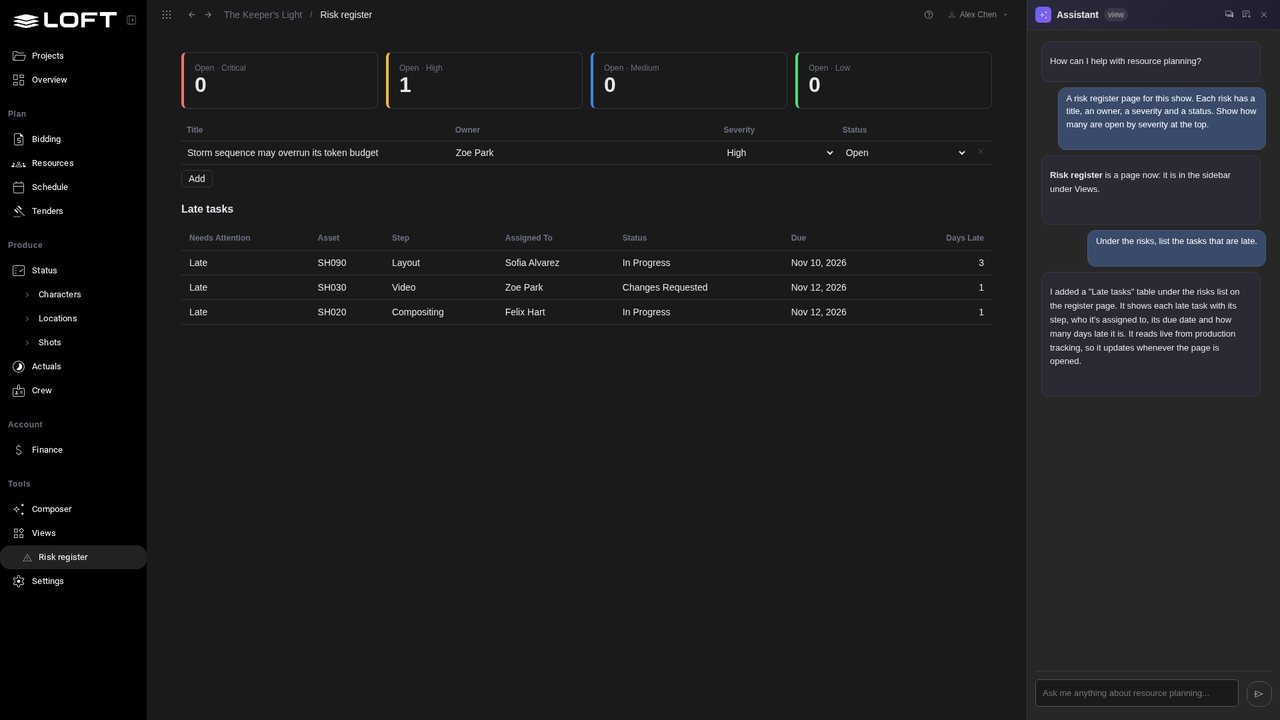
A view is changed the way it was made. In the Assistant, type: Under the risks, list the tasks that are late. The list of late tasks comes from the show's live schedule, right under your own risks.
The Assistant can write to your data too. Type: Add a critical risk for each of the two most overdue tasks, owned by whoever the task is assigned to. It reads the late tasks and logs a risk for each.
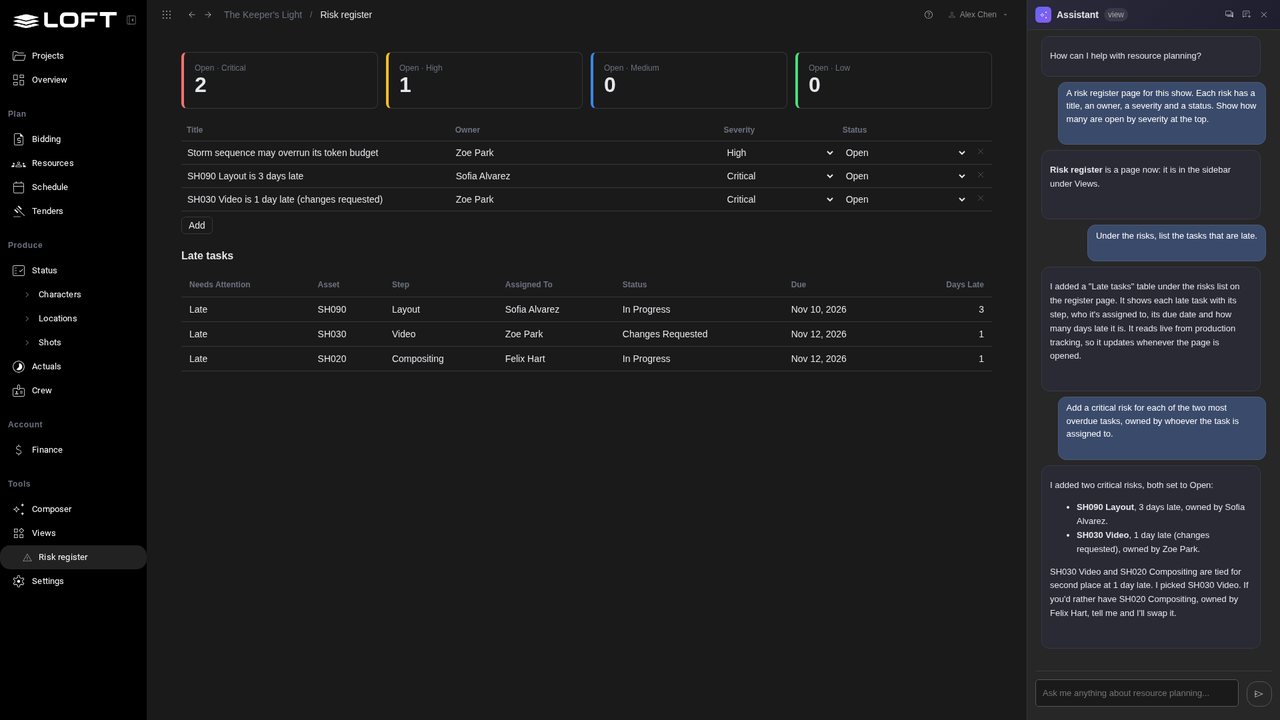
A view can also sit inside a page you already use. Type: Show this as a tab in Finance too, called Risks.
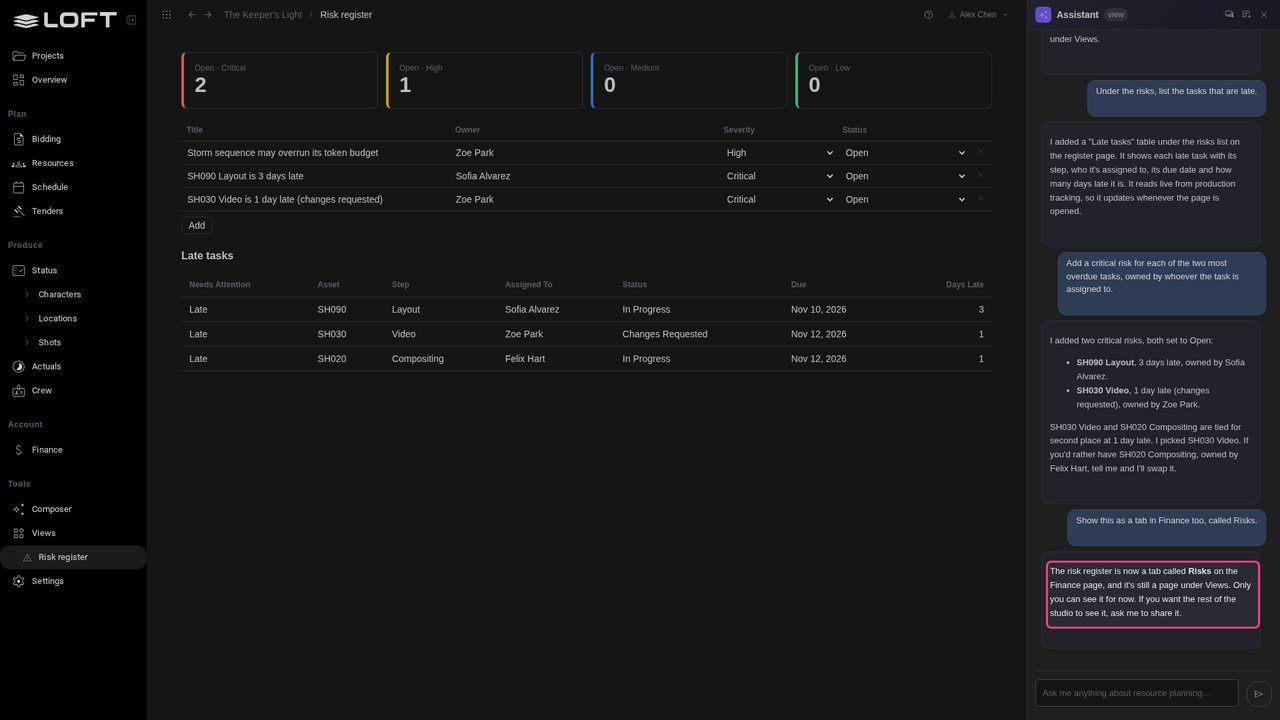
Click Finance in the sidebar, then the Risks tab. It's the same view and the same risks, next to the show's numbers.
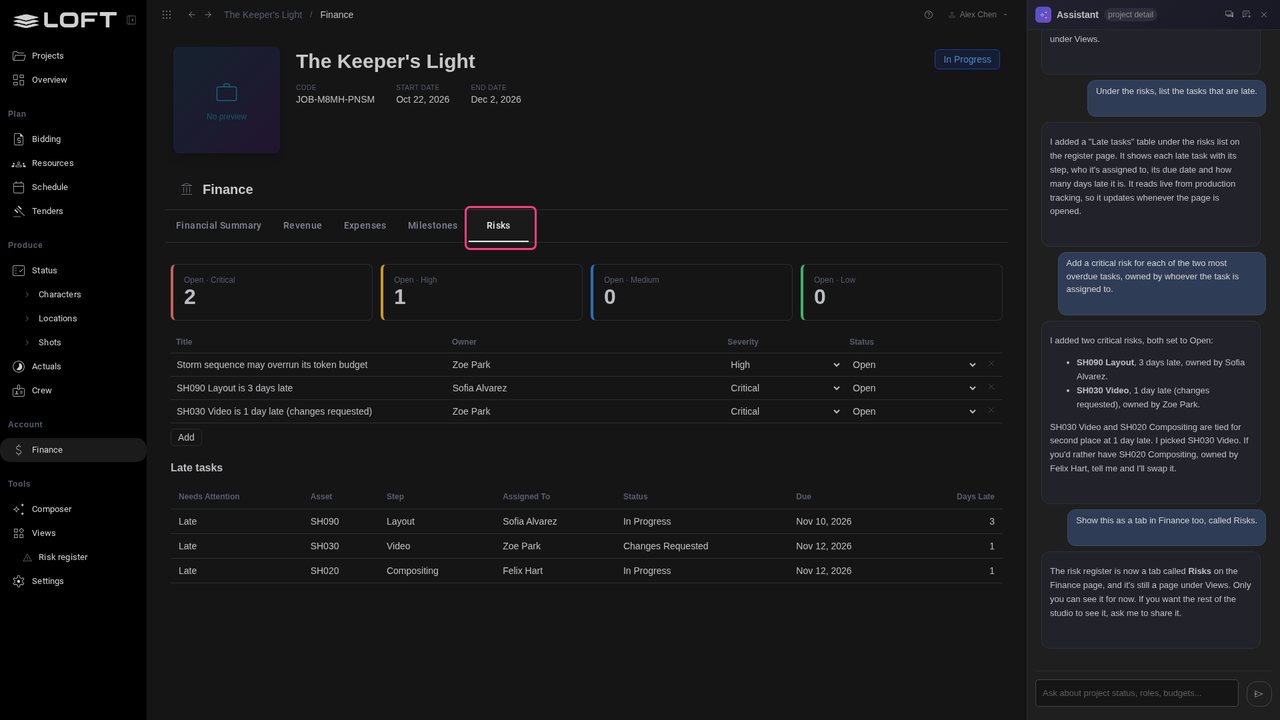
Go back to Views and click the risk register. Every view you've made is listed here, with the conversation that built it, so you can pick up where you left off.
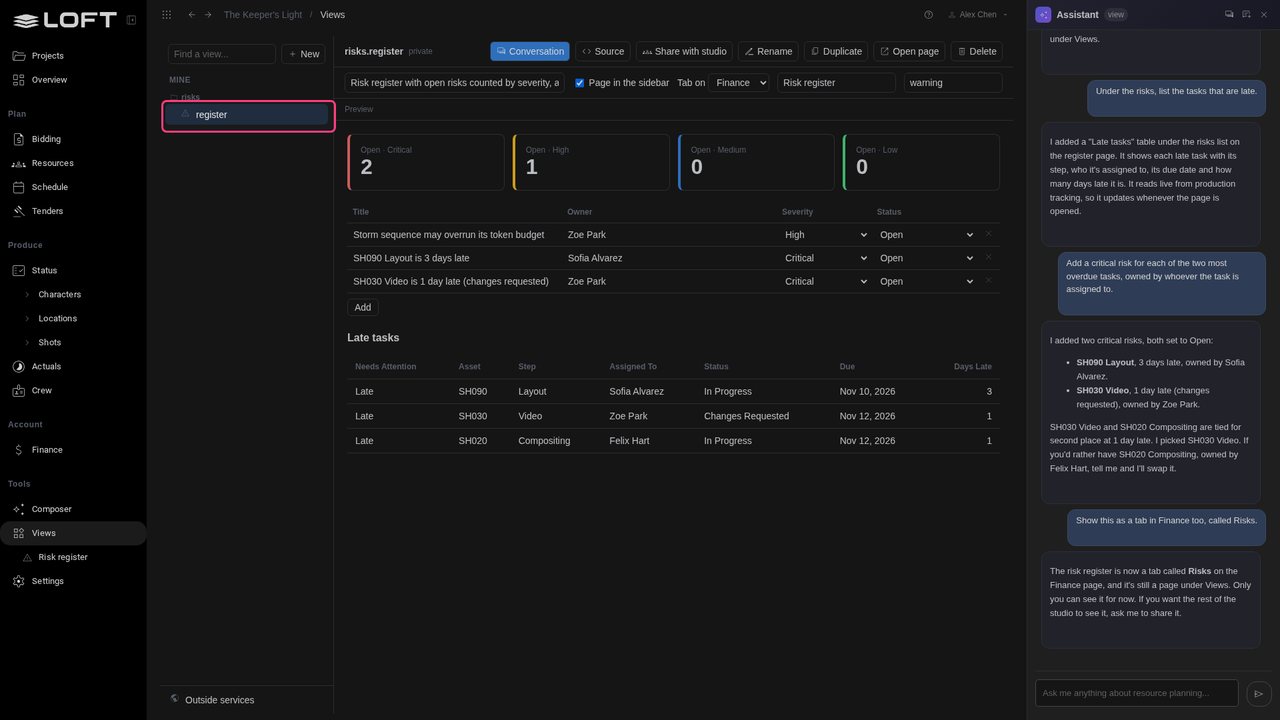
So far only you can see it. Type: Share the risk register with the studio. An admin's view is shared at once; anyone else's goes to an admin to approve.
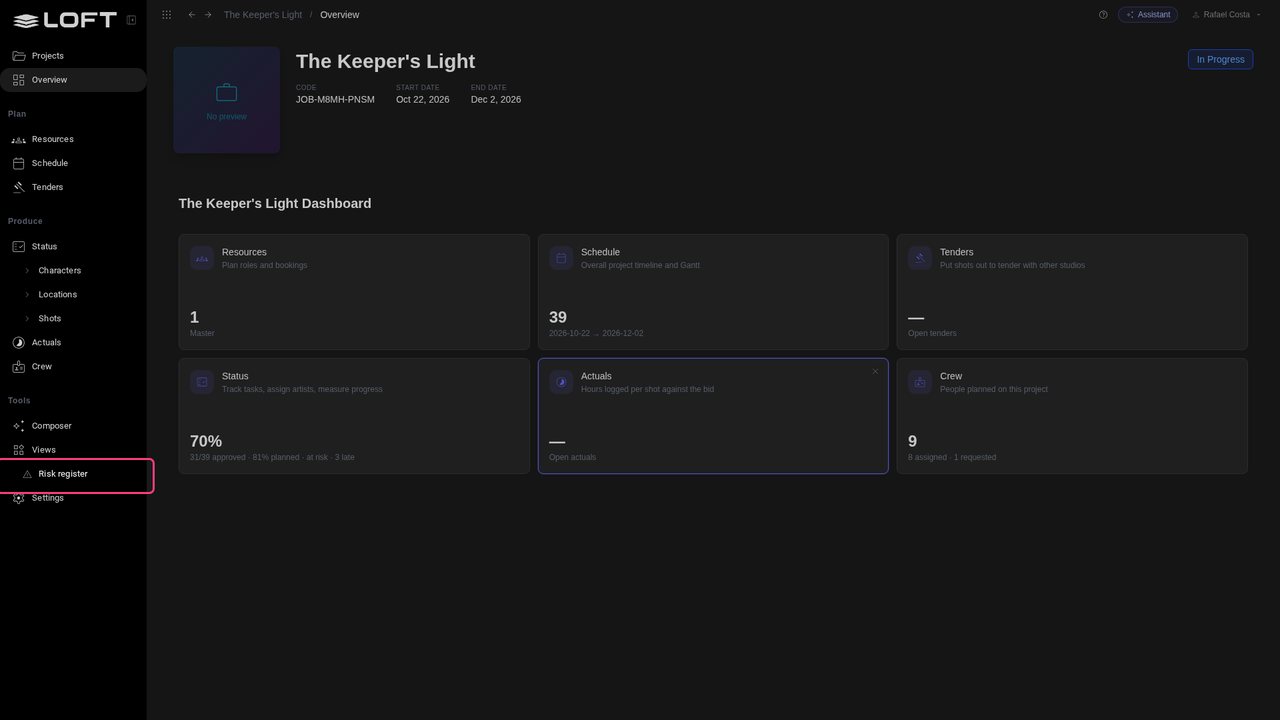
Rafael Costa, the CG supervisor, signs in and opens The Keeper's Light. Risk Register is in his sidebar too.
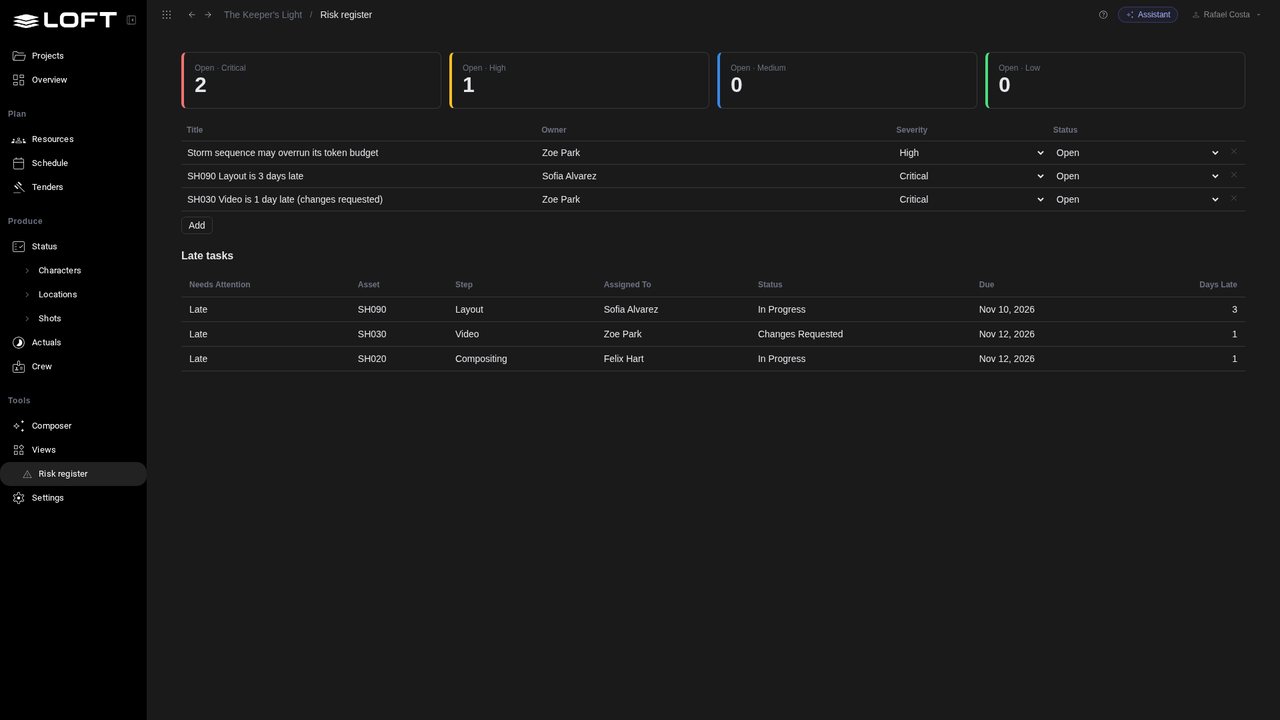
He clicks it and sees the same risks, and can add his own. One request made a page the whole studio now works from.
Up next in Plan and run a production
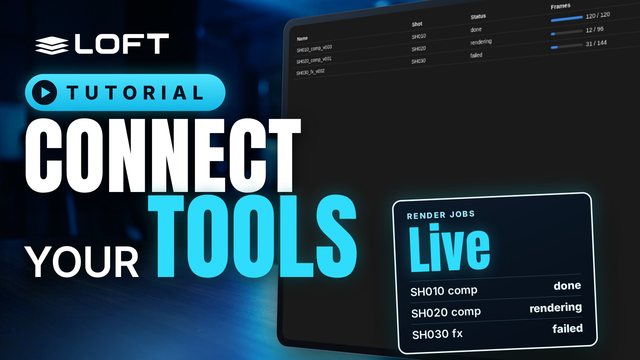
Your render farm, your form tool, your tracker: each knows something Loft should show. A webhook is an address they post to. What arrives becomes a record of your own, on a page of your own, and the page updates as it arrives. Nothing to install on either side.
In the playlists Plan and run a production.