STEP 01
Three parts
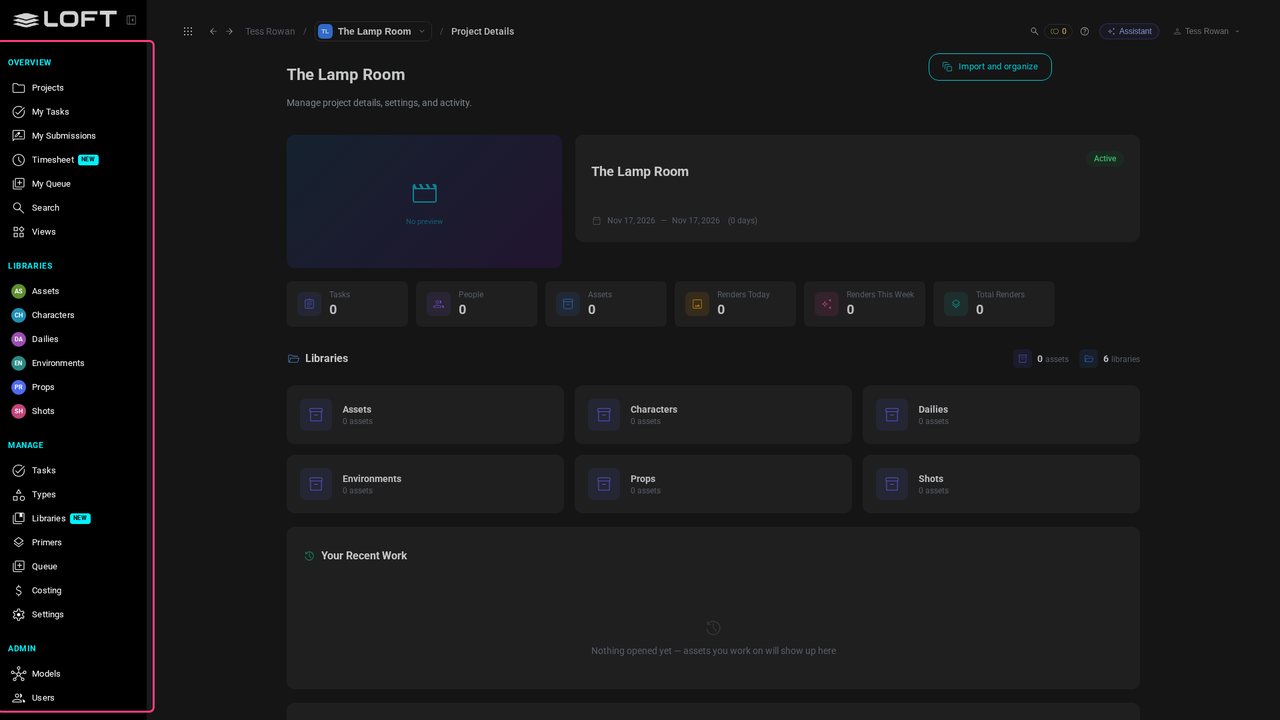
Loft's screen has three parts: the sidebar on the left, the header along the top, and the page in between. This is the project page from the last video.
Learn/Get started
Everything on Loft's screen, one line each, and which video covers it. You don't need any of it to carry on; watch it now for the map, or come back when you wonder what something is.
Follow along
Loft's screen has three parts: the sidebar on the left, the header along the top, and the page in between. This is the project page from the last video.
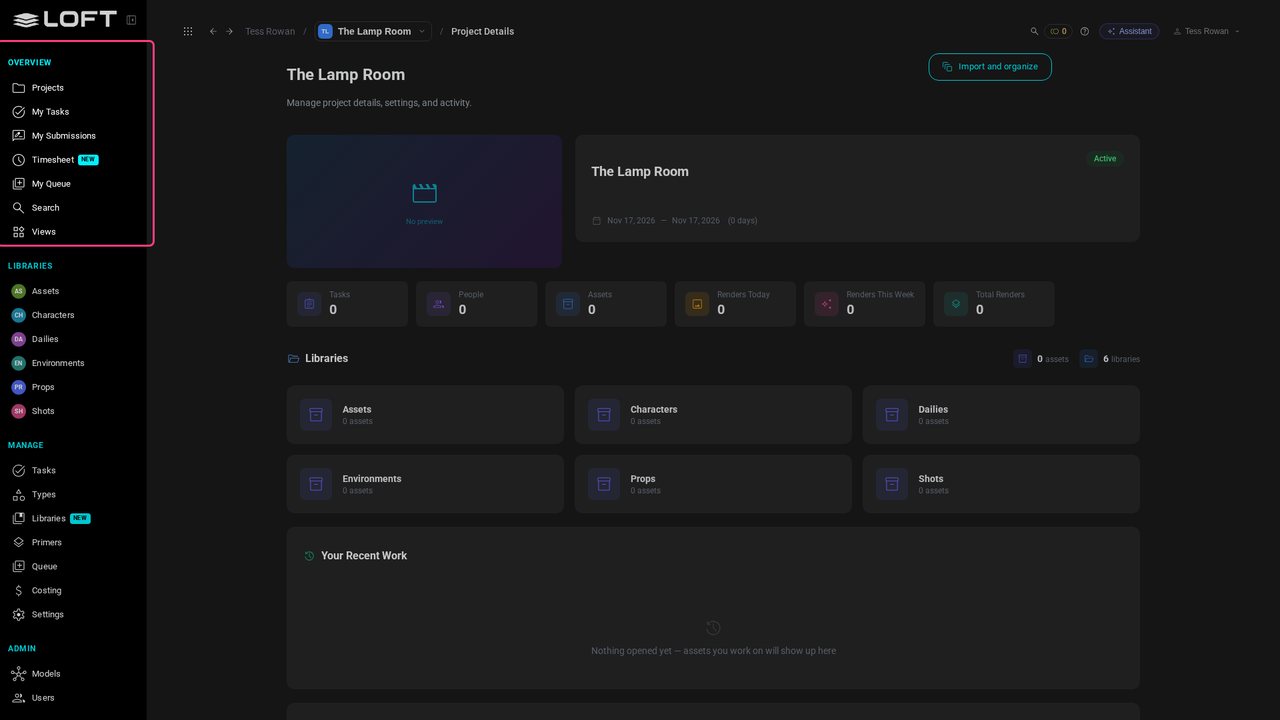
Overview is about you, across every project: Projects, the tasks assigned to you, what you've sent for review, your timesheet, your queue of generations, Search, and Views, pages you build yourself.
Libraries hold this project's work, one kind of thing each: characters, locations, shots. The video Bring in your work fills them.
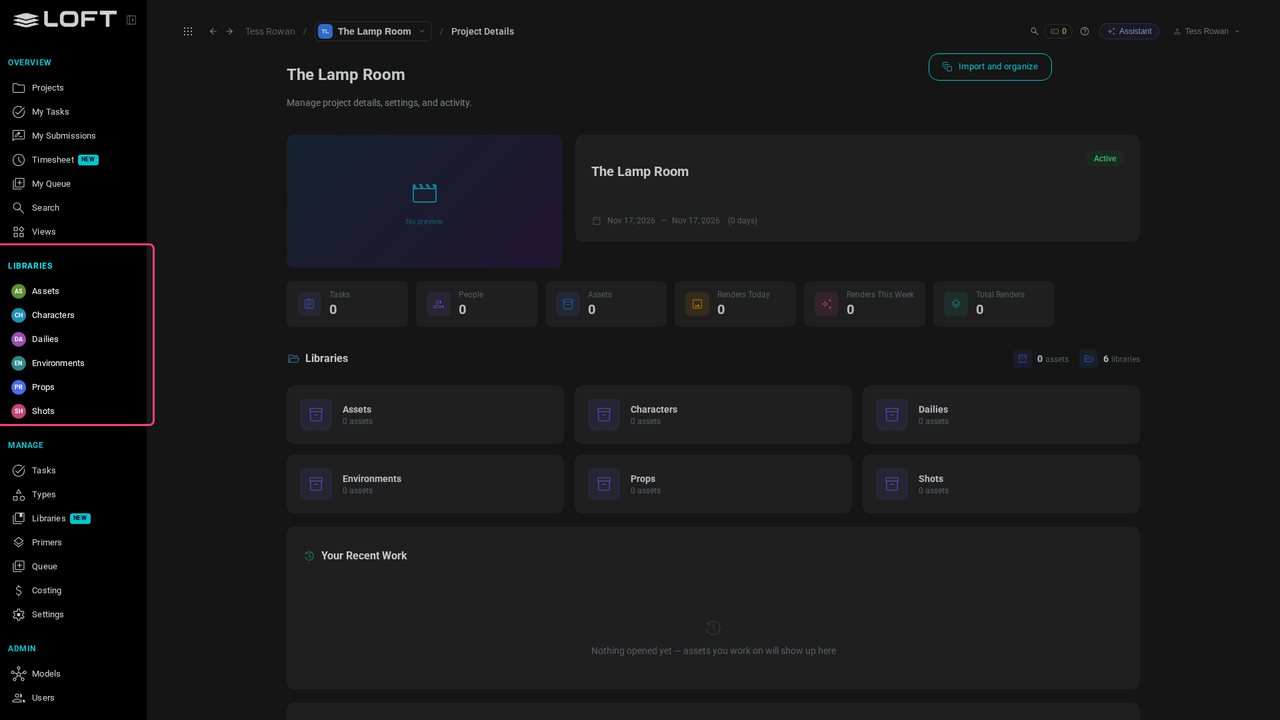
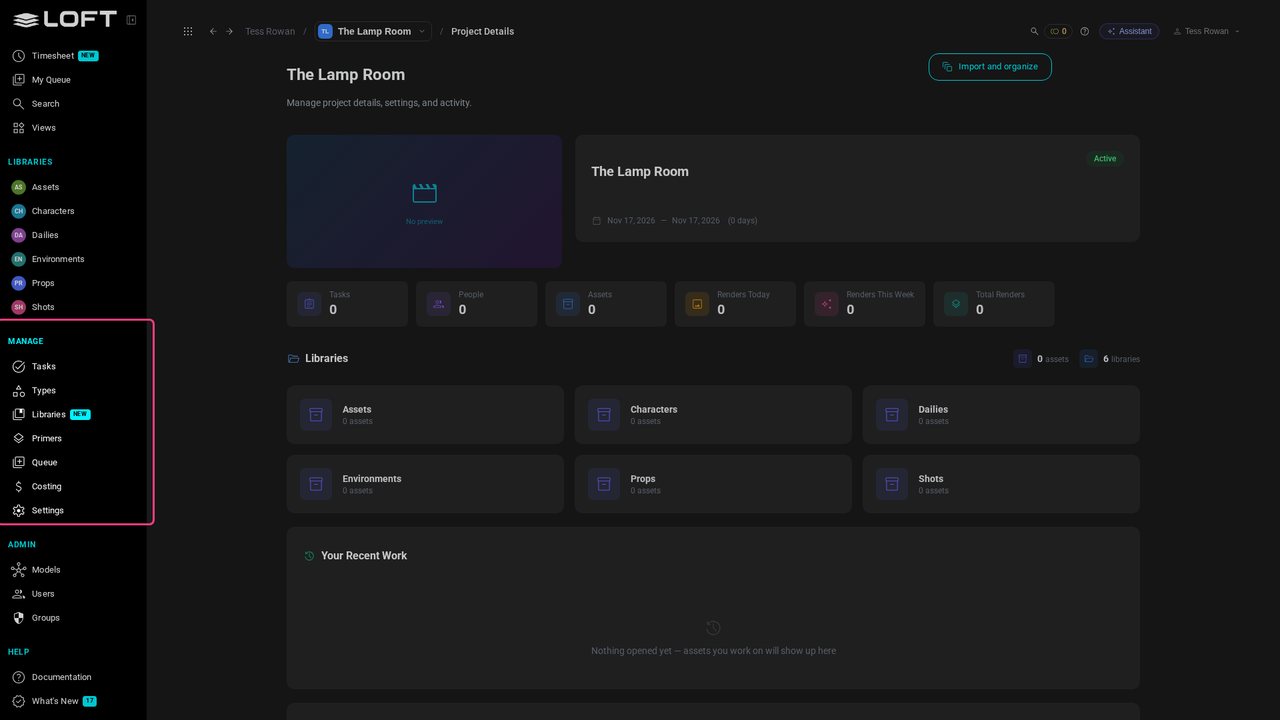
Manage is the project's setup: all its tasks, the types of asset, its libraries, primers (prompts you save to reuse), its queue, what it costs, and its settings. Working alone, you'll rarely need these early on.
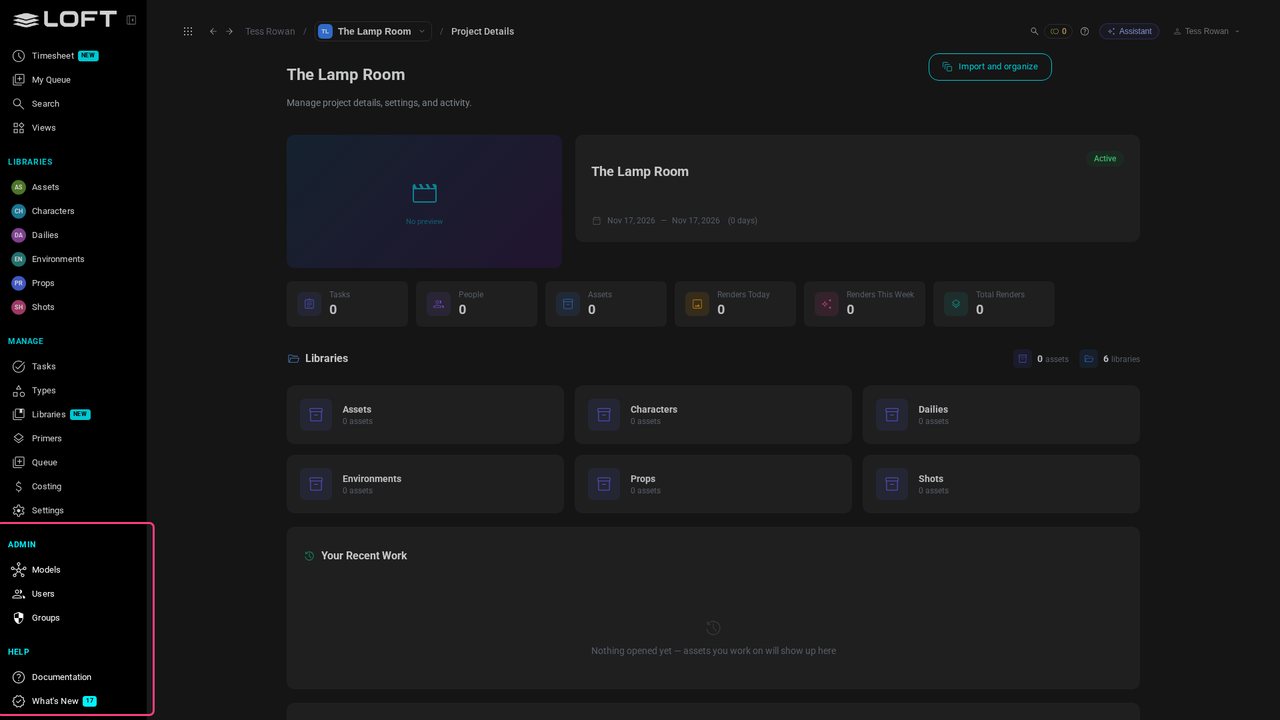
Admin is the organization's: the AI models it offers, its users and groups. Help opens the documentation, and What's New lists recent changes.
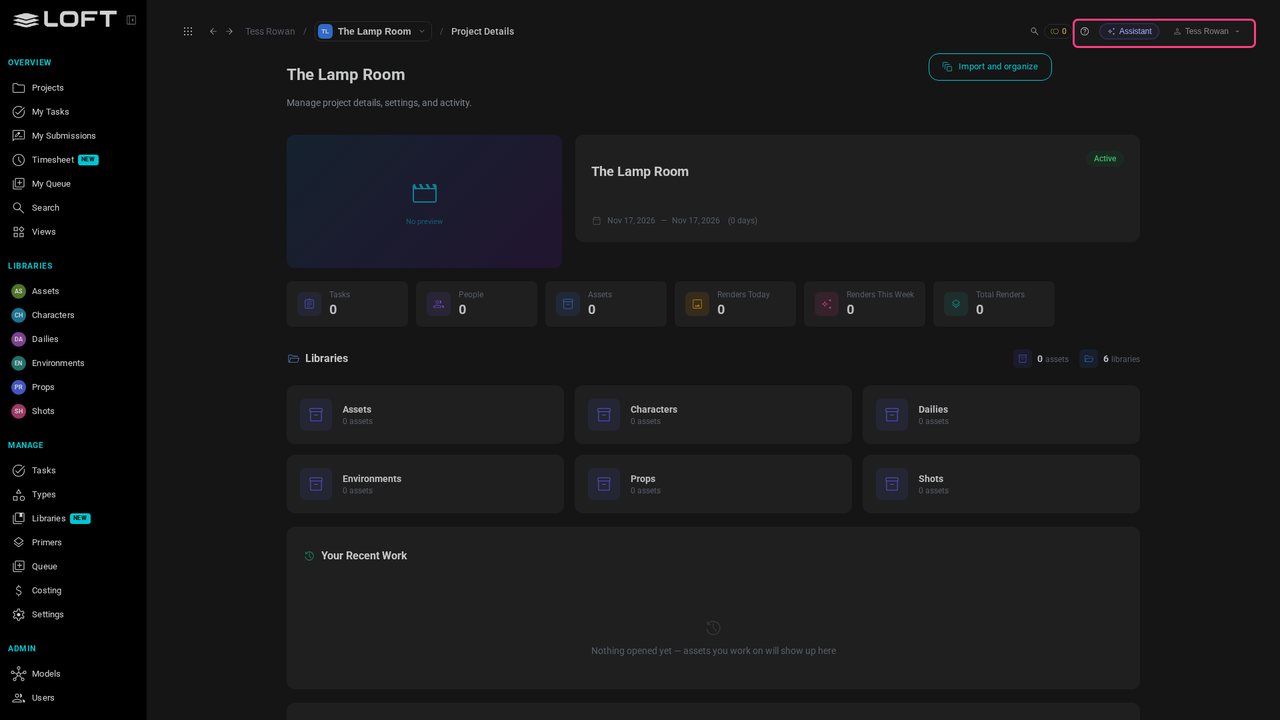
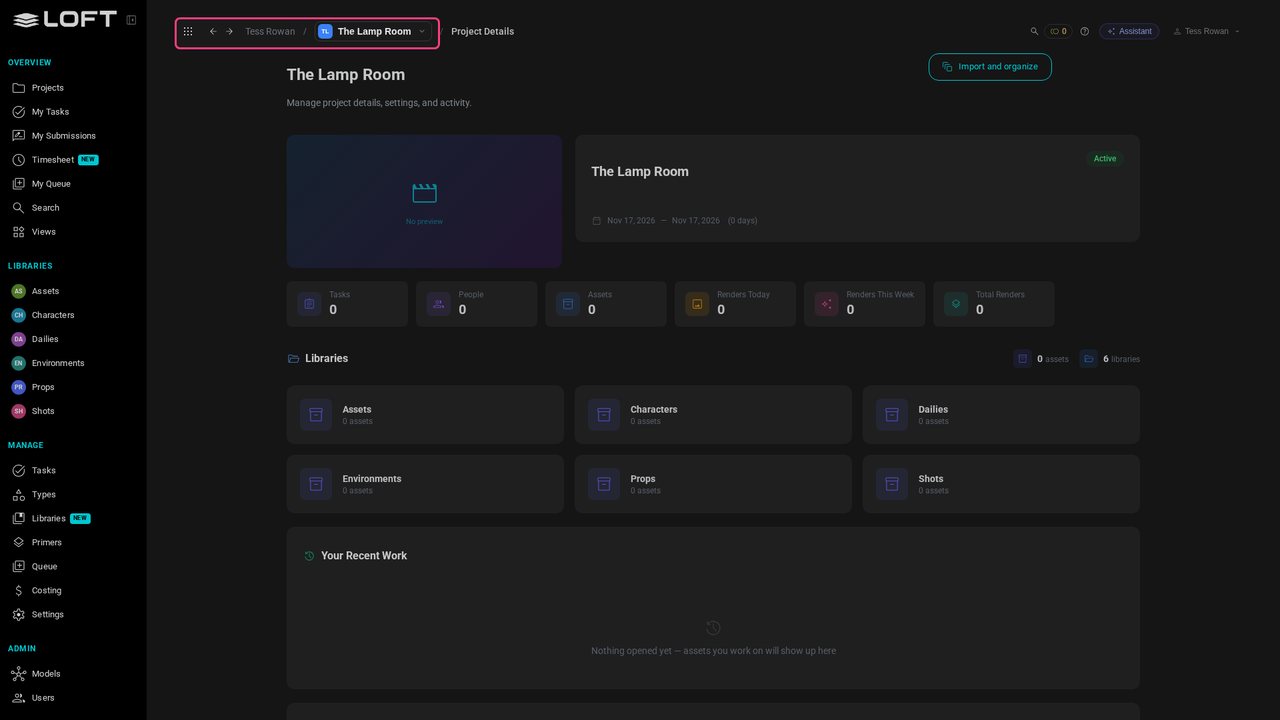
Along the top, from the left: Switch app, between Loft and Schedule; your organization; and the project you're in. Click the project to switch to another.
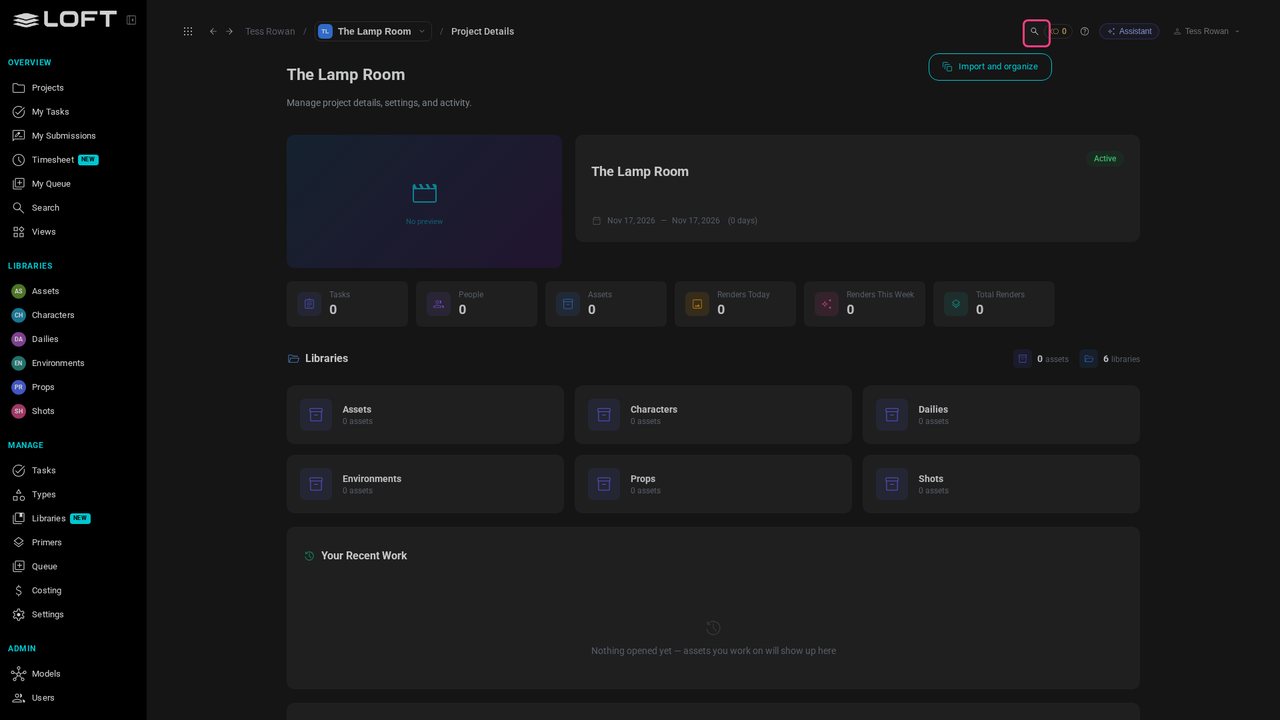
The magnifier, or Ctrl K (Cmd K on a Mac), jumps straight to any asset by name.
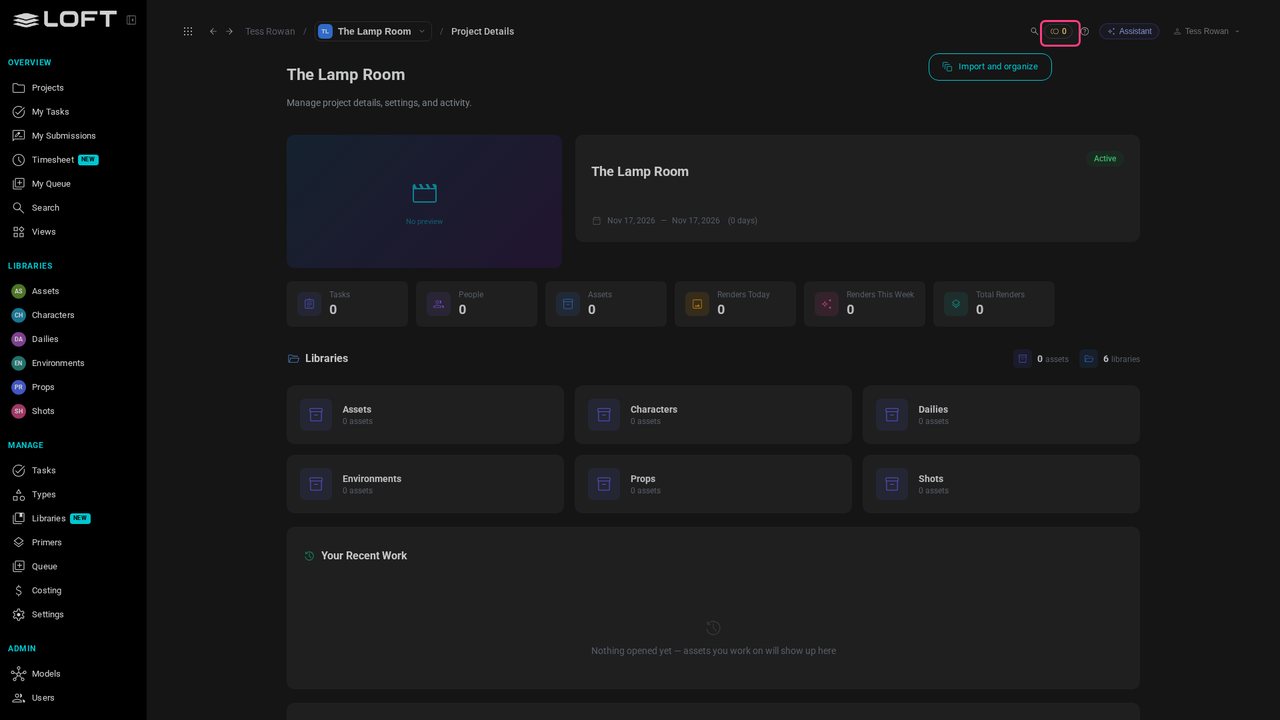
Your balance: the tokens generating spends. Click it to see what's been spent; the video Ask for an image is where you first need some. A bell appears beside it once something is for you: generations running, notes and replies.
? opens help for the page you're on. Assistant opens the conversation beside your work; from the next video on, most things start there. Your name opens your account menu, where light and dark mode live.