
STEP 01
Import and organize
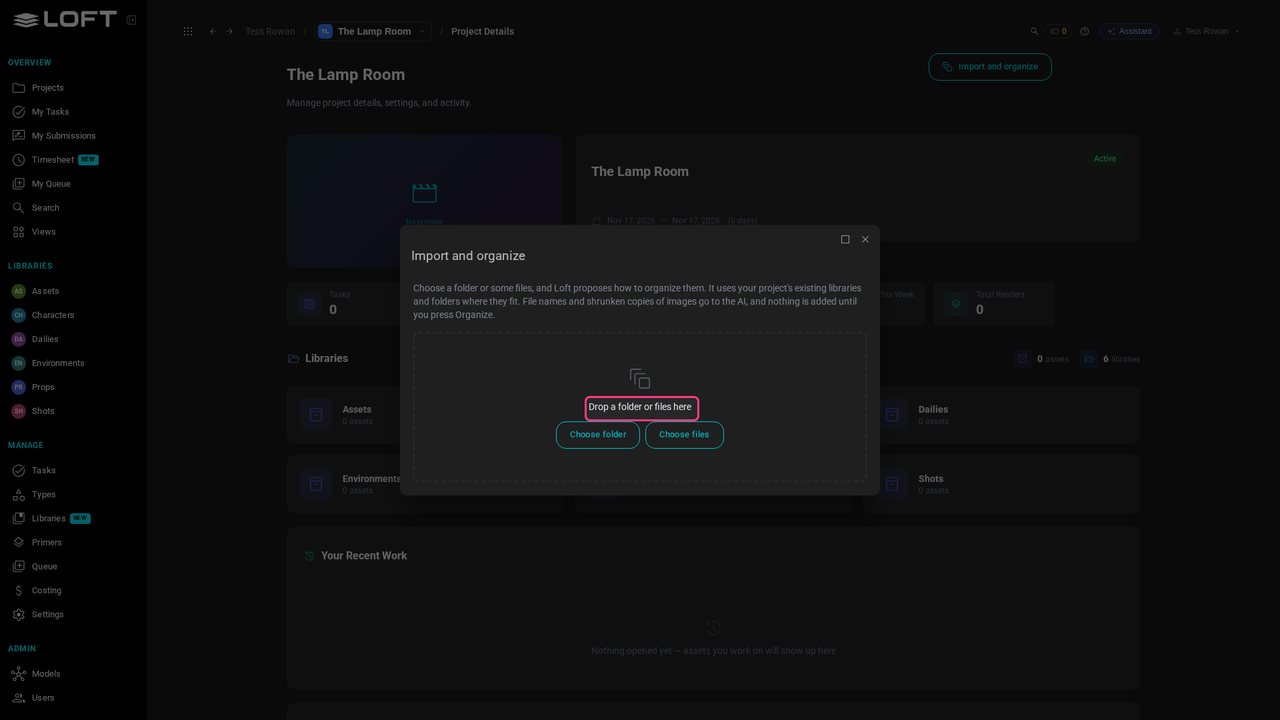
Get the starter pack from the link under this video: three images for a short film, in one folder. Or use your own. On your project's page, click Import and organize.
Learn/Get started
Bring the images you already have into your project, let Loft sort them, and tell it which ones are designs and which are only reference. Follow along with the starter pack linked under this video, or with your own images.
Follow along
Get the starter pack from the link under this video: three images for a short film, in one folder. Or use your own. On your project's page, click Import and organize.
Click Choose folder and pick the starter pack, or drop the folder here. Loft reads the names and folders and proposes where everything goes. Nothing has changed yet: this is only a plan.
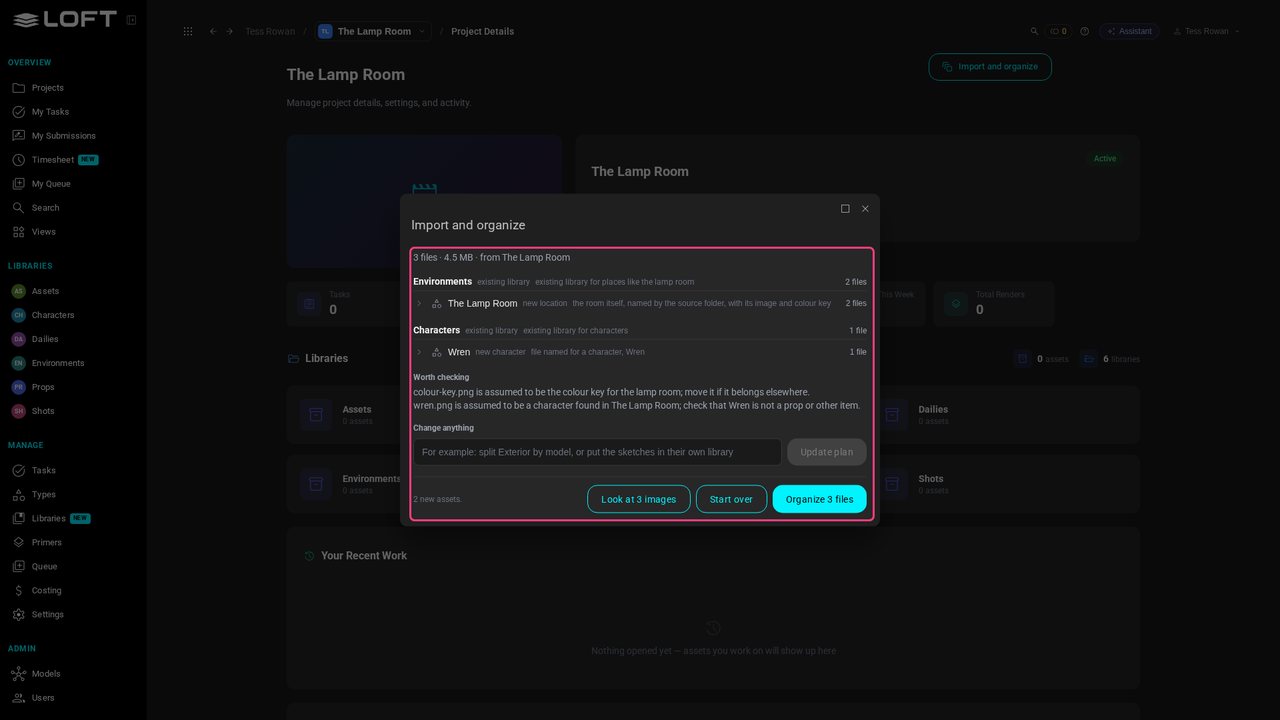
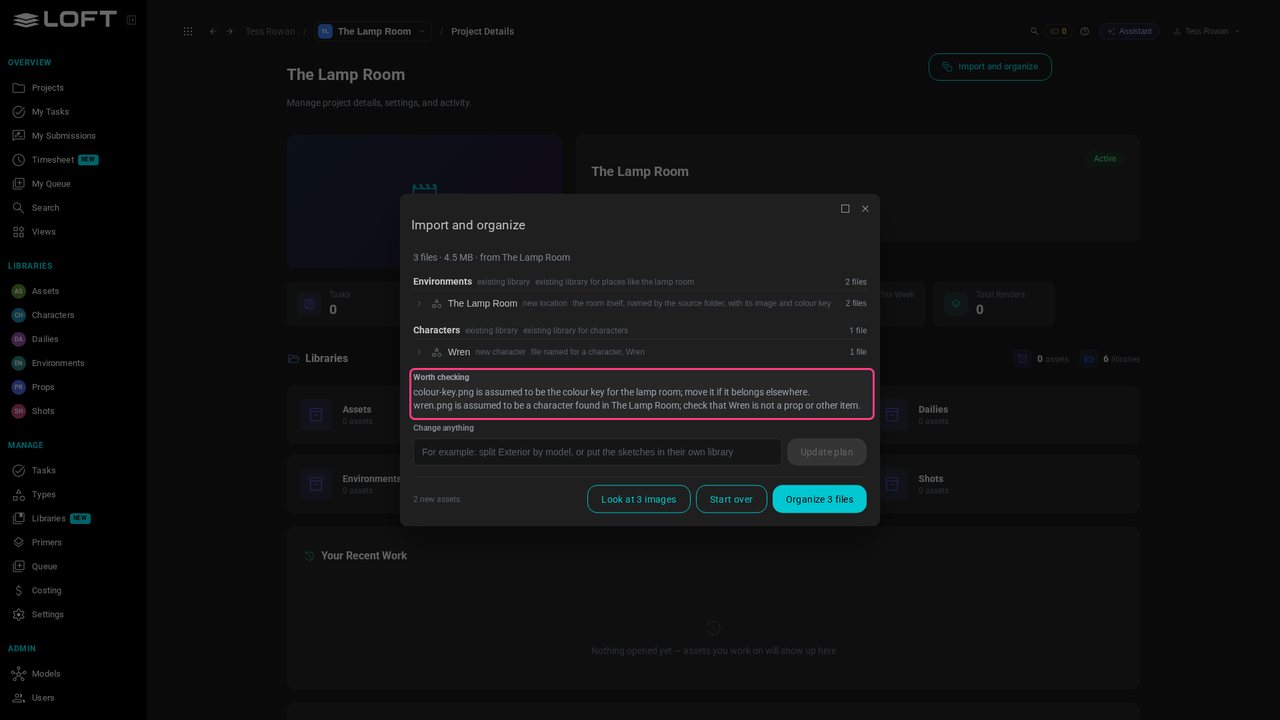
Each library, then the assets to make in it: here Wren, a new character, and The Lamp Room, a new location, with the colour key alongside it. Worth checking lists the guesses Loft made. Yours may read a little differently.
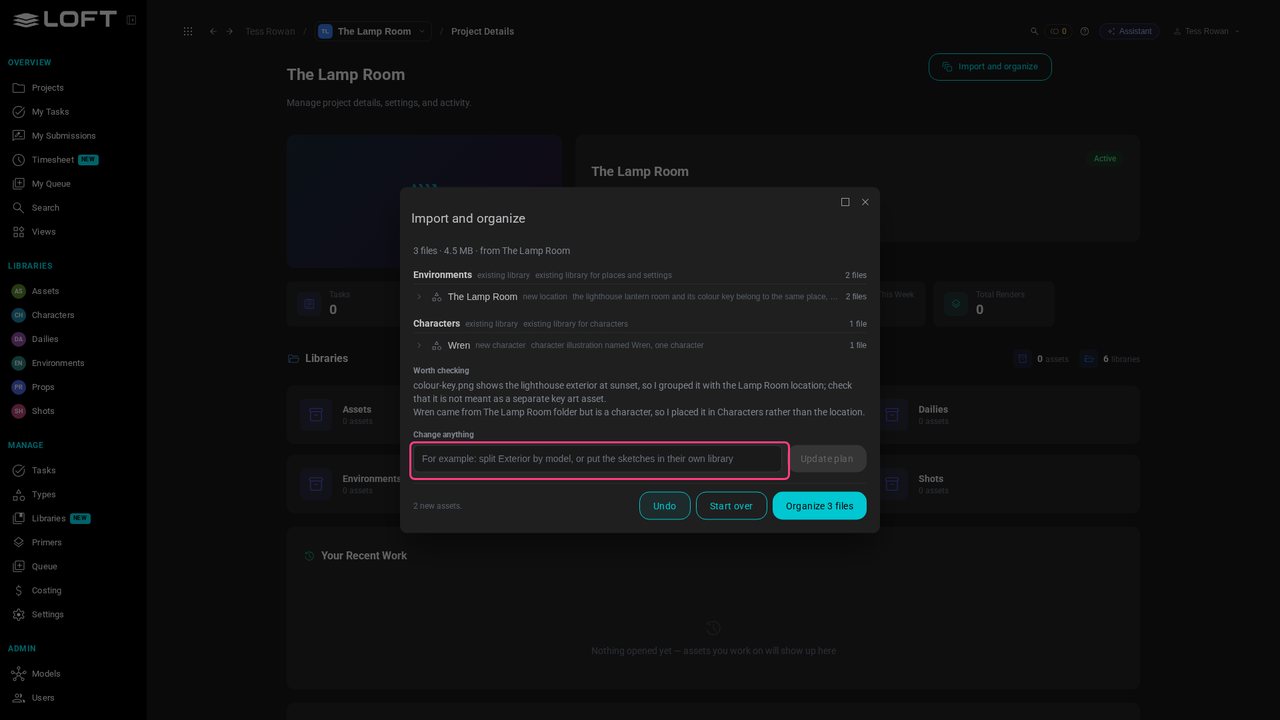
Click Look at 3 images. Loft looks at each one and writes down what it shows. It keeps those descriptions, and uses them later to pick the right image when you generate. If anything is wrong, say what to change in the box and update the plan.
Click Organize 3 files. Loft makes the two assets and uploads the files into them.
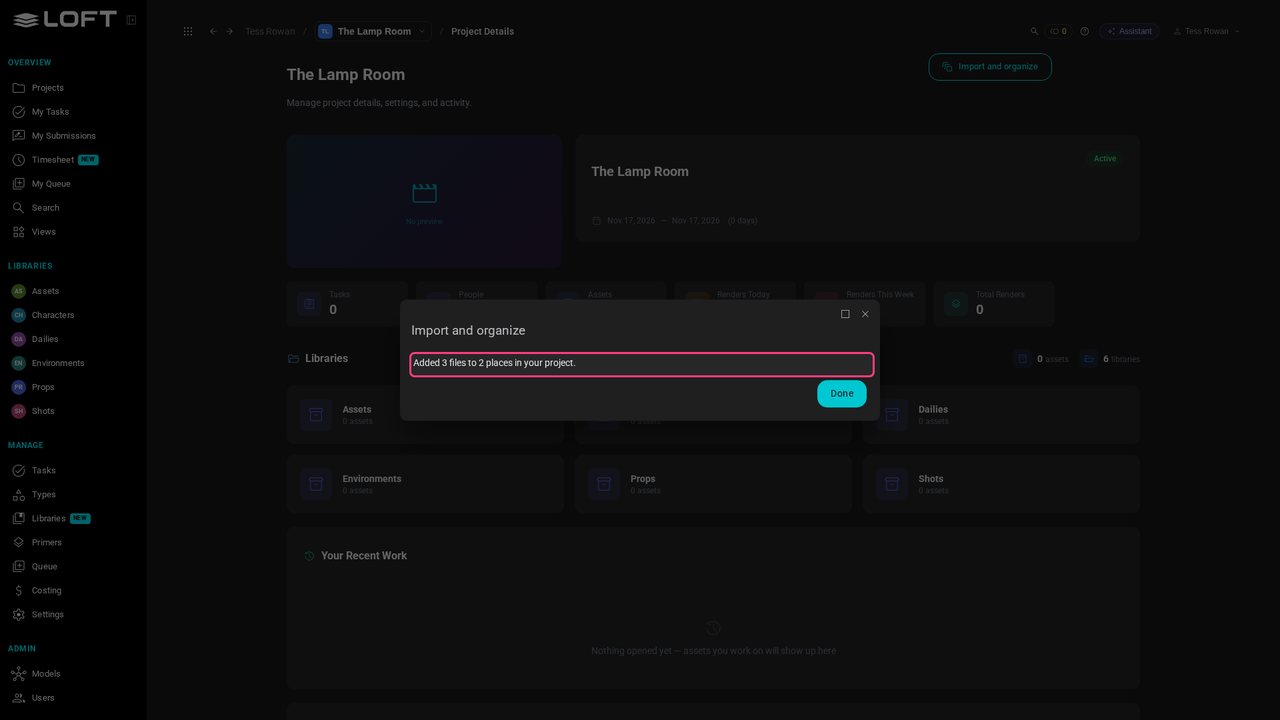
Click Done, then Characters in the sidebar. Wren is here: an asset, the one place everything about Wren will live.
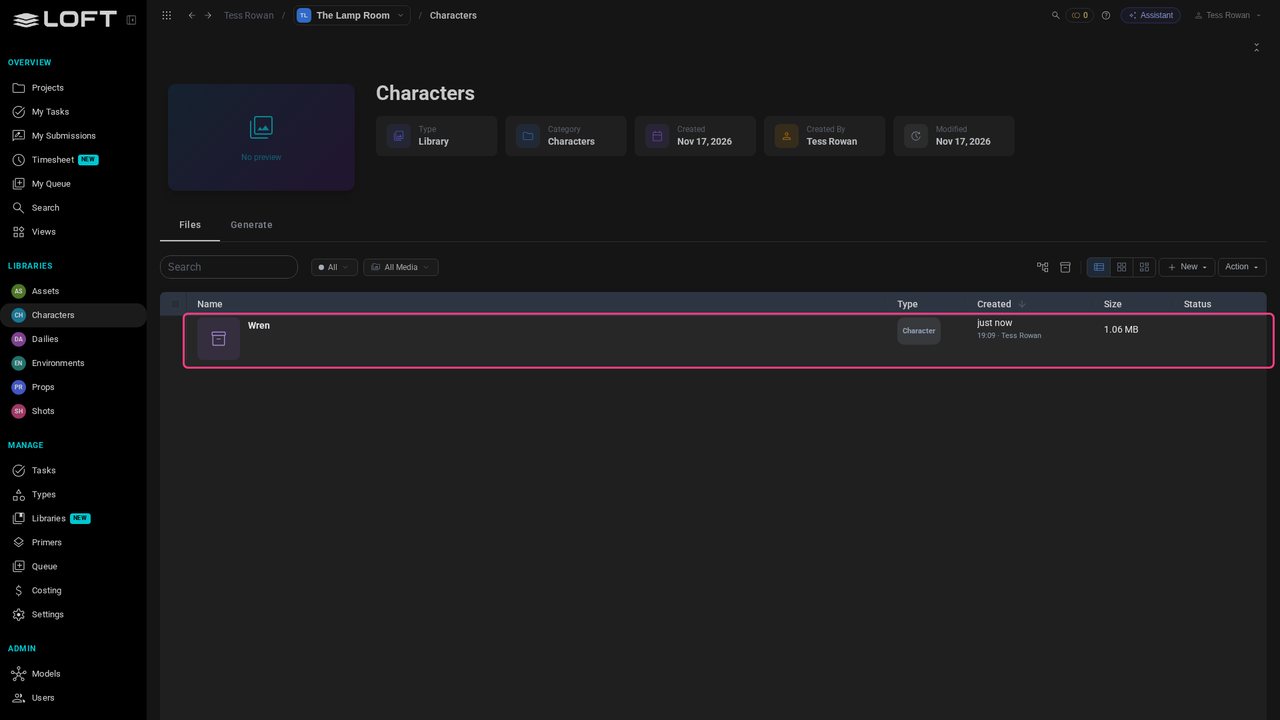
Click Wren. The asset's Files hold the design you brought in.
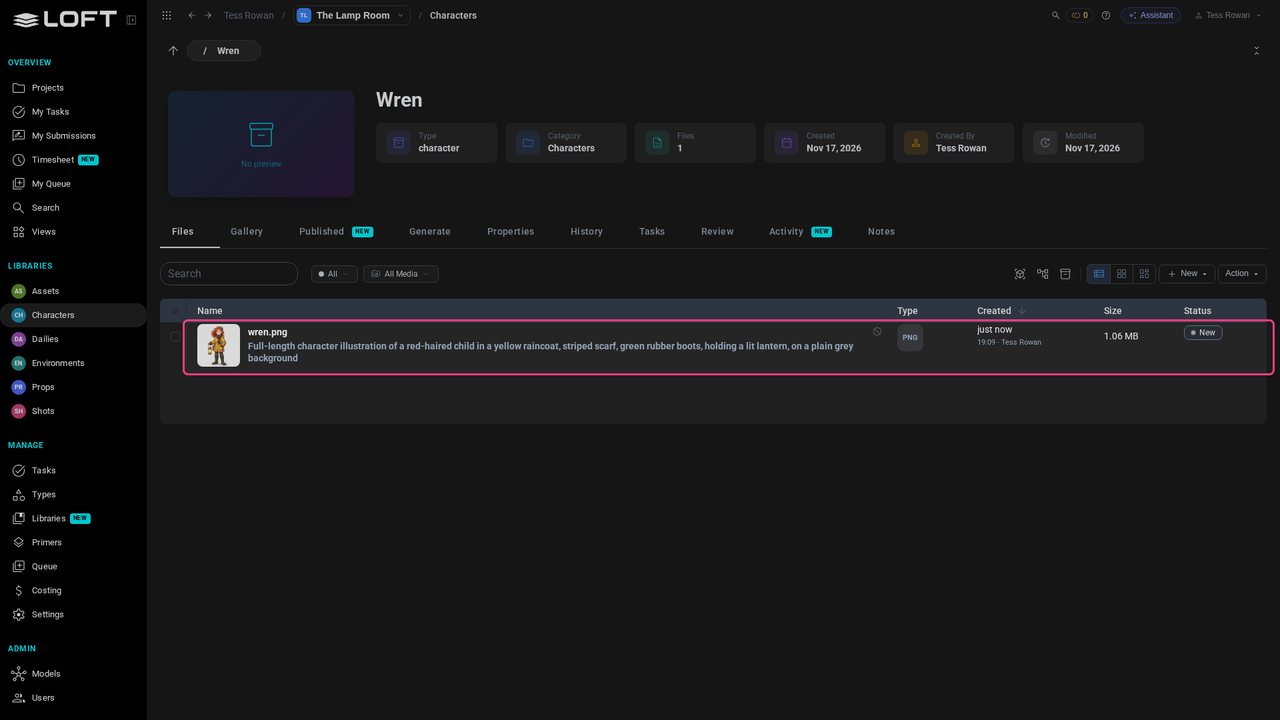
Click wren.png to open it. Along the bottom are the statuses a file can have, each with a number key. It's New for now.
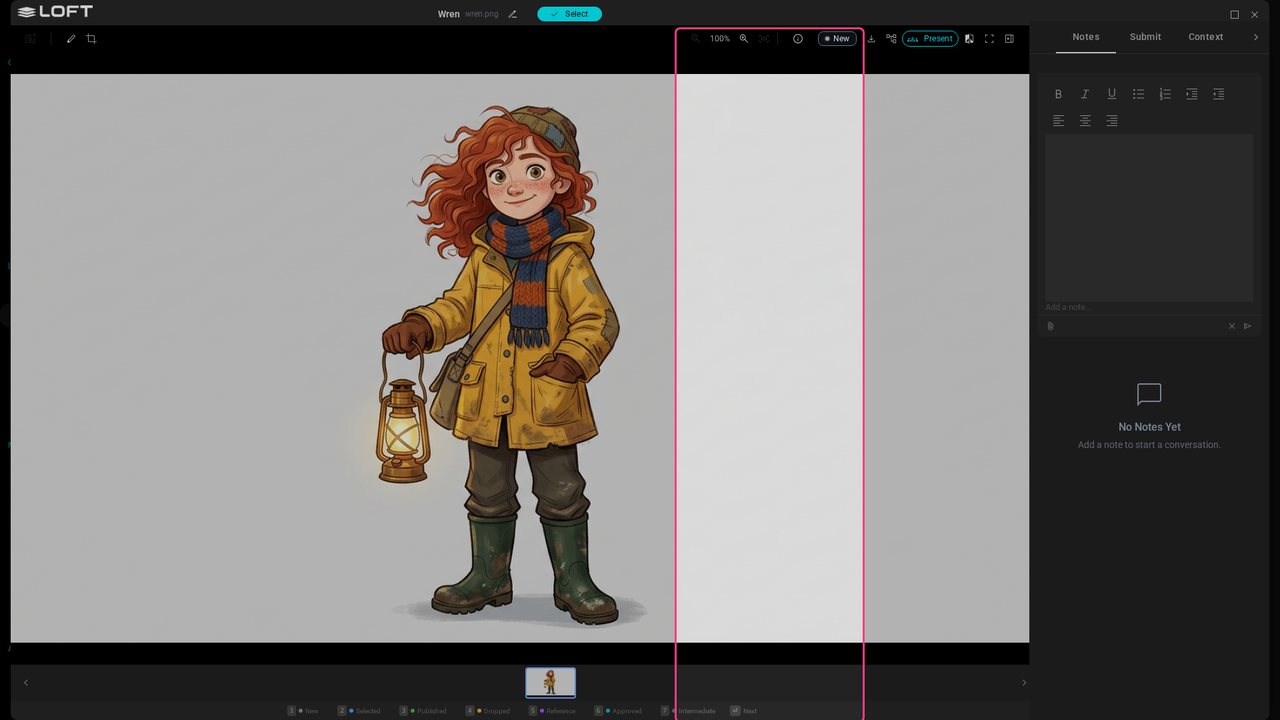
This drawing is Wren: it's the design. Press 3 to publish it, and pick concept, the step a design belongs to. The note is already filled in with what Loft saw in the image.
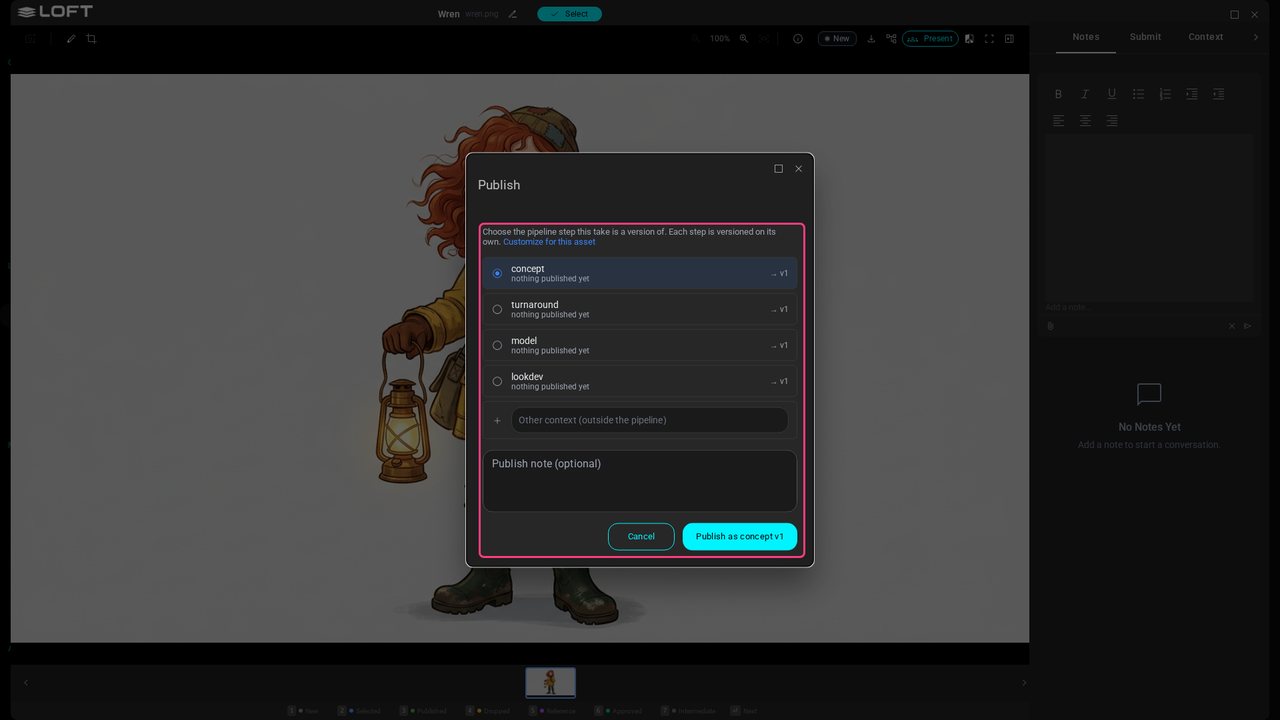
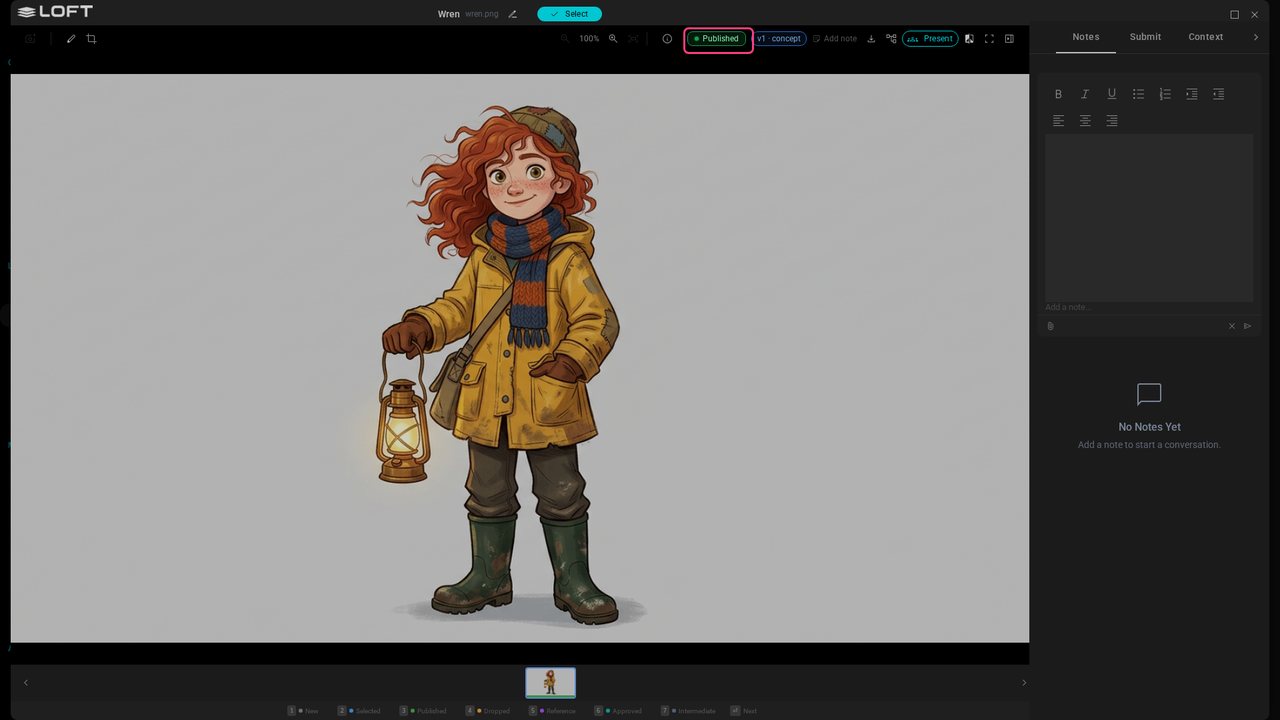
Click Publish as concept v1. Published is what everyone else sees: every shot Wren appears in starts from this image, and it's Wren's picture everywhere in Loft.
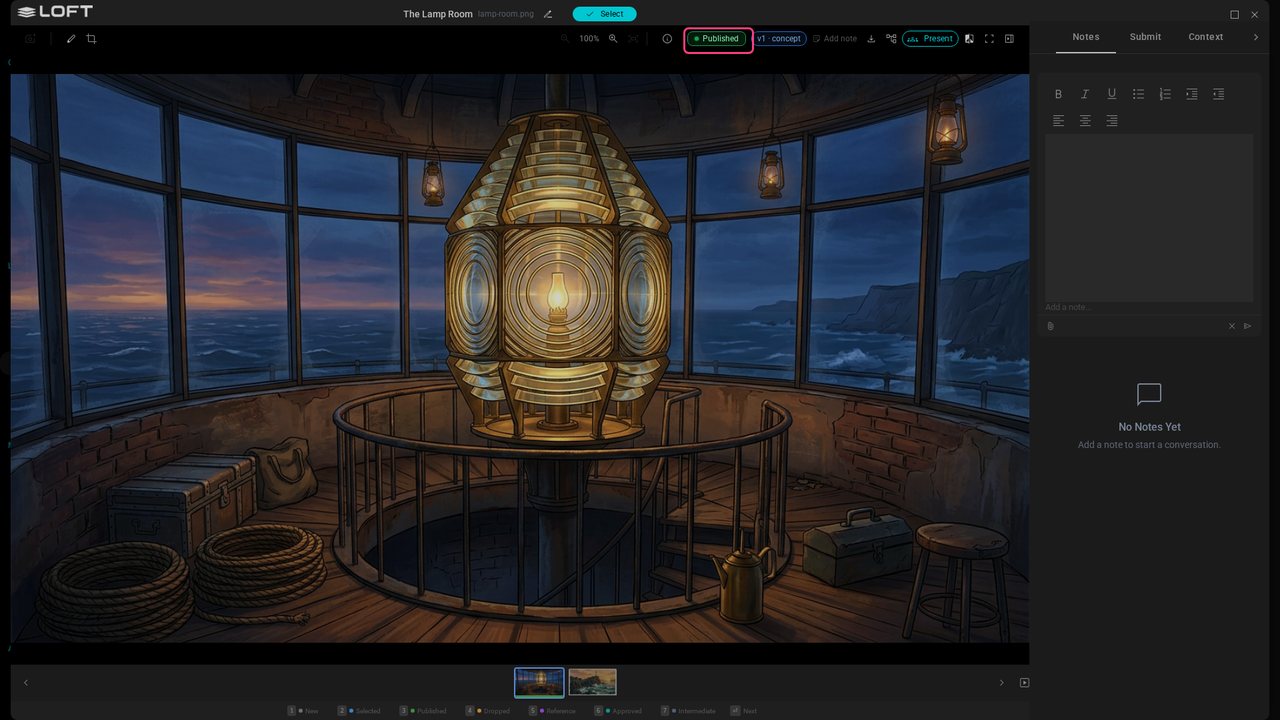
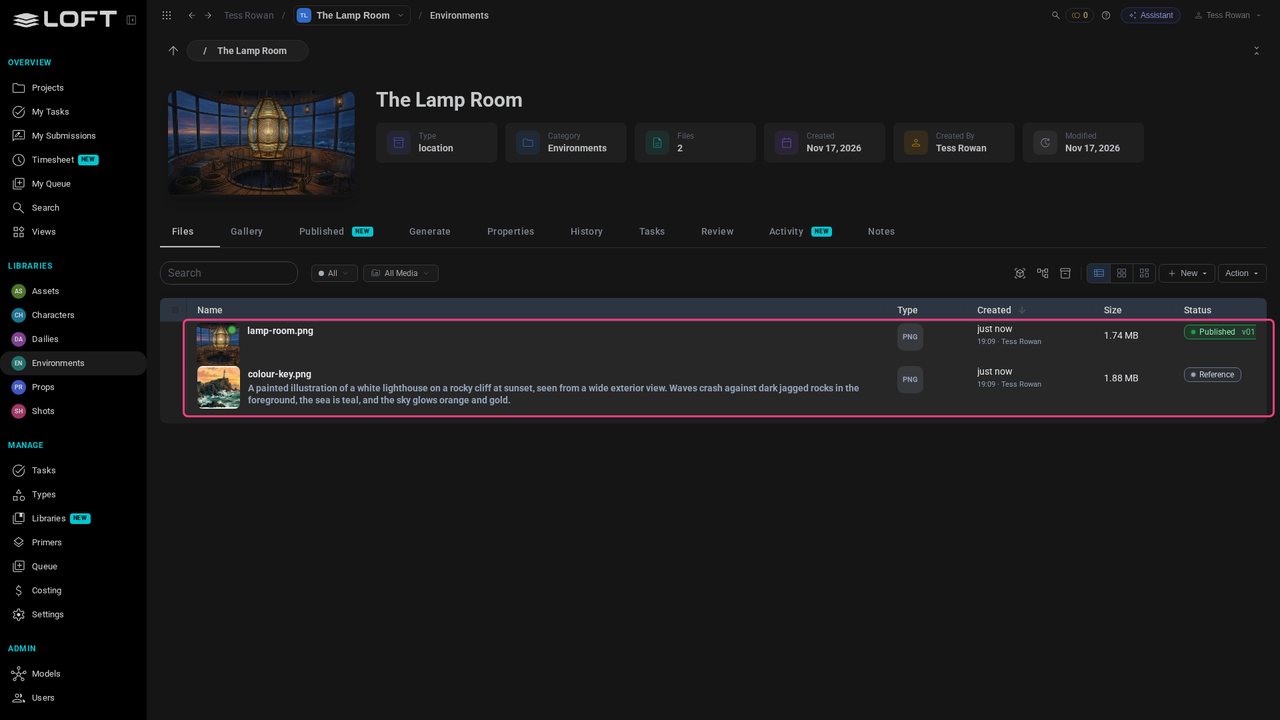
Do the same for the lamp room: in Environments, open The Lamp Room, open lamp-room.png, press 3, pick concept and publish.
Press the right arrow for the colour key. It isn't the place; it's the light and colour you're after. Press 5 to mark it Reference. Loft offers a reference image whenever you generate for the Lamp Room, or for a shot it's in, but it's never the location's picture and never a deliverable.
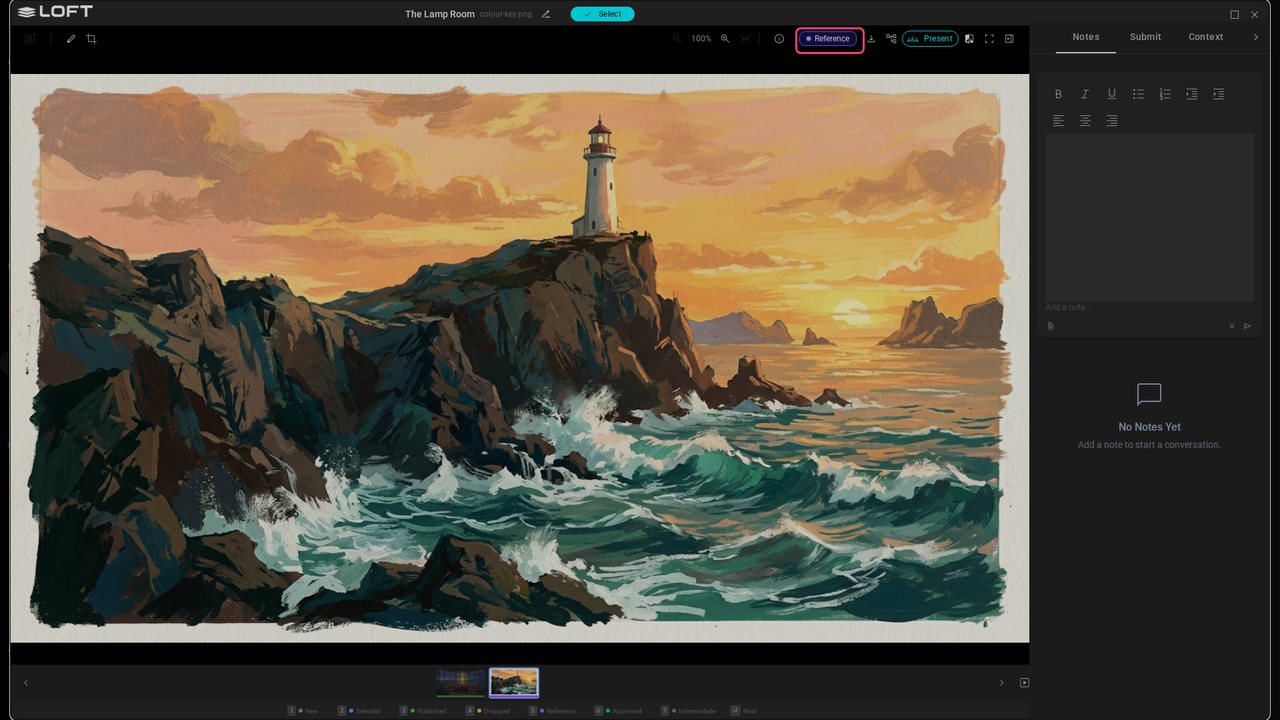
Close the viewer. The Lamp Room has its design, published, and its colour key, as reference. In the next video you ask for your first new image.
Up next in Get started
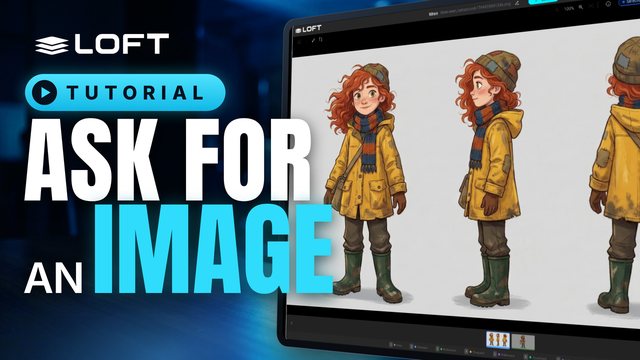
Your first generation: ask the Assistant for a new image of your character, in plain words. Follow along in the project from the last video.
In the playlists Get started.