
STEP 01
Open Shots
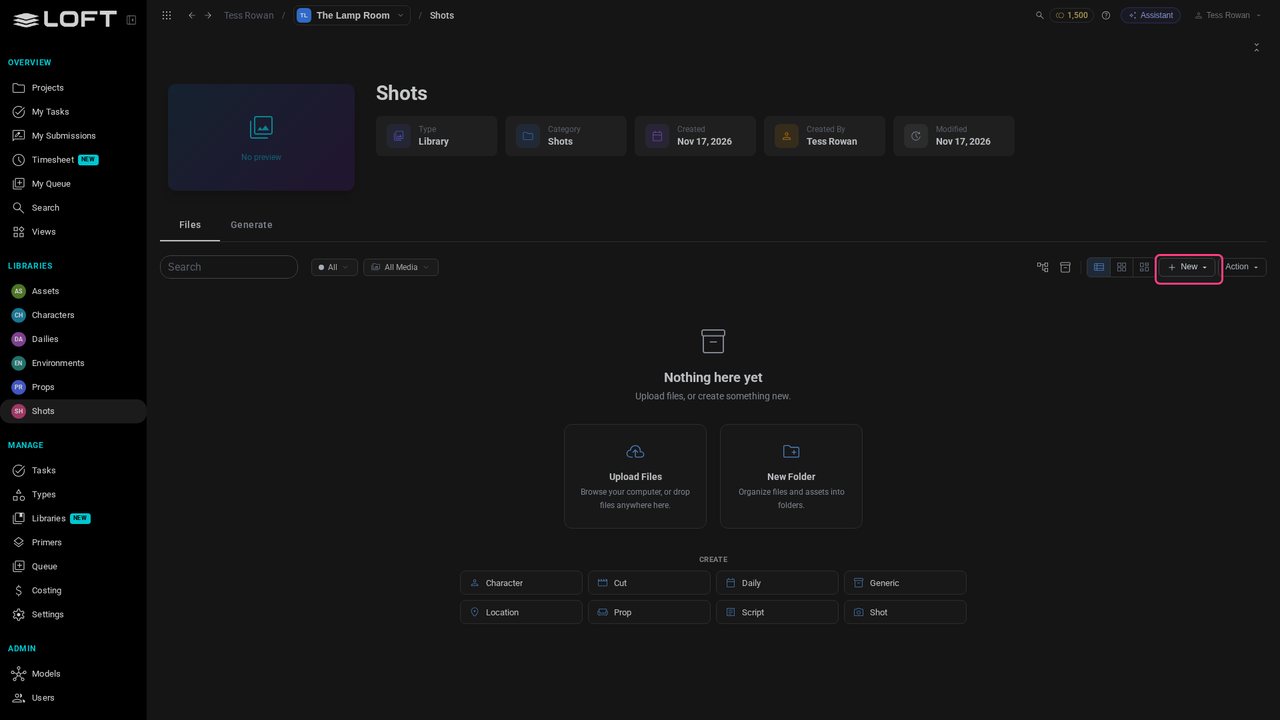
In the sidebar, click Shots. It's empty: this is where the film's shots go.
Learn/Get started
Make a shot, tell it who and where it is, make its keyframe by hand, and ask the Assistant to animate it. Follow along in your own project.
Follow along
In the sidebar, click Shots. It's empty: this is where the film's shots go.
Click New, then Shot. Name it SH010 and say what happens in it.
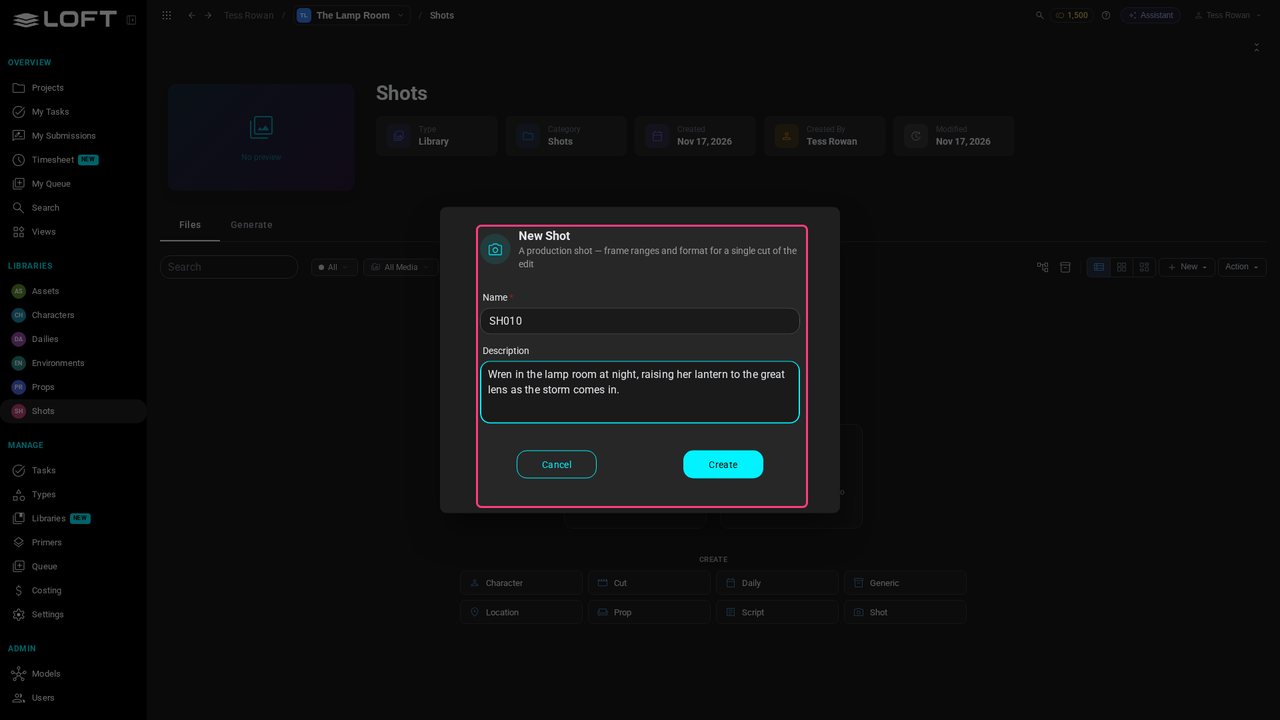
Click Create and open SH010. A shot's page gathers everything about it.
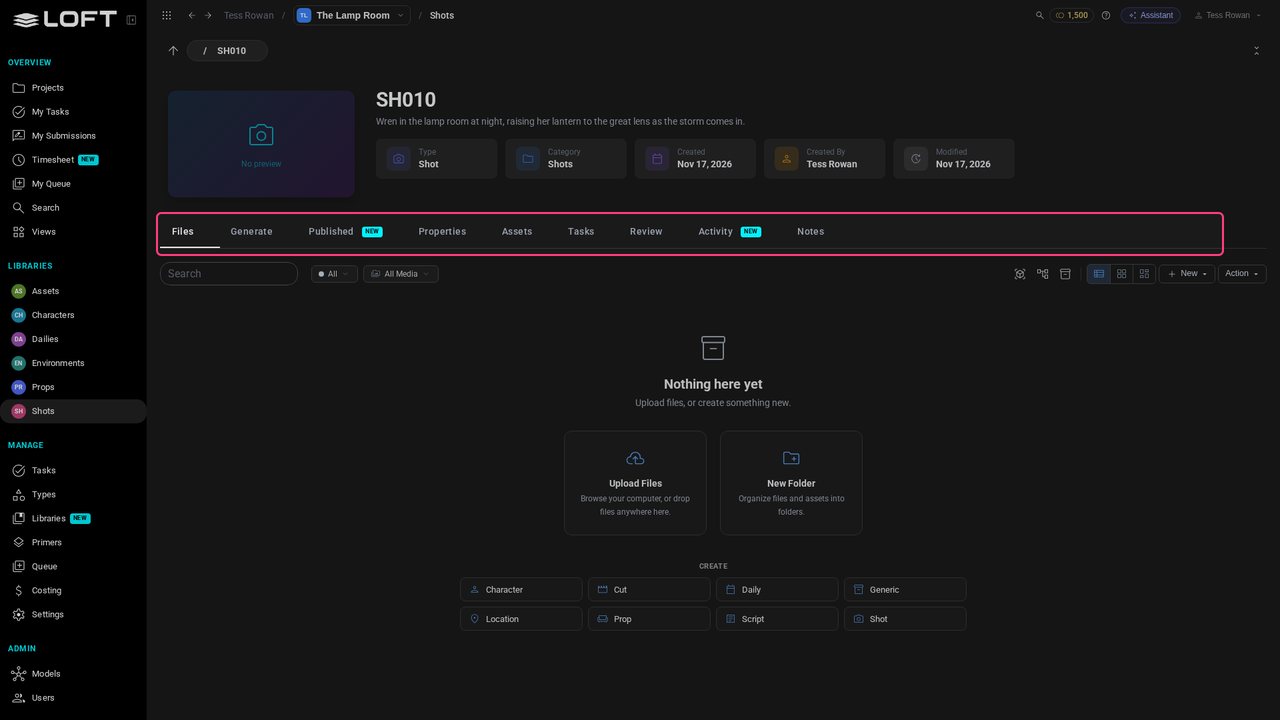
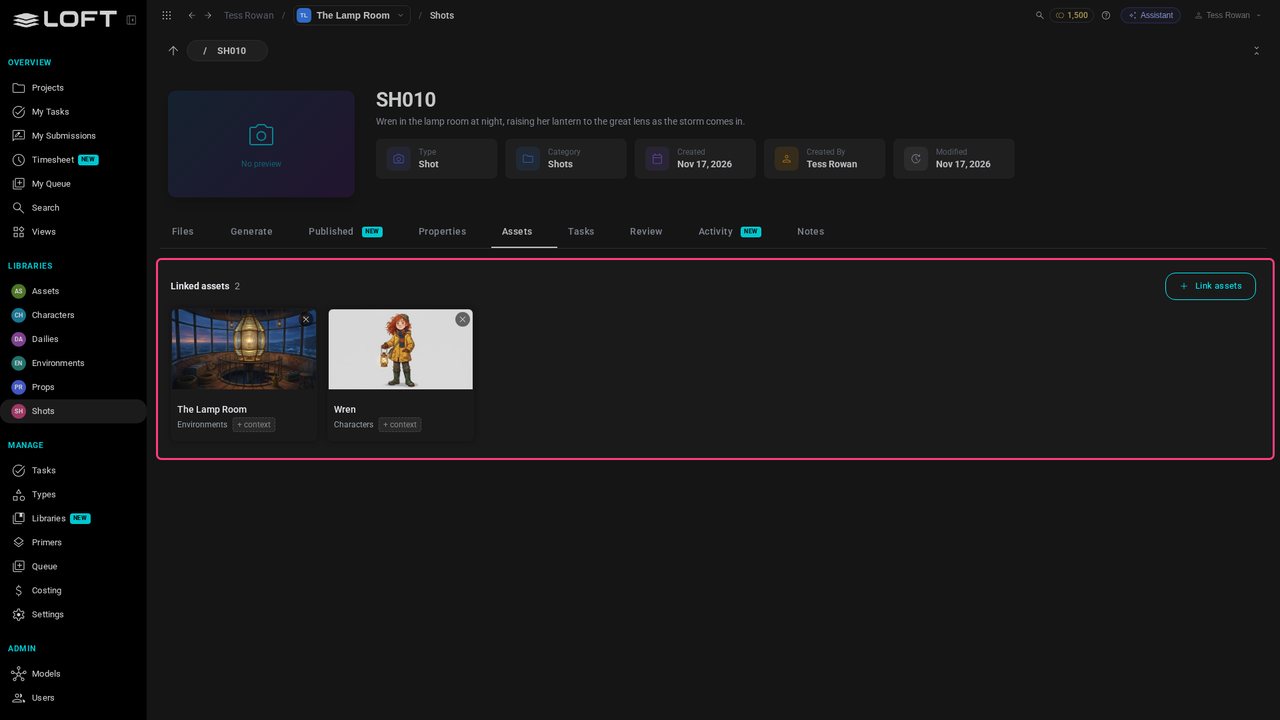
Open Assets and click Link assets. A shot links what it's made of: its characters, locations and props.
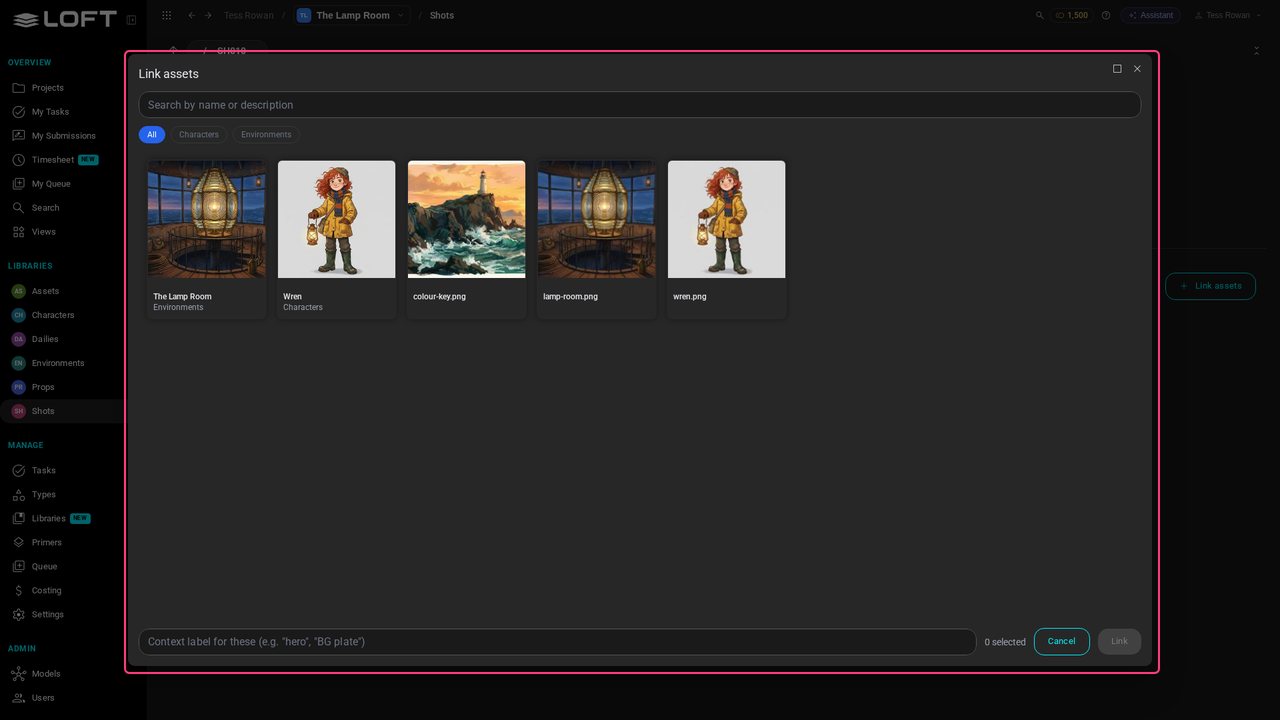
Under Characters pick Wren; under Environments, The Lamp Room.
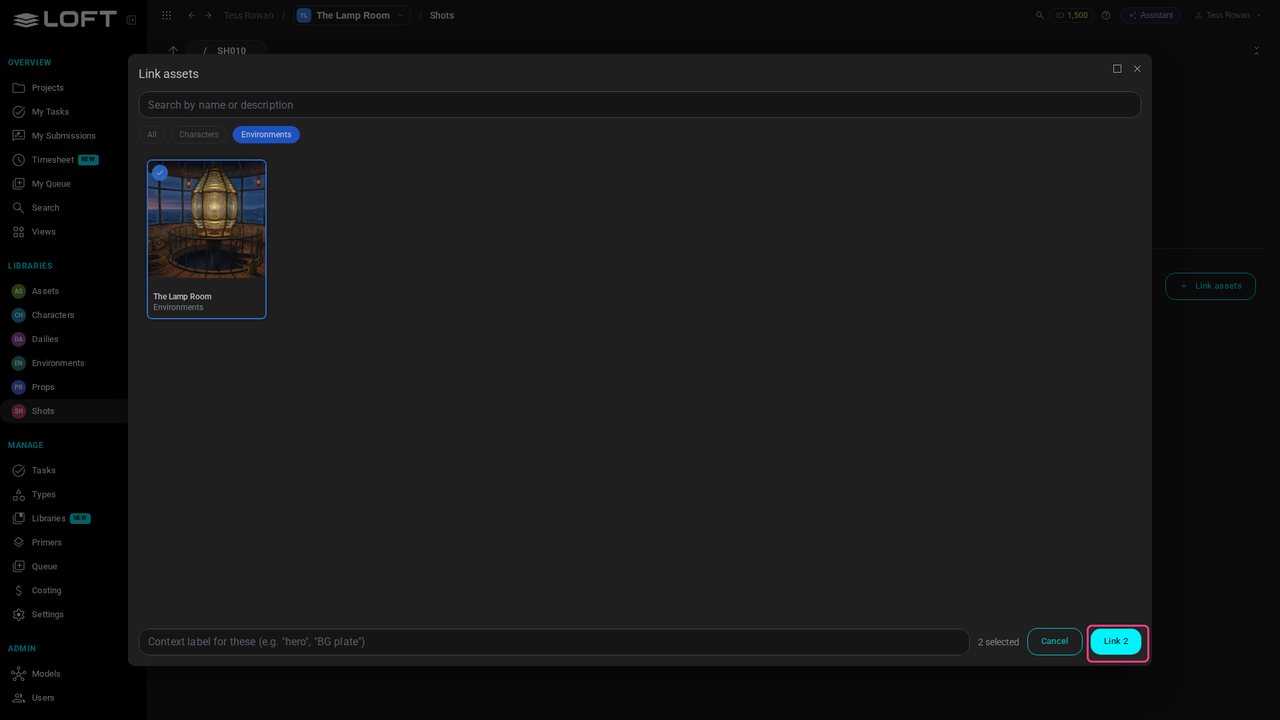
Click Link 2. They're part of SH010 now: everything you generate for this shot can use their images, by hand or by asking.
Open Generate and choose Nano Banana Pro Edit, as in the last video.
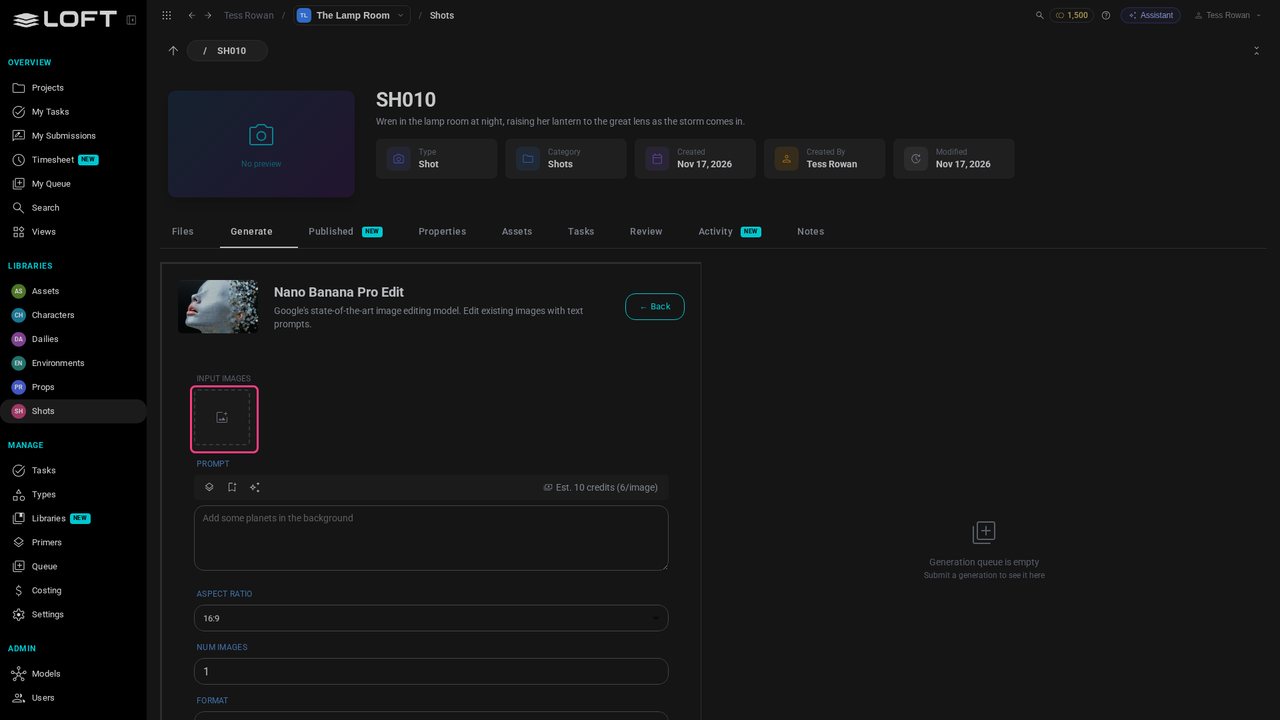
Click Input Images. It opens on Linked: the images of what this shot links, Wren's design, The Lamp Room's design and its colour key.
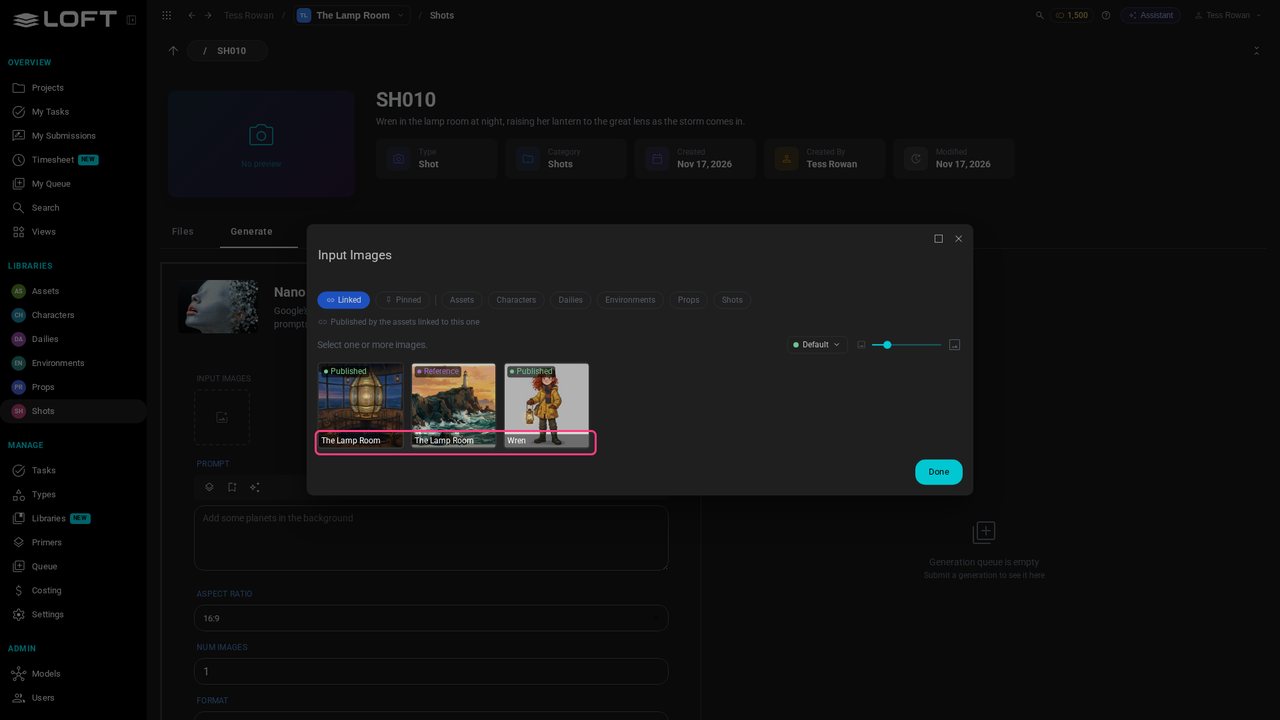
Pick the lamp room, then Wren, then the colour key, and click Done. In the prompt they're @Image1, @Image2 and @Image3, in that order.
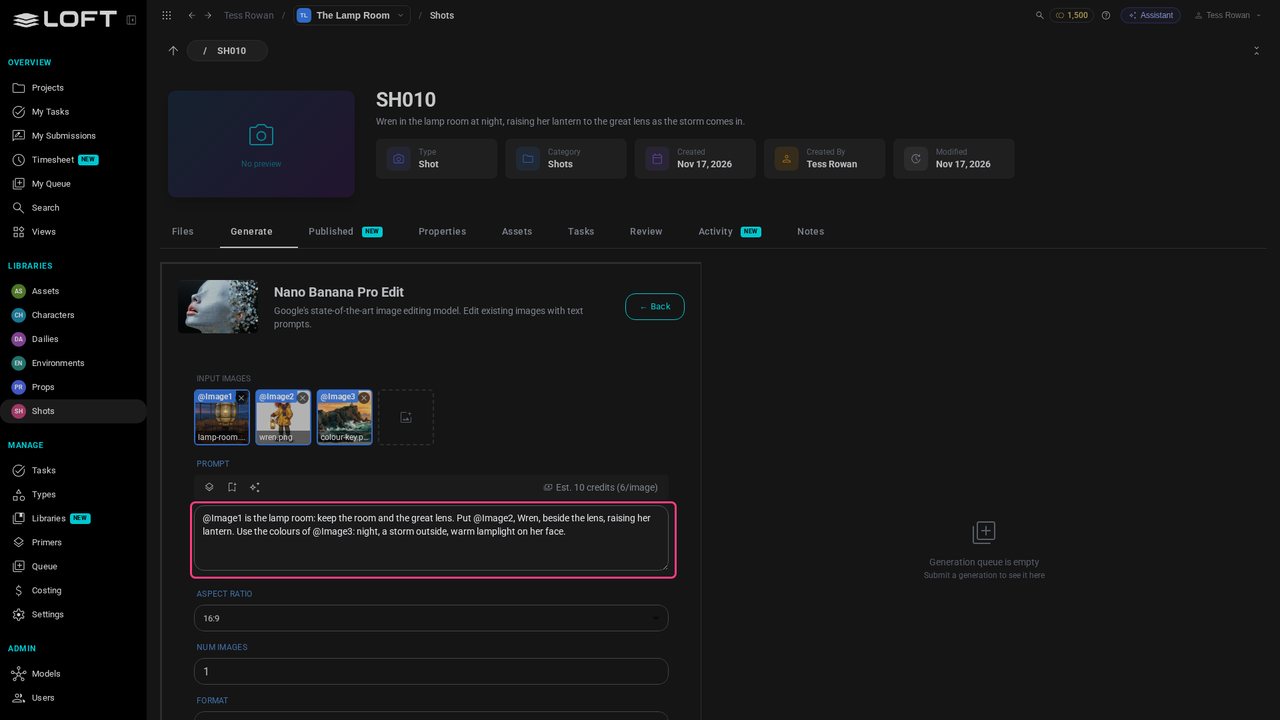
Click Generate. The keyframe lands in the queue and in SH010's files. Yours will look different.
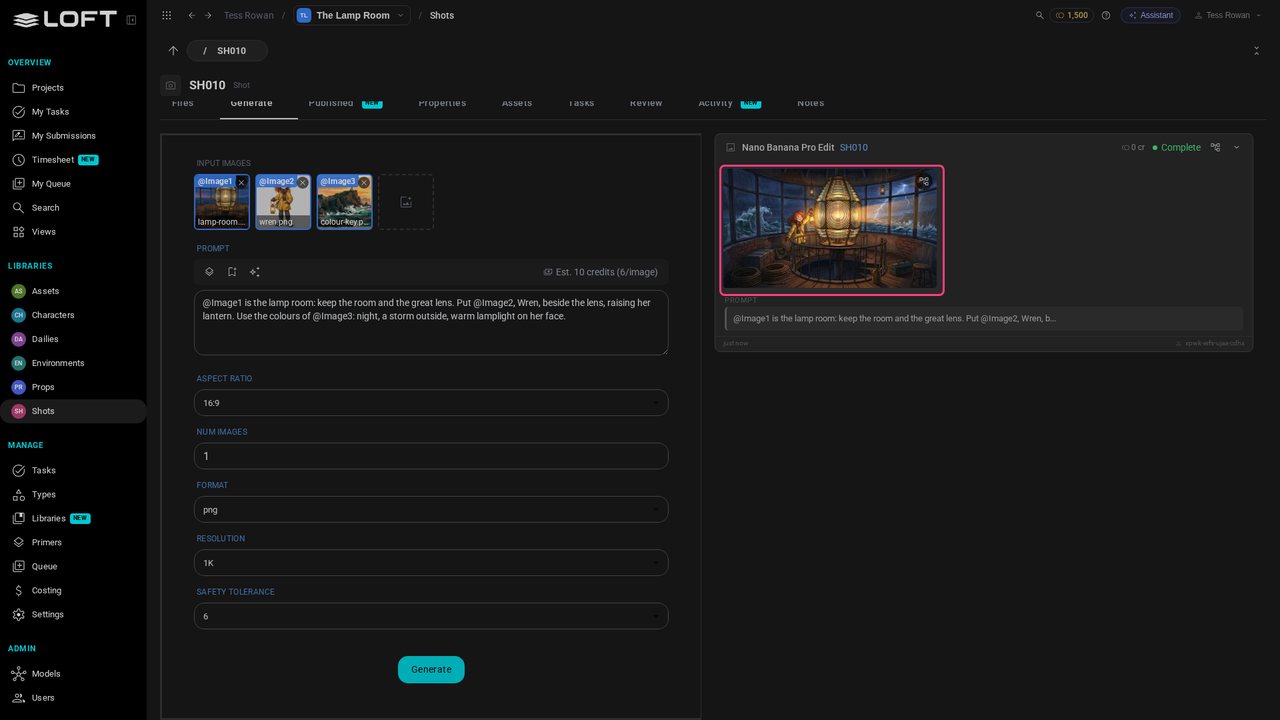
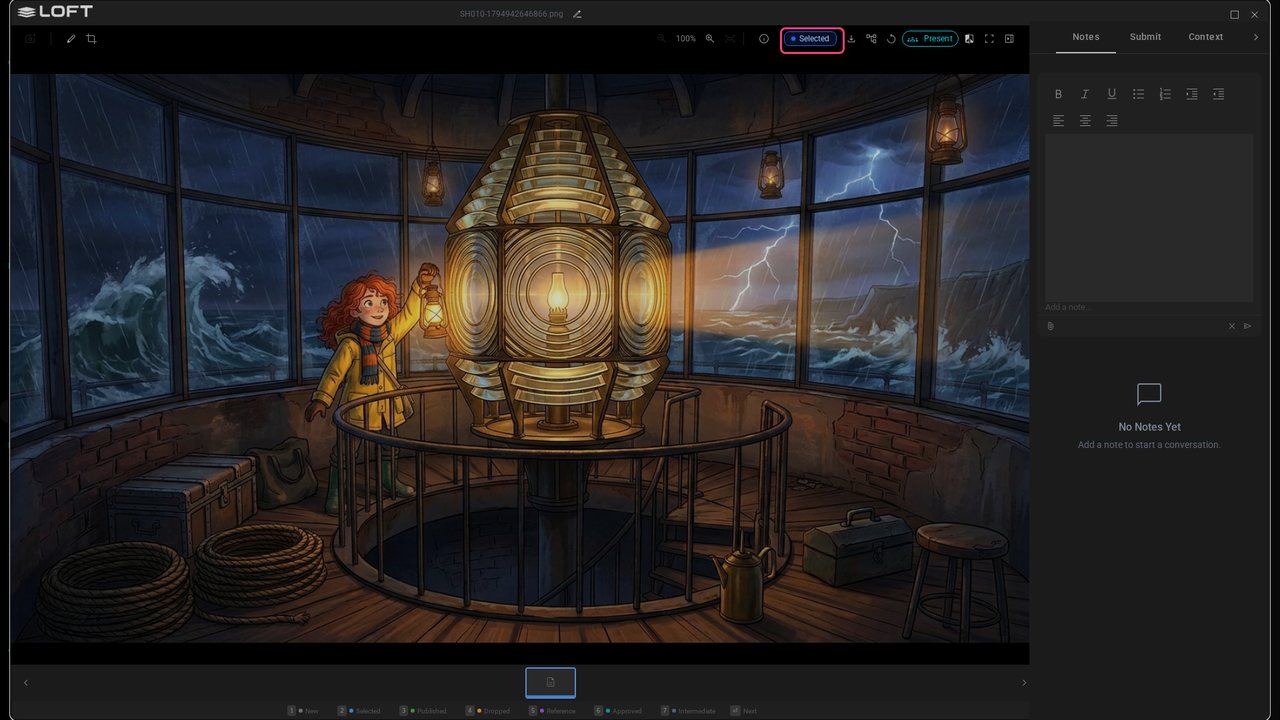
Click it to see it full size, and press 2 to mark it Selected: the frame the video will start from.
Close the viewer and open the Assistant. Ask it to animate the keyframe, and say how the camera moves.
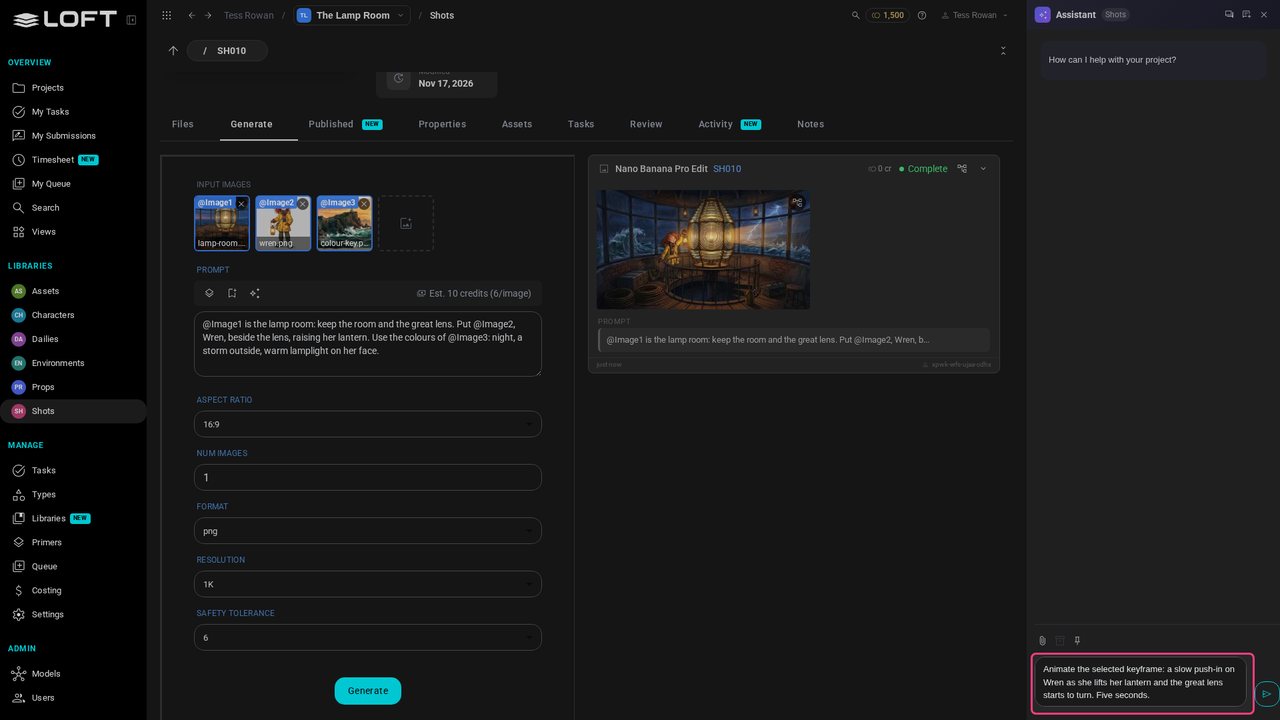
Press Enter. The Assistant starts from your Selected keyframe, picks a video model and says what it's making. A few seconds of video costs more than an image, and takes a few minutes.
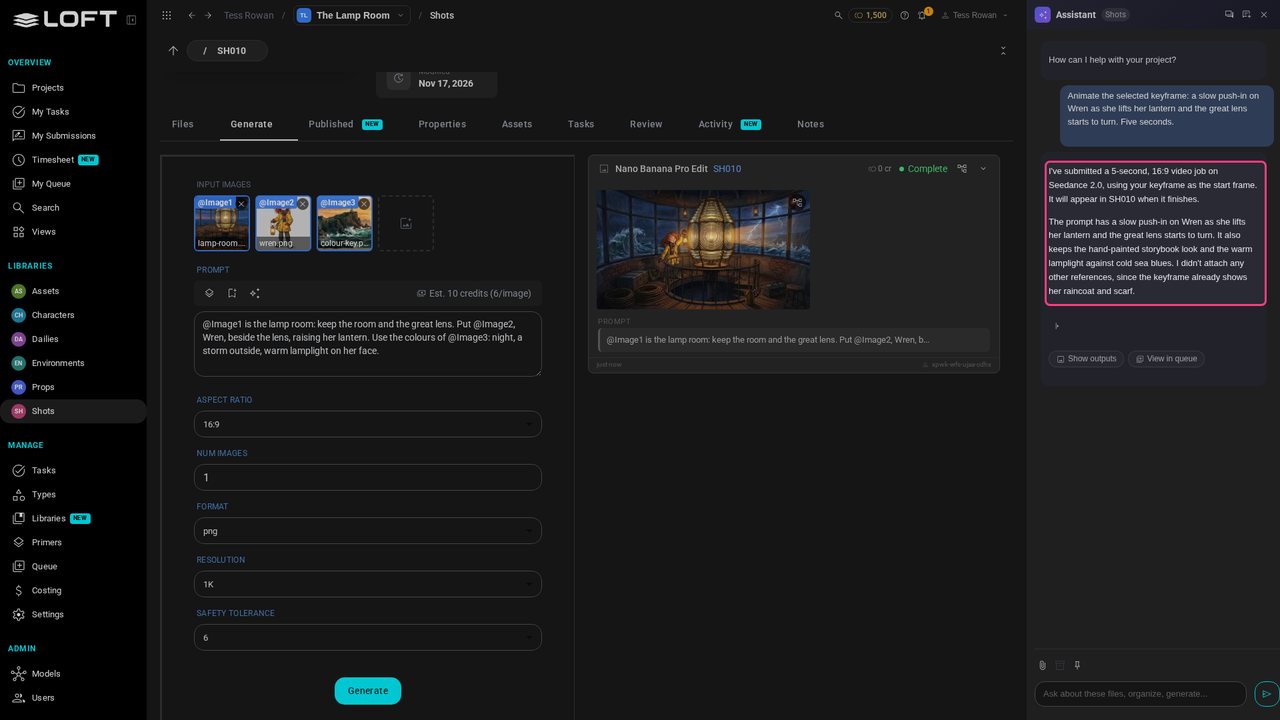
Close the Assistant. When the video is done it lands in SH010's files, and a note says so.
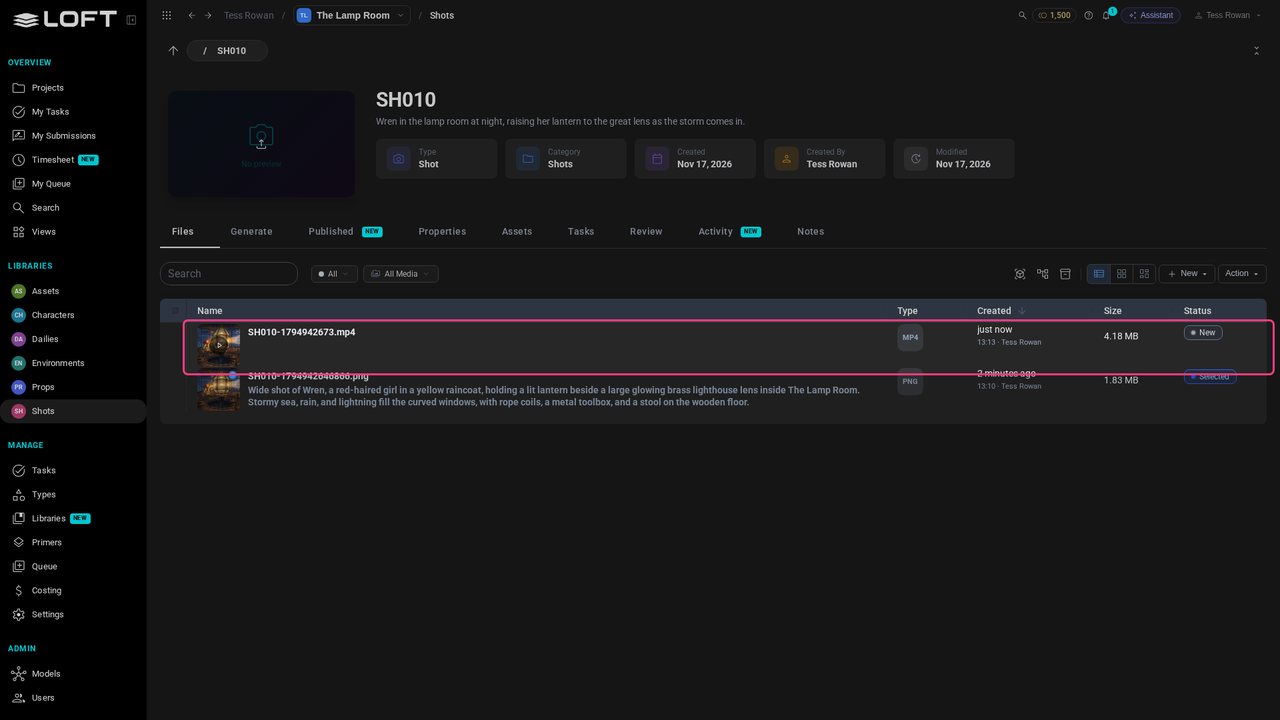
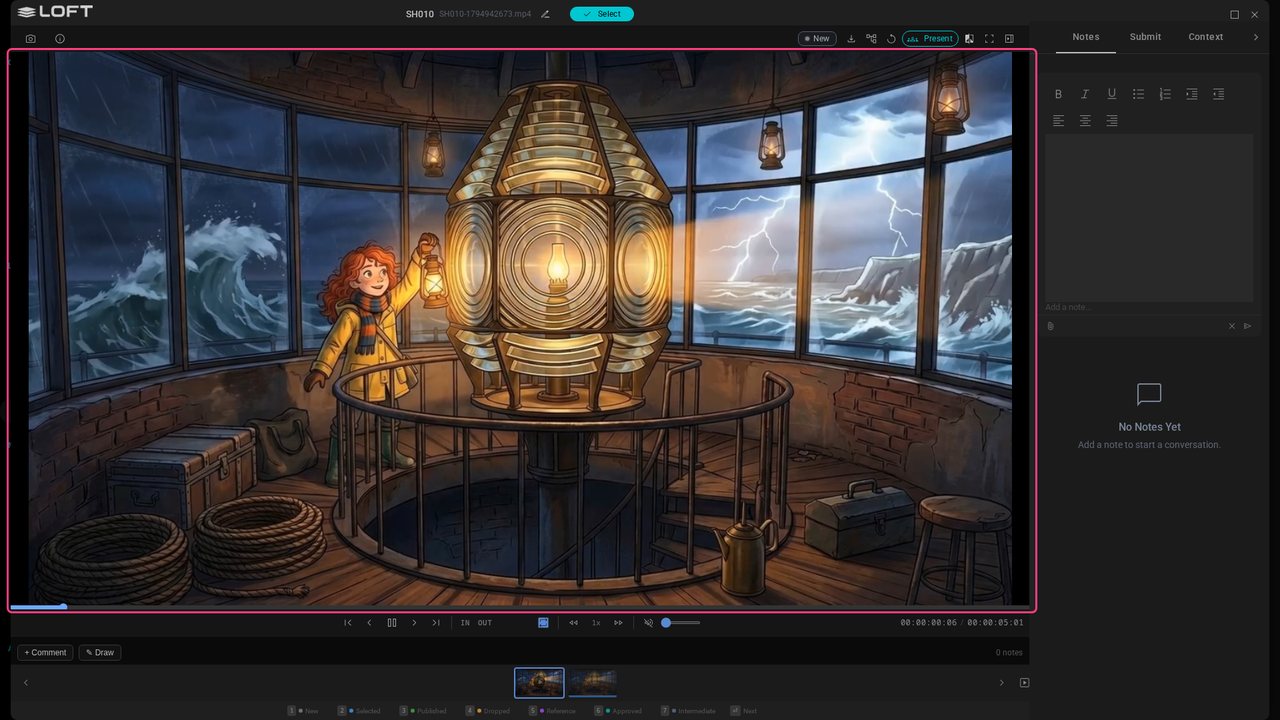
Click the video to play it.
Up next in Get started
You've made takes; now decide. Publish the one you want everyone to use, and see what publishing changes. Follow along in your own shot.
In the playlists Get started.