
STEP 01
Open the project
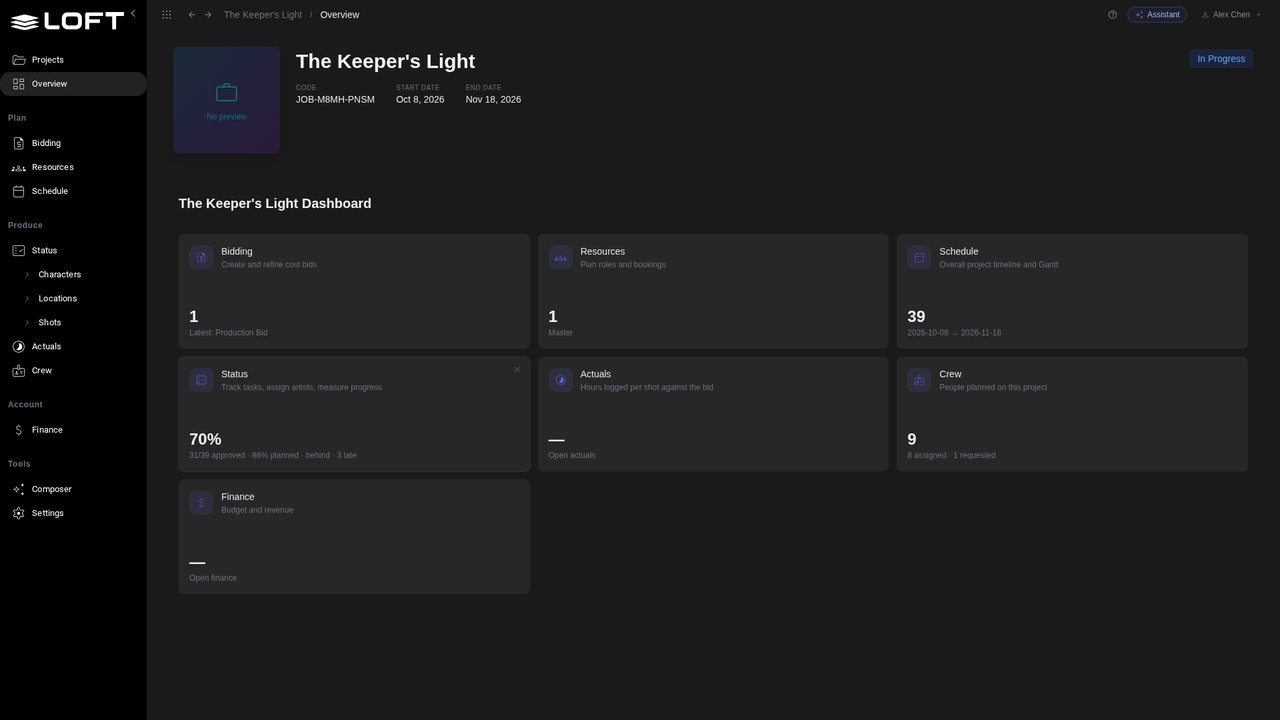
Open The Keeper's Light from the Projects page. The AI short is three weeks into production, and it's Monday morning.
Learn/Plan and run a production
A producer shouldn't have to build reports. In Loft you ask for what you want to see, in your own words, and the Composer lays it out as a page you can print or send. Keep the ones you like: they sit in the sidebar and show current figures every time you open them.
Follow along
Open The Keeper's Light from the Projects page. The AI short is three weeks into production, and it's Monday morning.
In the sidebar, under Tools, click Composer. It's where you ask for what you want to see.
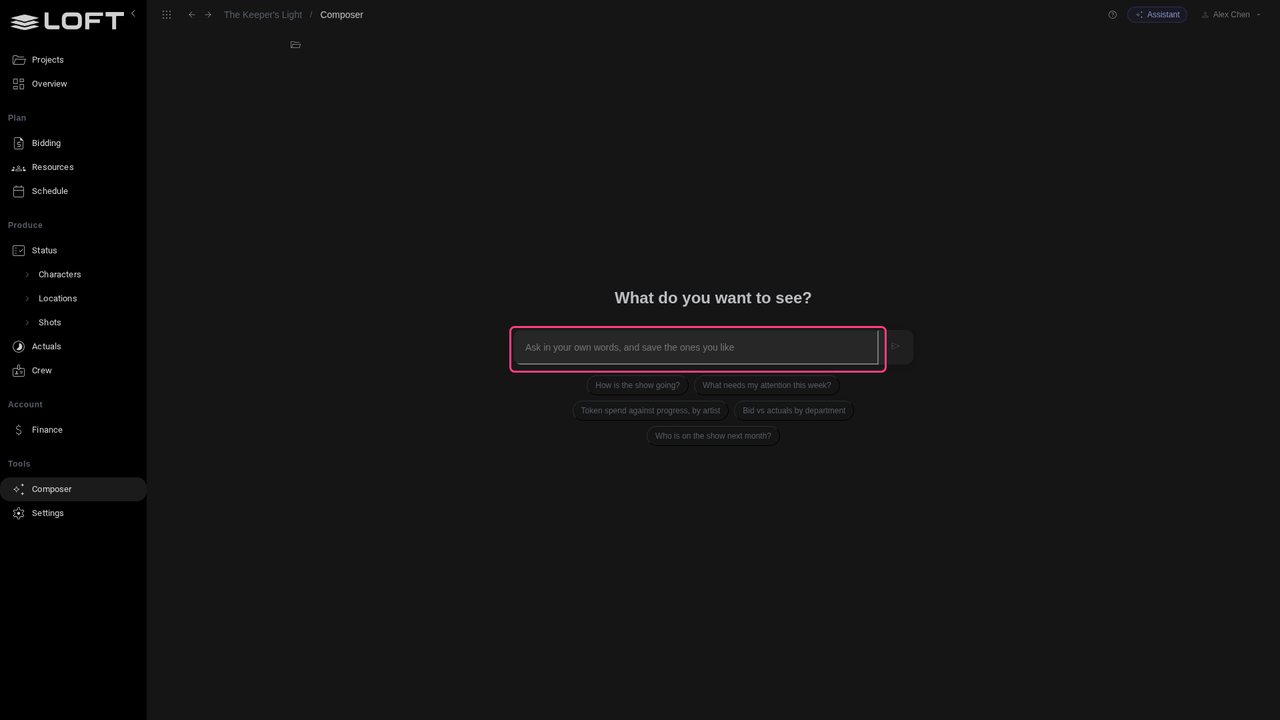
There's nothing to set up: no fields to pick, no chart builder. Type the question you'd ask a coordinator, or start from one of the examples under the box.
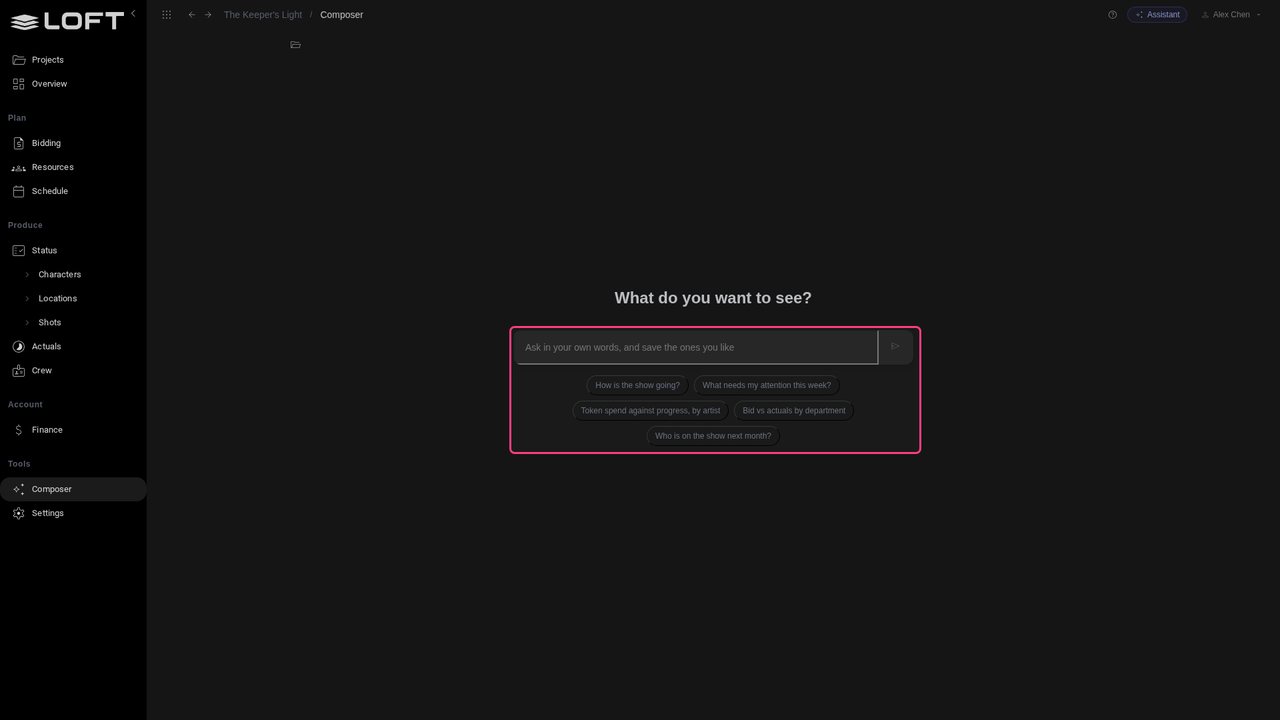
Click How is the show going? The Assistant lays out a report: the headline figures first, then charts, then the detail.
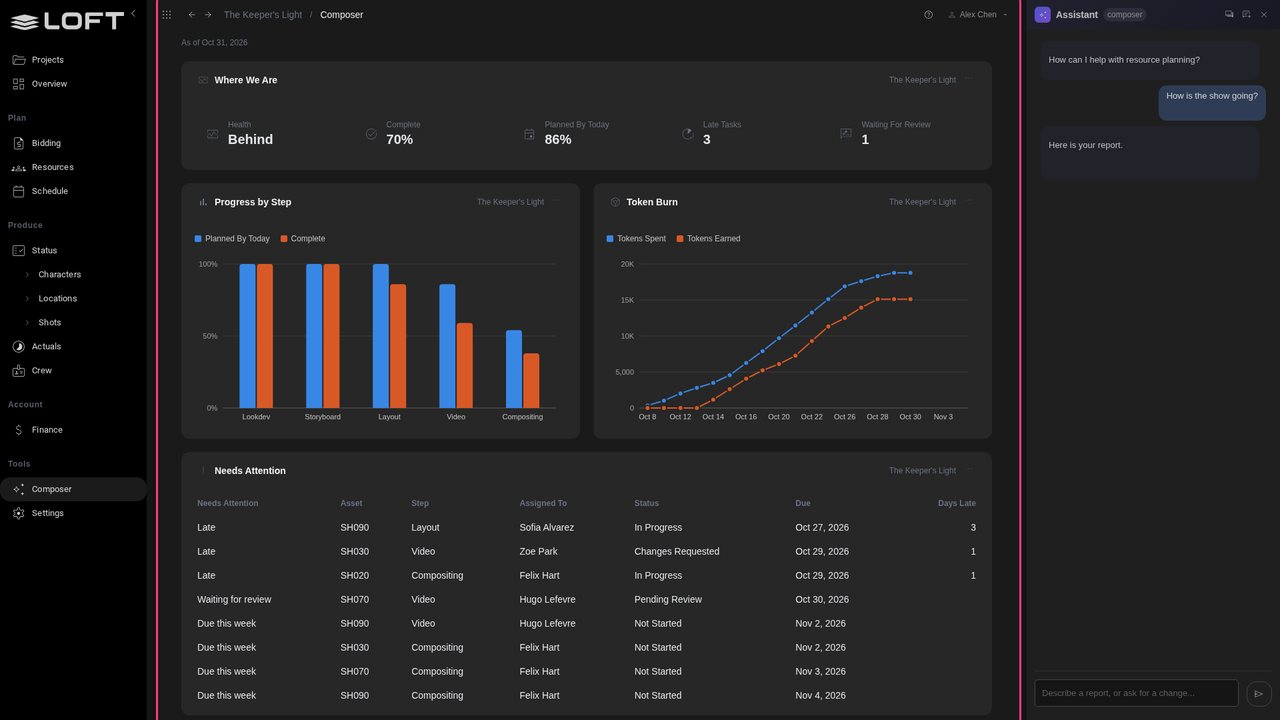
The show is behind: 70% of the work is approved, where the schedule planned 86% by today. Three tasks are late and one is waiting for review.
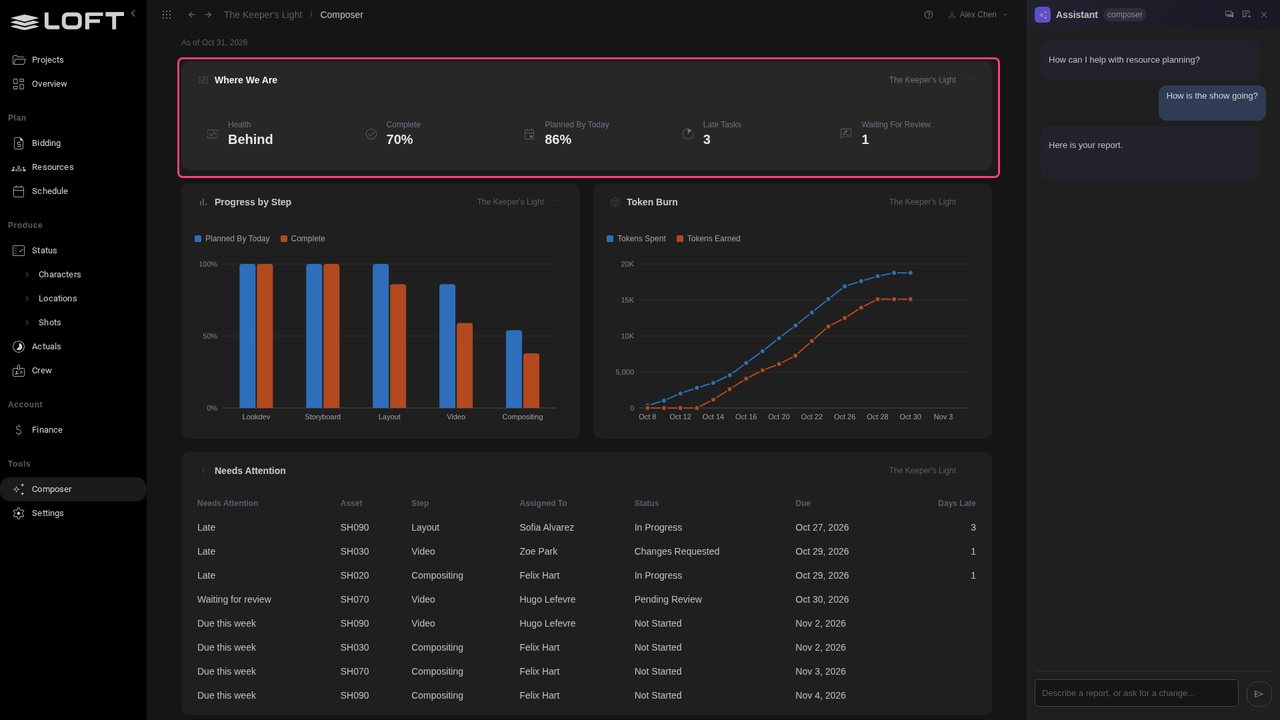
Every card reads the same figures as the Status and Costing pages, at the moment it opens. Nothing was pasted in, so nothing goes stale.
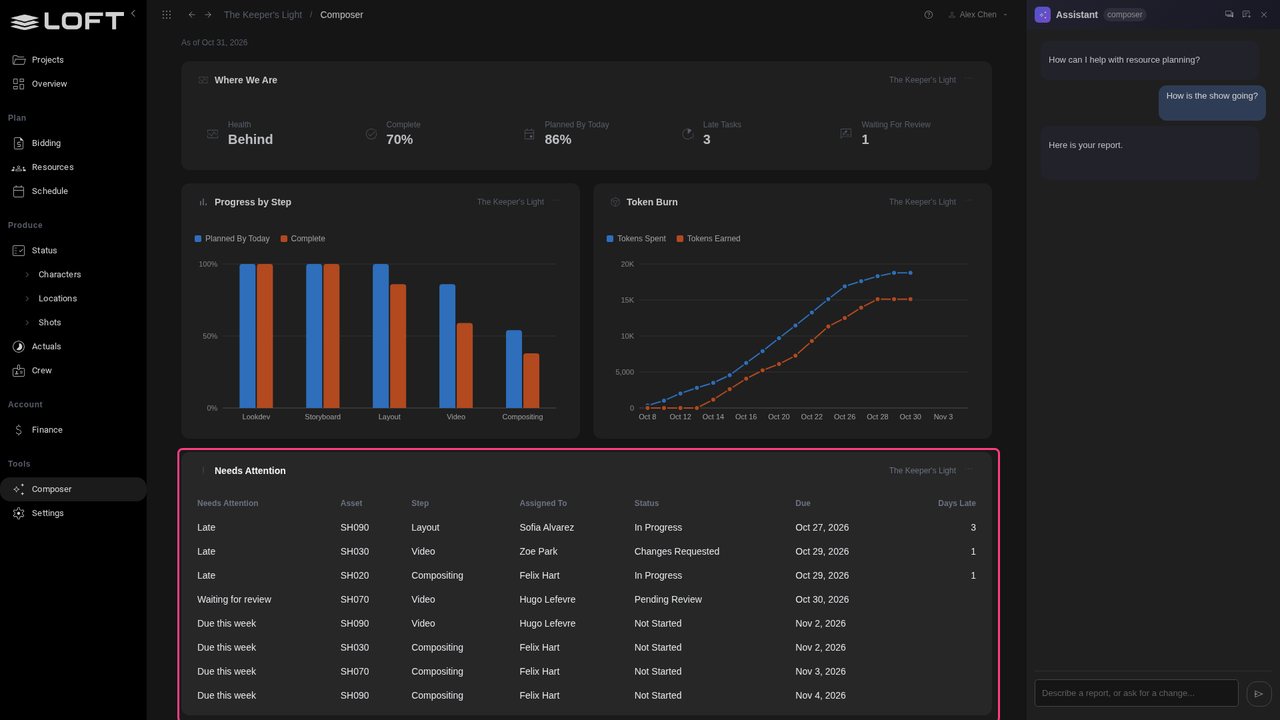
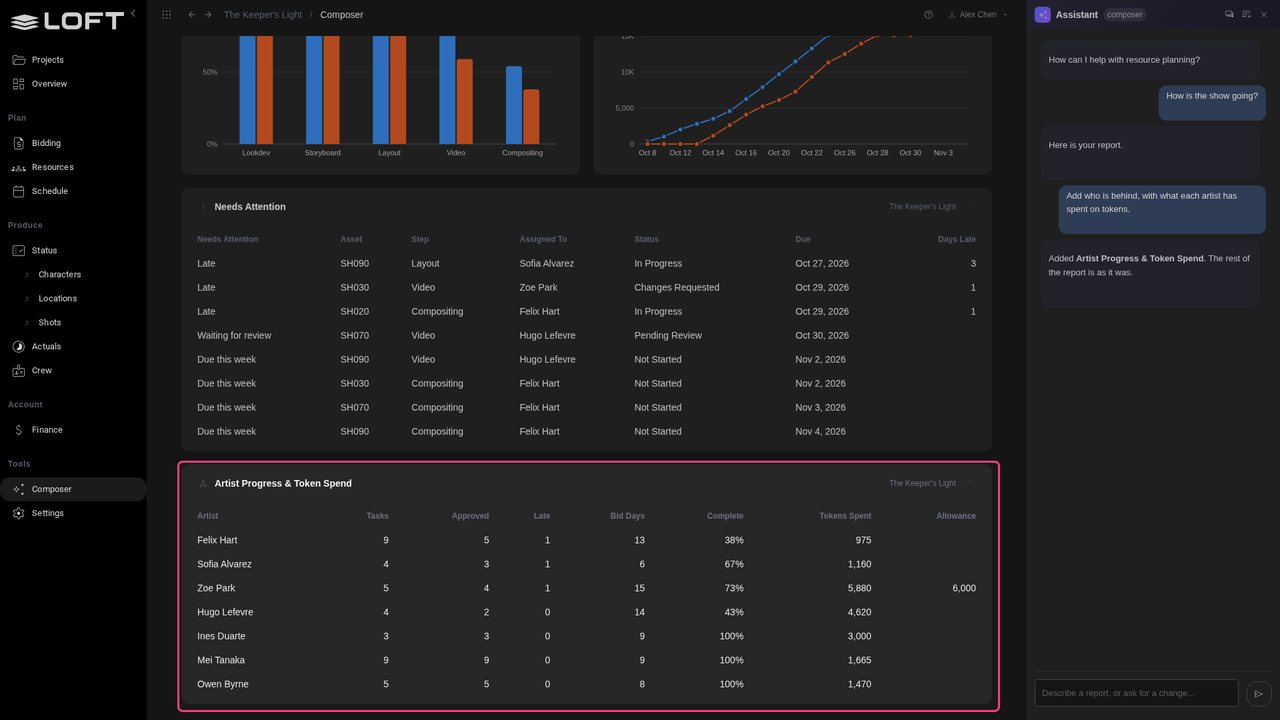
In the Assistant, type: Add who is behind, with what each artist has spent on tokens. The artists are added at the bottom; every other card stays as it was.
Small changes don't need the Assistant. Click the three dots on Progress by Step.
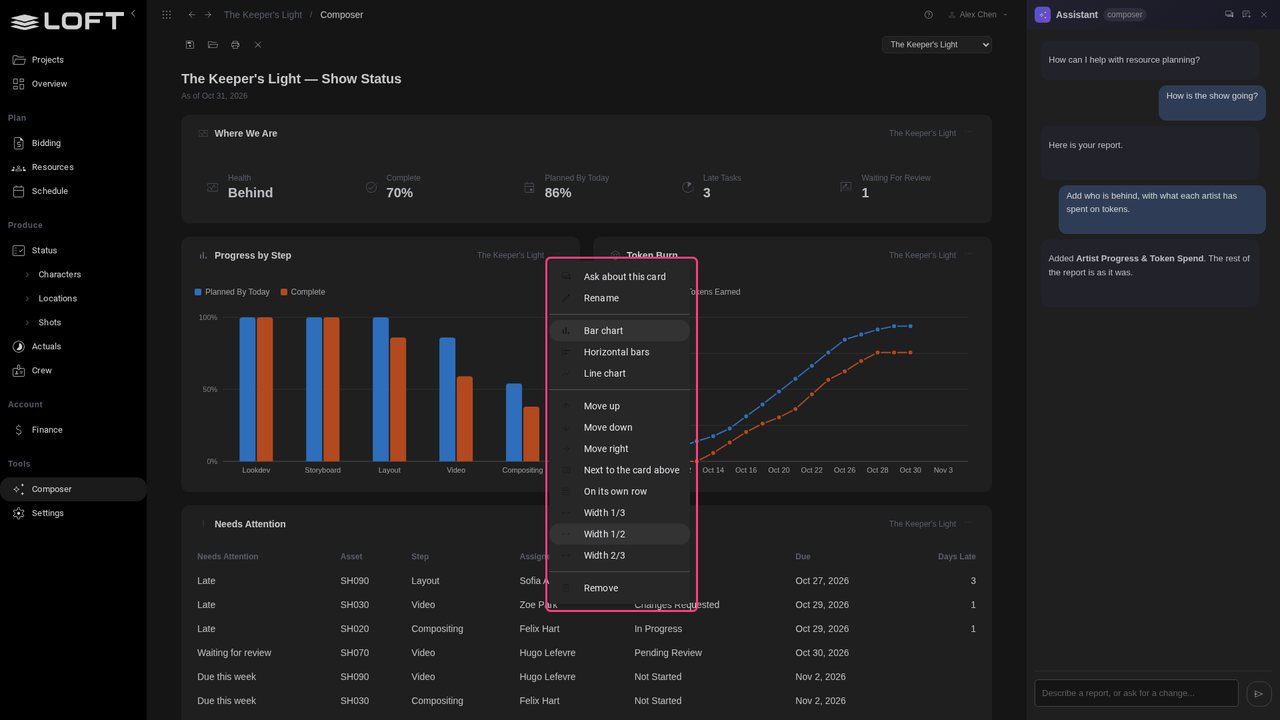
Choose Horizontal bars. The same menu renames, moves, resizes and removes a card, or points the Assistant at it.
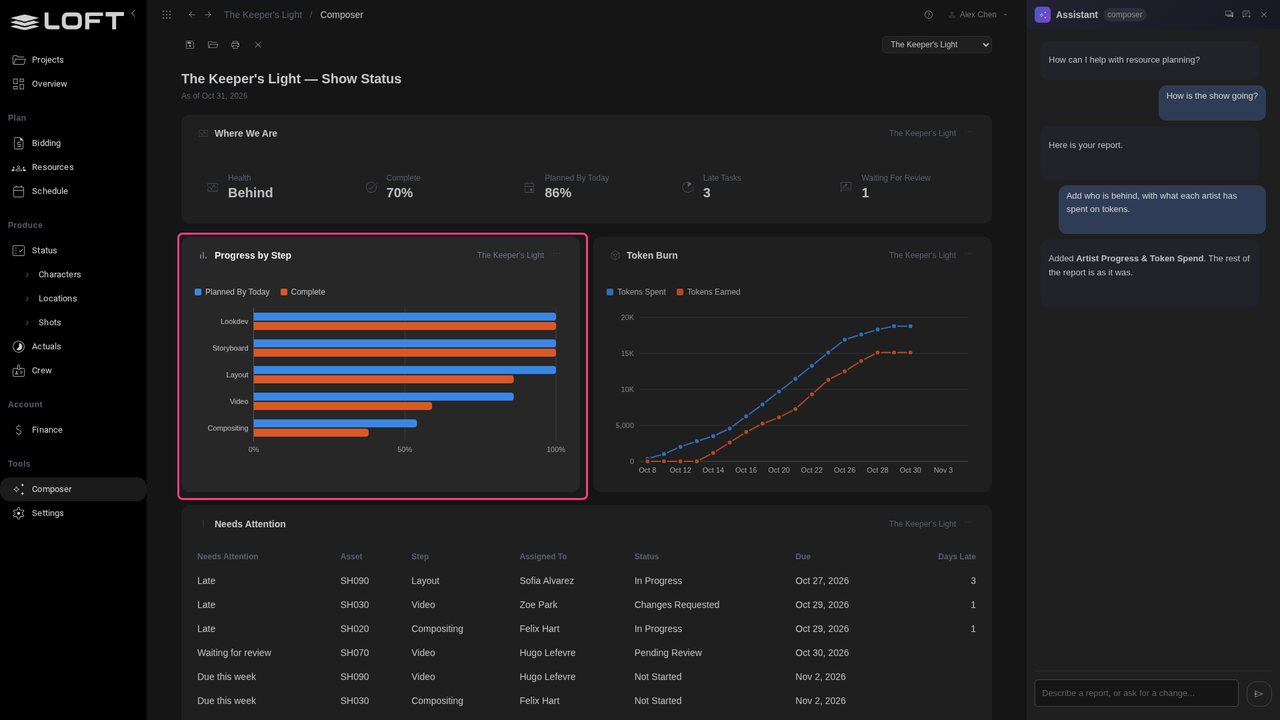
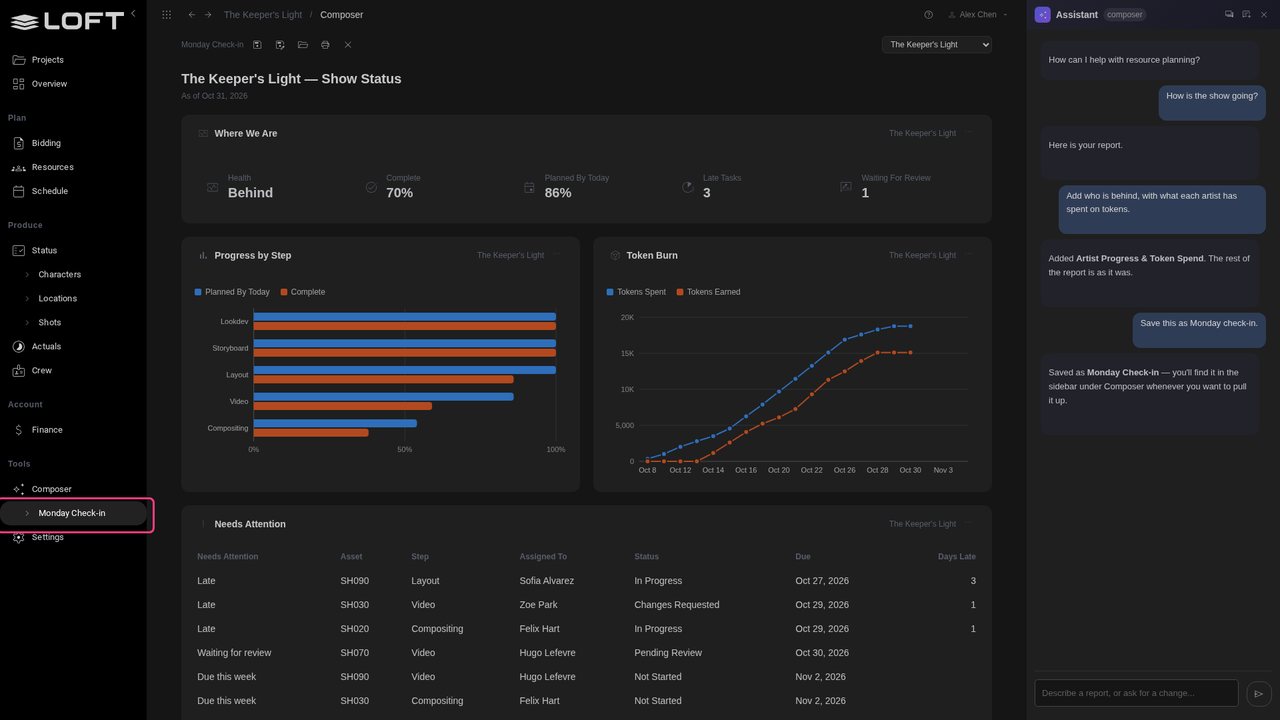
This is the Monday report. Type: Save this as Monday check-in. It's saved, its name shows above the report, and it's listed in the sidebar under Composer.
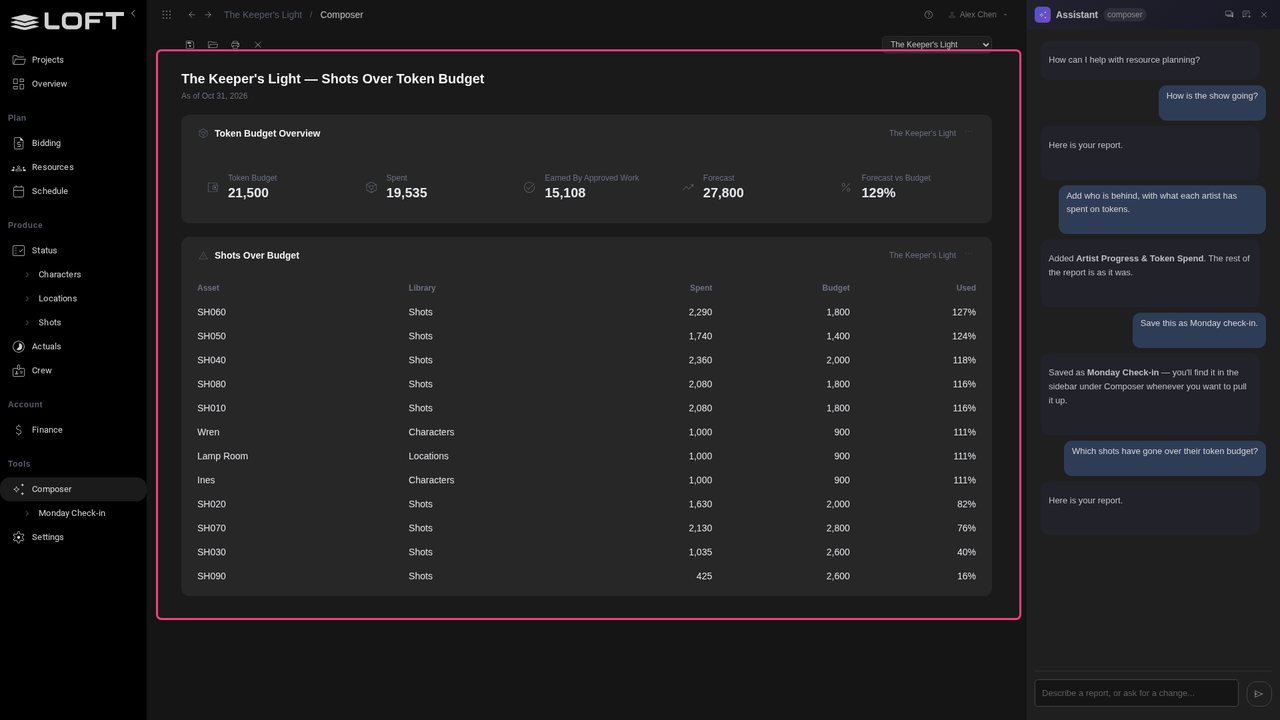
Ask: Which shots have gone over their token budget? A new report replaces the canvas; the Monday check-in stays as you saved it.
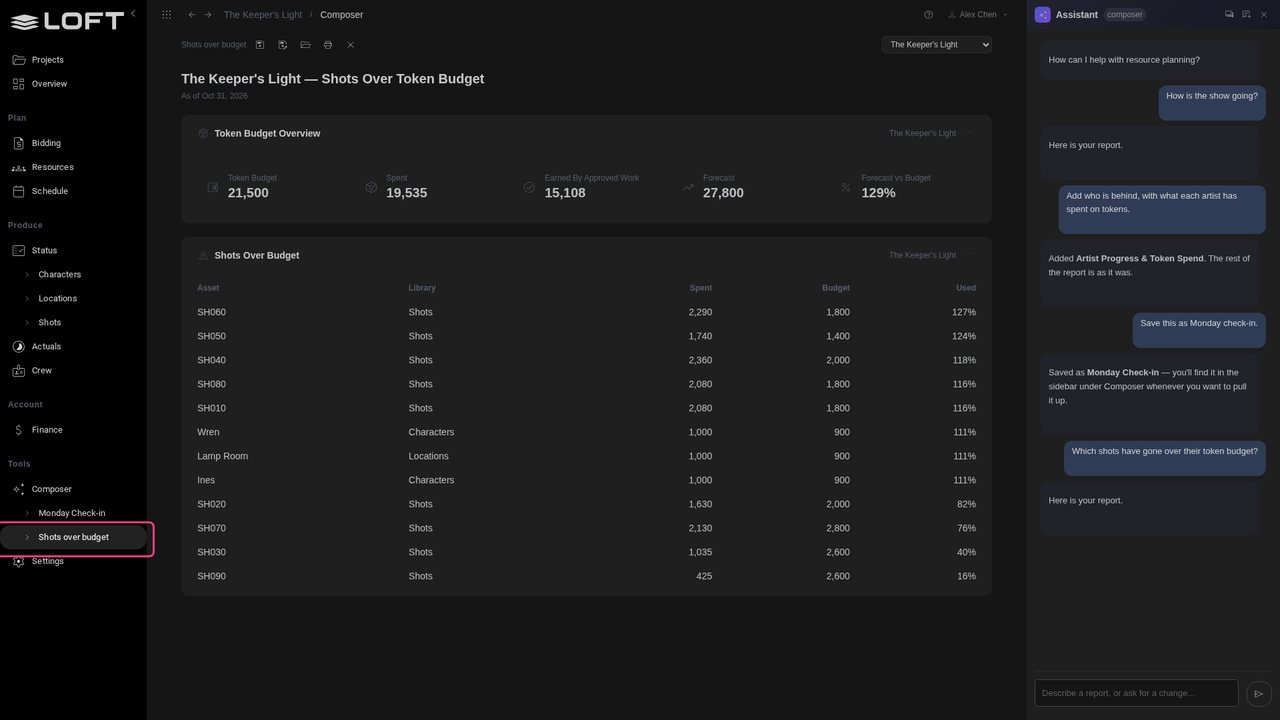
Saving works without the Assistant too. Click the save icon above the report, type Shots over budget and press Enter.
Some questions are about the whole studio. Click Projects at the top of the sidebar, then Composer under Reports.
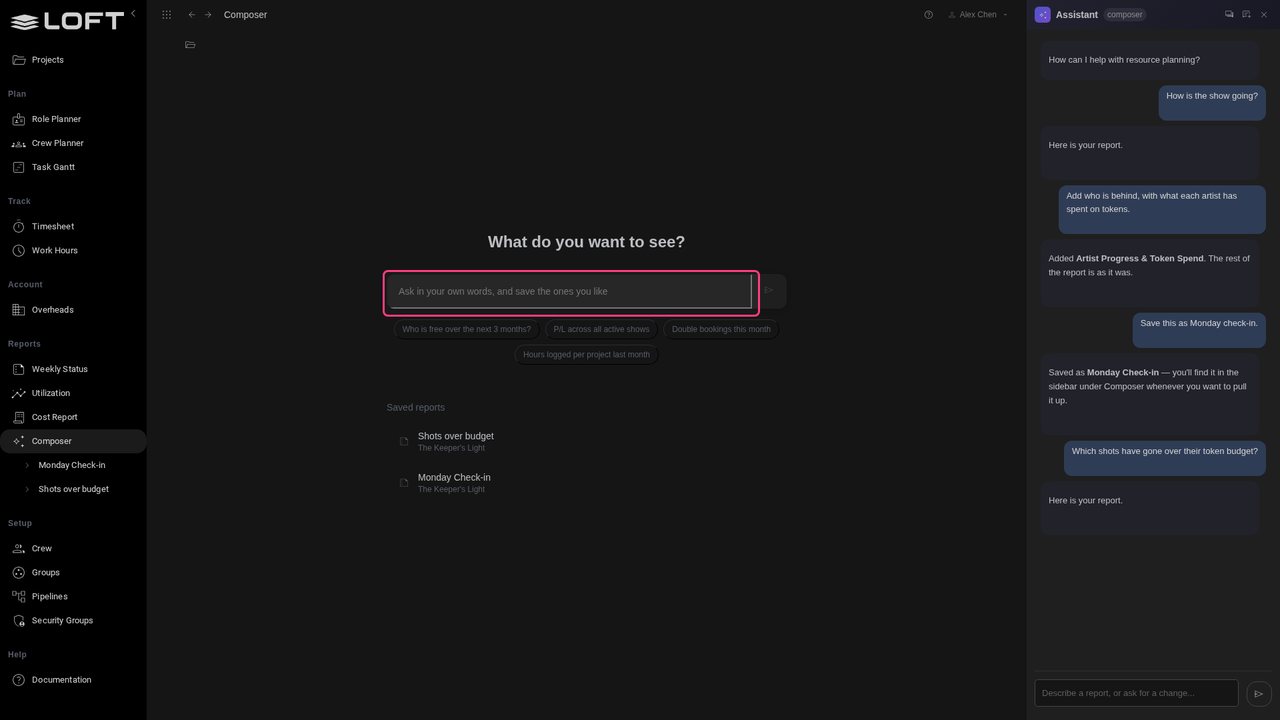
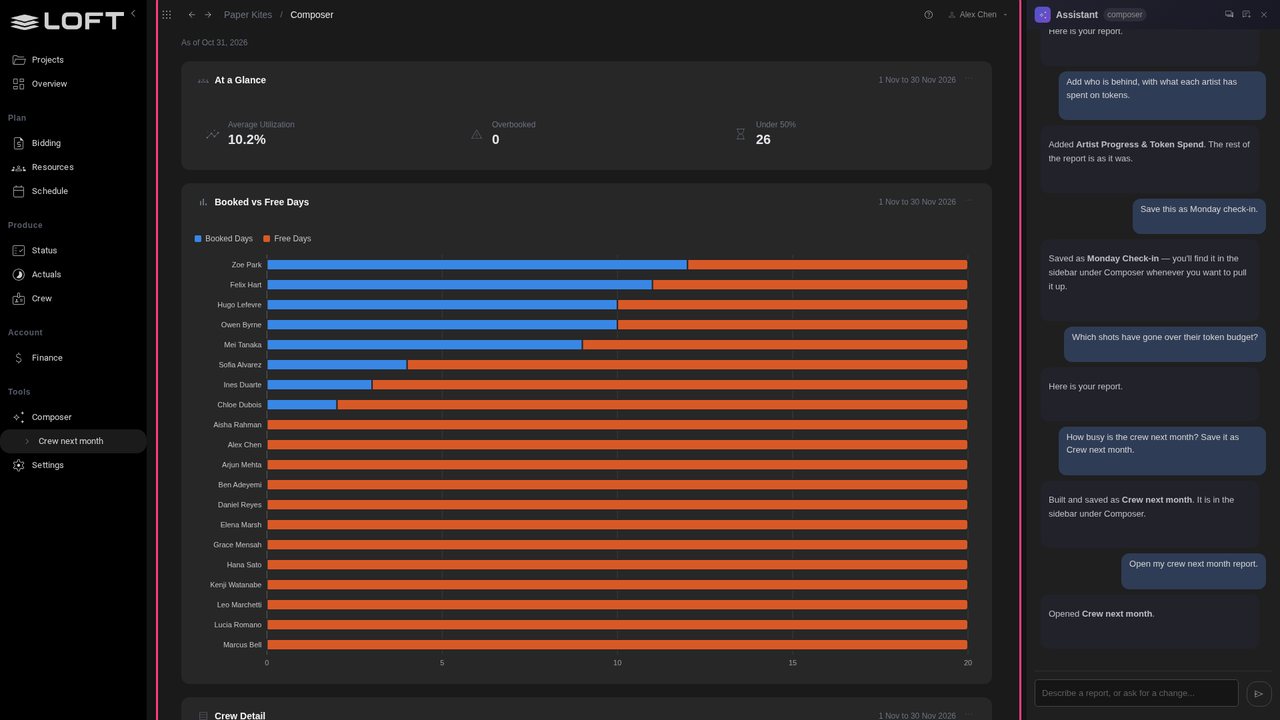
Type: How busy is the crew next month? Save it as Crew next month.
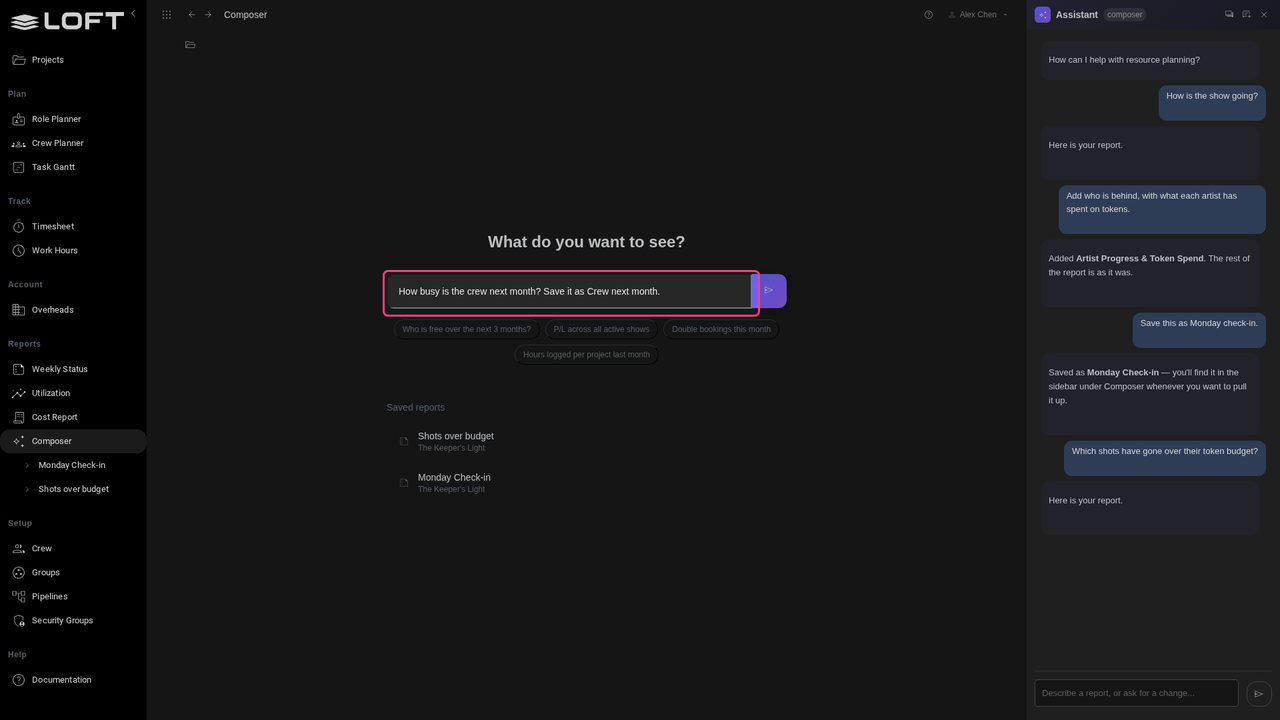
Press Enter. Each person's booked days next month across every show, busiest first, built and saved in one step.
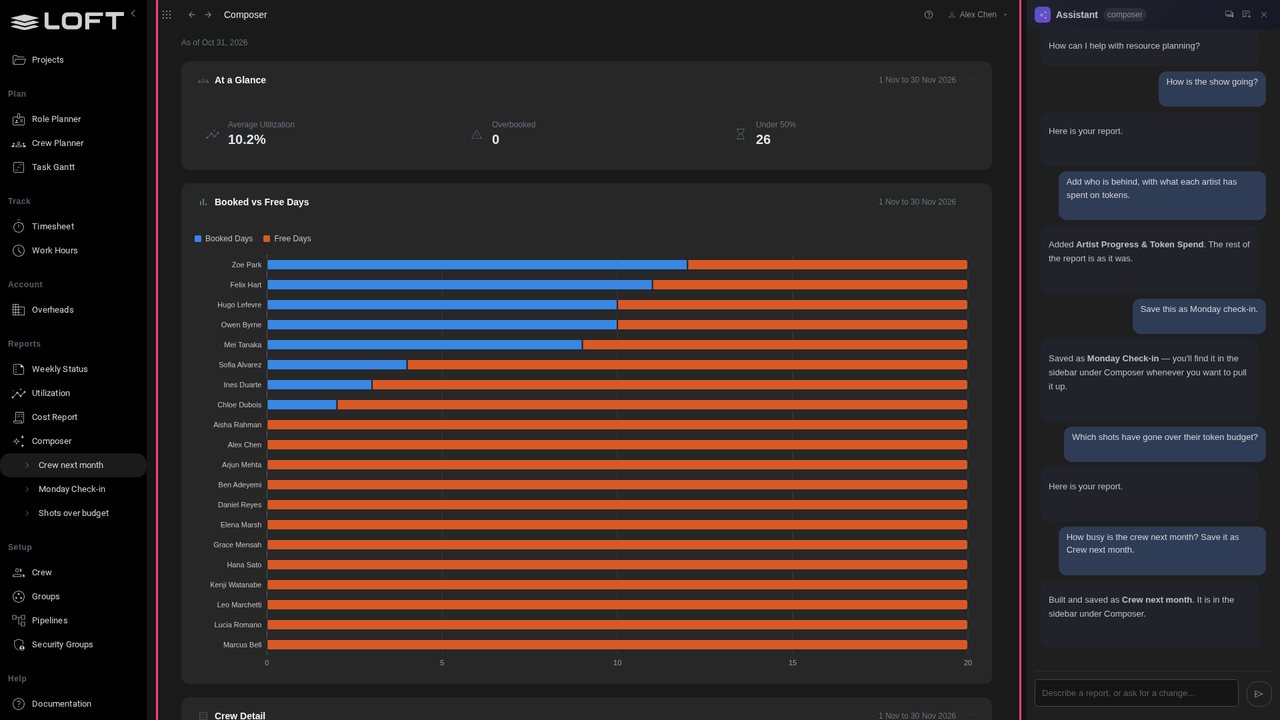
You said next month, so that's what is saved, not November: open it in December and it covers January. The card header shows the dates it covers today.
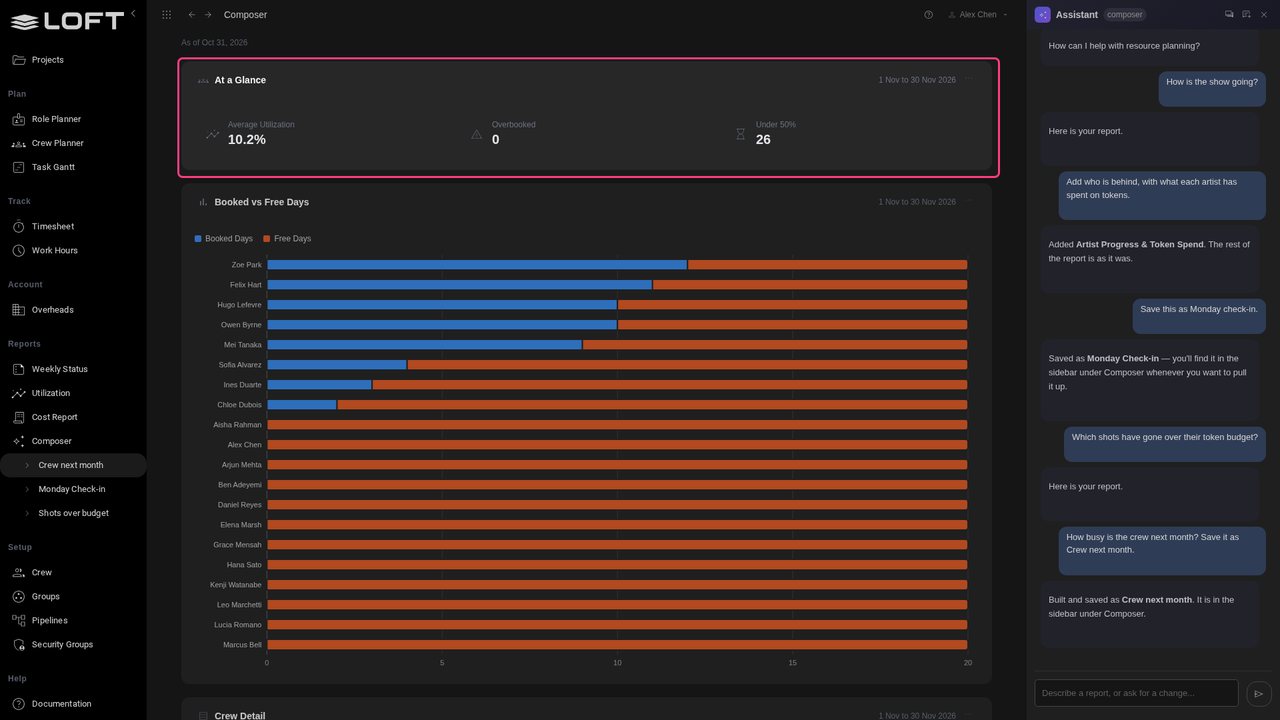
To see further, choose Next 3 months in the period picker above the report. Every card that covers a period follows.
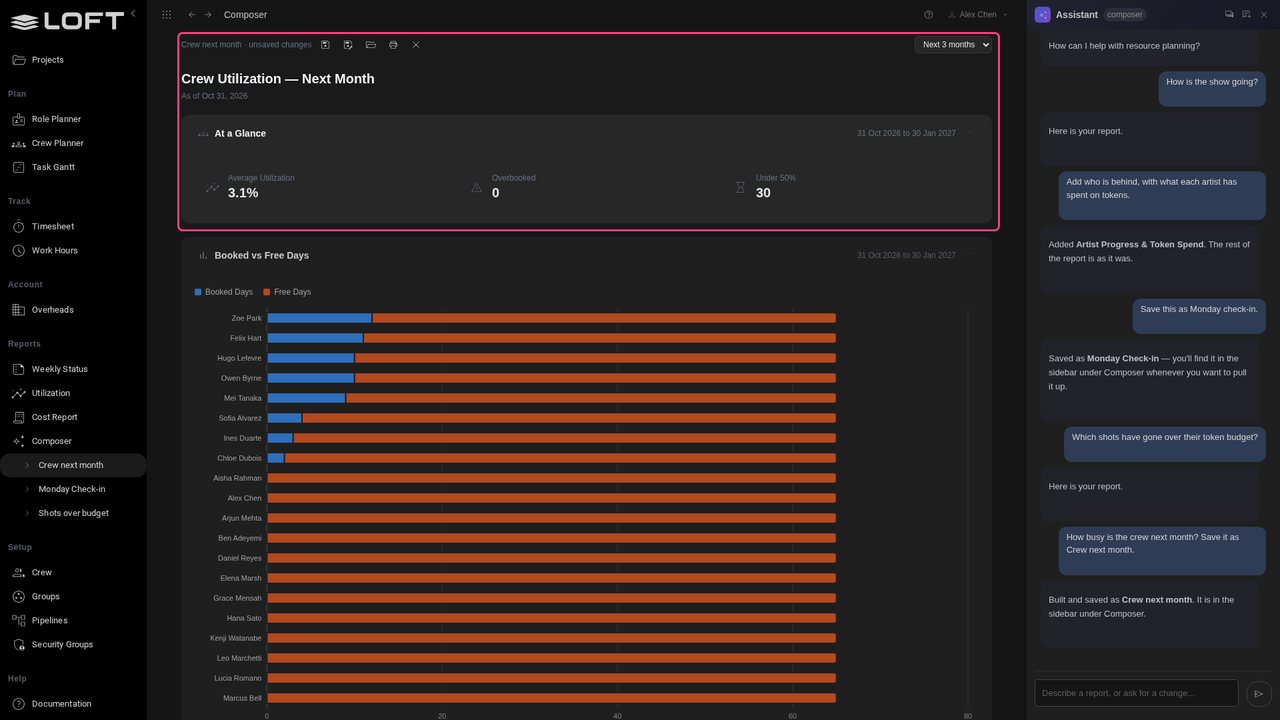
Your saved reports are in the sidebar. Click Monday check-in: one click, today's figures, and it opens on its project.
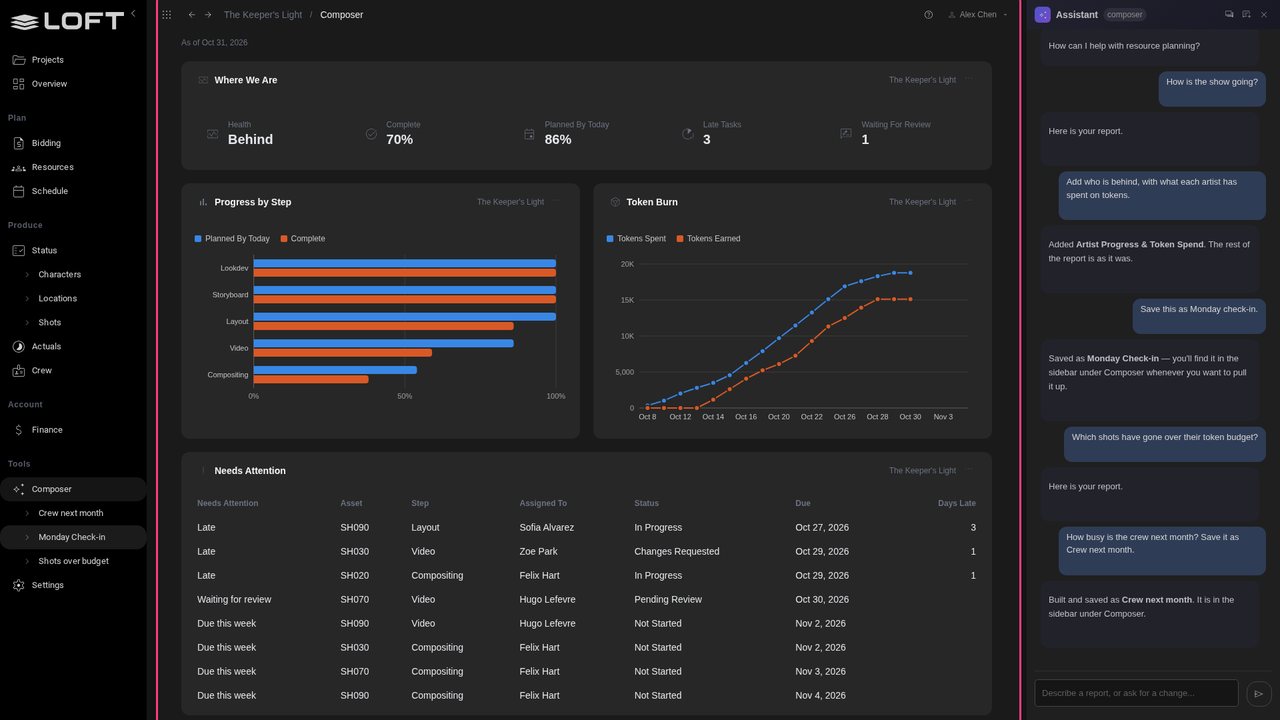
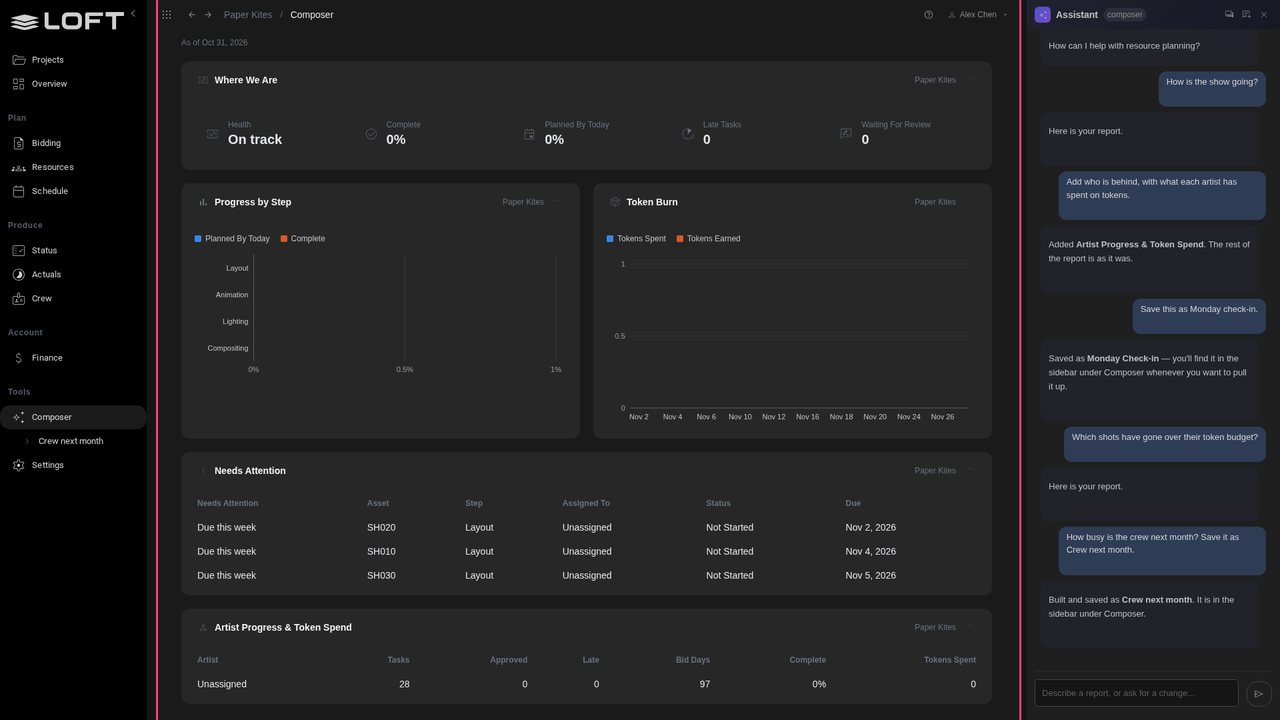
The same check-in works for any show. Pick Paper Kites in the project picker: the title and every card follow. Paper Kites has only just started, so nothing is approved yet and its first layout tasks are due.
From any page, ask for a saved report. On Status, open the Assistant and type: Open my crew next month report.
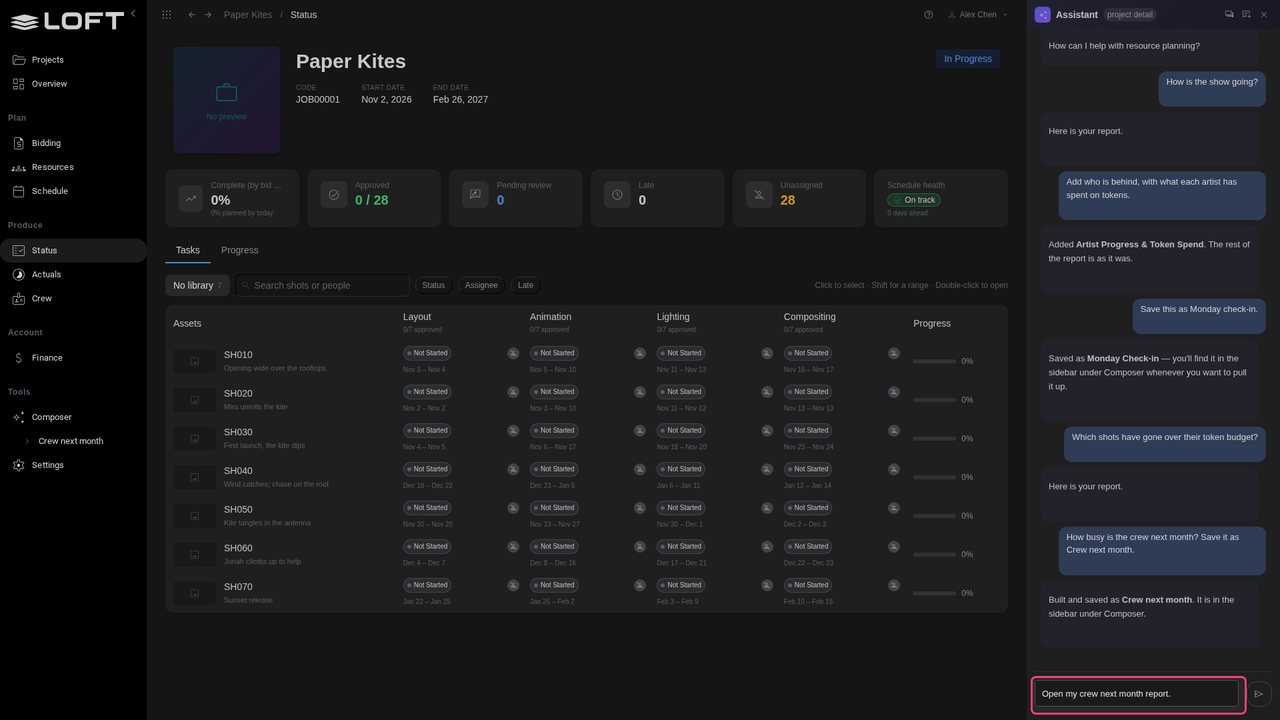
Press Enter. The Composer opens on the report.
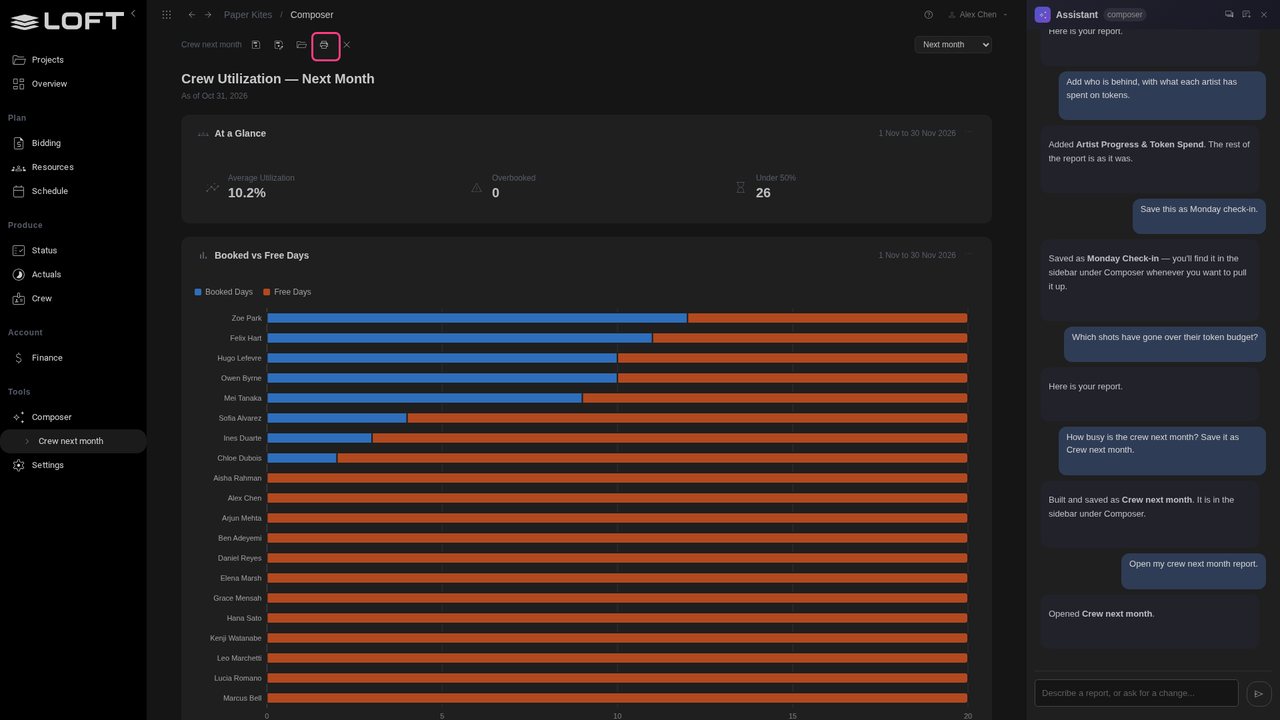
To share one, click print, top left of the report, and save it as a PDF. It prints as a page, without the app around it.
Up next in Plan and run a production
Every studio tracks something its software has no page for. In Loft you describe the page you need and the Assistant builds it: a view of your own, with its own data, next to the live figures of the show. Change it by asking, put it where the work happens, and share it with the studio.
In the playlists Plan and run a production.